> ## Documentation Index
> Fetch the complete documentation index at: https://docs.morada.ai/llms.txt
> Use this file to discover all available pages before exploring further.
# Connect CV CRM
> How to connect your CV CRM account to Morada OS, what the assistant can read and record, and how to disconnect whenever you want.
CV CRM (Construtor de Vendas) is where a developer's sales team tracks leads, reservations, buyers and service requests. Connecting CV to Morada OS lets you ask about all of that in plain language ("which reservations are under commercial review?") and ask the assistant to record things back into CV, always with your approval.
***
## Before you start
An active account at [os.morada.ai](https://os.morada.ai), with your company's corporate login.
Your company's CV address (the part before `.cvcrm.com.br`) and your login e-mail. To sign in you use **your password** or **an administrative token**, whichever you have.
The connection is personal. Each person connects their own CV access, and the assistant sees exactly what that access sees: no more, no less. If your user cannot see a module in CV, neither can the assistant.
### Password or token?
* **Password**: the one you use to sign in to the CV panel. It is the path for brokers, managers and agencies, and the only one that allows updating a buyer's record.
* **Administrative token**: a key generated in CV under **Integrações**, tied to an administrator user. Only a CV administrator can generate one, and it can be revoked there at any time without changing a password.
Morada OS stores what you enter encrypted and never shows it back, not even to you.
***
## How to connect
In the Morada OS sidebar, click **Conectores**. The page shows the accounts and systems available.
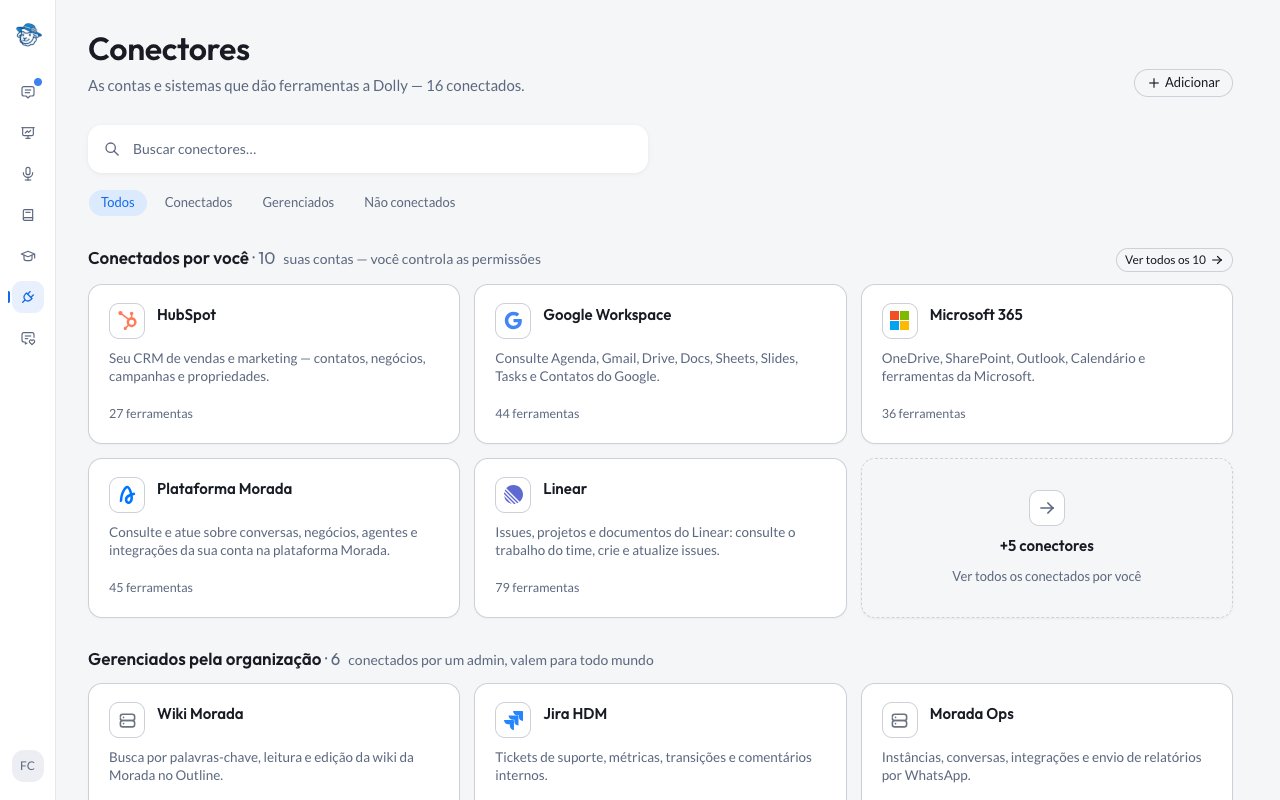 Find the **CV CRM** card and click **Conectar**. If the shelf is crowded, use the search at the top.
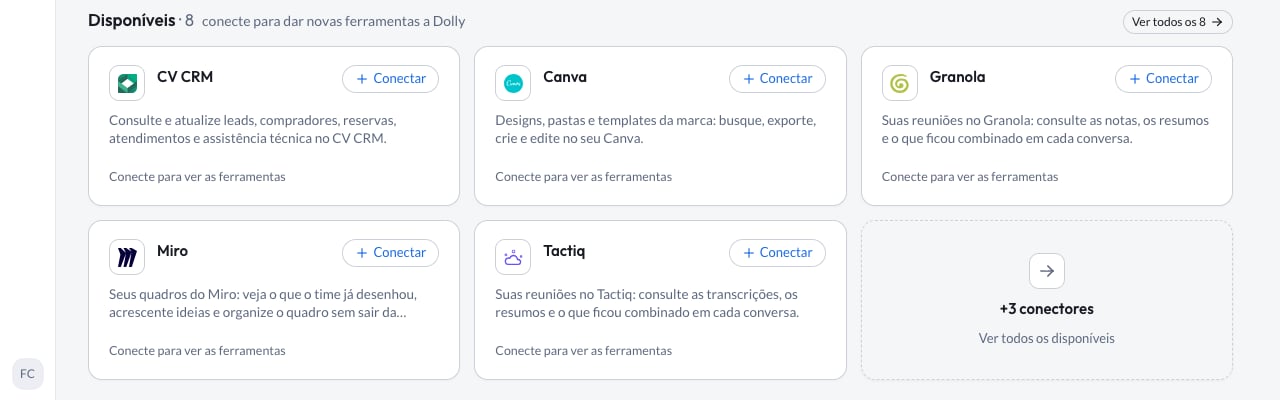 A short form appears on the card itself:
* **Ambiente**: just your CV's name, without the rest of the address. If you sign in at `yourcompany.cvcrm.com.br`, type `yourcompany`.
* **E-mail**: the e-mail you sign in to CV with.
* **Conectar com**: choose **Senha** (password) or **Token administrativo** and fill in the box that appears.
A short form appears on the card itself:
* **Ambiente**: just your CV's name, without the rest of the address. If you sign in at `yourcompany.cvcrm.com.br`, type `yourcompany`.
* **E-mail**: the e-mail you sign in to CV with.
* **Conectar com**: choose **Senha** (password) or **Token administrativo** and fill in the box that appears.
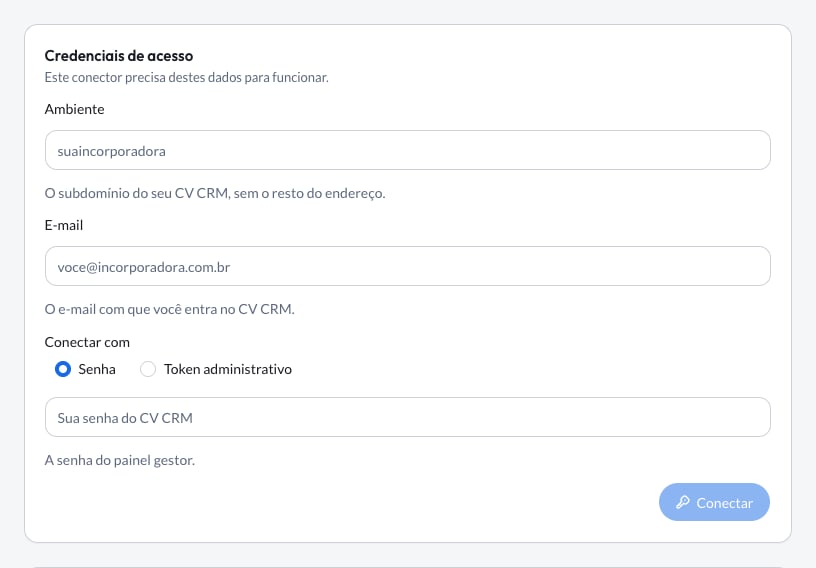 Click **Conectar**. Morada OS checks the access with CV right away; if something is wrong, the form says so and you fix it without retyping everything.
CV CRM appears under **Conectados por você**. From then on the assistant can look things up in CV whenever you ask.
***
## What the assistant can do
| Lookups (happen right away) | Records (only with your approval) |
| --------------------------------------------------------------------------------------------------------------------------------------------------------------------------- | -------------------------------------------------------------------------------------------------------------------------------------------------------------- |
| **How many**: leads per stage, per broker, per source, per development, with a pending or overdue task. You get the count, not the whole list dumped into the conversation. | Create a lead, fix its data, log an interaction, hand it to a broker and discard it with a reason from your own list. |
| **Your leads**: the assistant finds your own record in CV and filters by it instead of asking which broker you are. | Create, update and close a lead's tasks (password connection only). |
| Leads by phone, document, e-mail or number, with their history of interactions, tasks and service records, plus the address of the lead's page in CV. | Record a service request for a buyer and close one in the states your CV allows. |
| Buyers, a person's registration record, reservations by state, developments and the stages configured in your CV. | Move a lead or a reservation to another pipeline stage, update a buyer's registration data (password connection only) and open a technical assistance request. |
| Service subjects, maintenance items, technical assistance requests and a person's units. | |
The assistant inherits your CV permissions. Modules your user cannot access stay out of its reach, and Morada OS never widens any access.
***
## Adjusting permissions after connecting
There is nothing to configure in CV after connecting: the fine-tuning happens on the Morada OS side. Open **Conectores > CV CRM** and you see two lists, **O que Morada OS pode ler** and **O que Morada OS pode fazer**, with a permission label on each tool:
* **Sempre permitir** (always allow): the tool runs right away when your request needs it. It is the default for lookups, which change nothing.
* **Perguntar antes** (ask first): the assistant asks for your confirmation in the chat before using that tool. It is the default for everything that writes to CV.
You change the label of one tool by clicking it, or use **Aplicar a todas** to change the whole list at once. Nothing runs on its own outside those lists: there is no automatic routine, schedule or background sync. The assistant only touches your CV when you ask, in the conversation.
***
## Day-to-day use
Ask the way you would ask a colleague. A few examples to start with:
Phone numbers and CPFs are your customers' personal data. Use them in the chat only to locate the record in CV, inside your company's account, and do not copy them outside Morada OS or into conversations shared with people who do not need them.
```text wrap theme={null}
How many leads are in Visita Agendada? And how many of those have an overdue task?
```
```text wrap theme={null}
Which reservations are under commercial review? Bring the development, the unit and the broker for each one.
```
```text wrap theme={null}
Summarize the history of the lead with phone [phone] before I call: what has been discussed and what is still pending.
```
```text wrap theme={null}
Record a service request for the buyer with document [document] under the subject "Inspection" with this summary: [paste your notes here].
```
The last request changes CV, so it goes through your approval: the assistant drafts the record, shows exactly what will be saved and waits for you to click **Aprovar**. Nothing reaches CV before that, and you can adjust or cancel.
Want better results? Read [How to ask well](/morada-os/en/use-cases/how-to-ask-well): three minutes that improve every request you make.
***
## How to disconnect
Go to **Conectores** in the sidebar and click the **CV CRM** card.
Click **Desvincular** and confirm.
The access stored by Morada OS is deleted immediately and the assistant stops reaching your CV. If you connected with an administrative token and want to end it on the CV side as well, revoke the token under **Integrações** in the CV panel.
***
## Common problems
CV refused the access you entered. Check the **Ambiente** (just the name, no `https://` and no `.cvcrm.com.br`), the e-mail and the password or token. A token only works together with the e-mail of the administrator who generated it.
Your CV access does not reach that module (technical assistance, for example). Ask your company's CV administrator to enable the module for your user. Reconnecting does not help, because the permission lives in CV.
CV stopped accepting the stored access, for example after a password change or a revoked token. Unlink CV CRM under **Conectores** and connect again.
That update only works with a **password** connection. If you connected with an administrative token, unlink and connect again choosing **Senha**.
Check the phone or document used in the search and whether the lead lives in the same environment you connected. Ask for a search by name as an alternative.
* **Help center**: [support.morada.ai](https://support.morada.ai)
* **E-mail**: `suporte@morada.ai`
* **Platform status**: [status.morada.ai](https://status.morada.ai)
***
## Next steps
Everything else Morada OS connects to and where to find each guide.
Three minutes that improve every request you make to the assistant.
Click **Conectar**. Morada OS checks the access with CV right away; if something is wrong, the form says so and you fix it without retyping everything.
CV CRM appears under **Conectados por você**. From then on the assistant can look things up in CV whenever you ask.
***
## What the assistant can do
| Lookups (happen right away) | Records (only with your approval) |
| --------------------------------------------------------------------------------------------------------------------------------------------------------------------------- | -------------------------------------------------------------------------------------------------------------------------------------------------------------- |
| **How many**: leads per stage, per broker, per source, per development, with a pending or overdue task. You get the count, not the whole list dumped into the conversation. | Create a lead, fix its data, log an interaction, hand it to a broker and discard it with a reason from your own list. |
| **Your leads**: the assistant finds your own record in CV and filters by it instead of asking which broker you are. | Create, update and close a lead's tasks (password connection only). |
| Leads by phone, document, e-mail or number, with their history of interactions, tasks and service records, plus the address of the lead's page in CV. | Record a service request for a buyer and close one in the states your CV allows. |
| Buyers, a person's registration record, reservations by state, developments and the stages configured in your CV. | Move a lead or a reservation to another pipeline stage, update a buyer's registration data (password connection only) and open a technical assistance request. |
| Service subjects, maintenance items, technical assistance requests and a person's units. | |
The assistant inherits your CV permissions. Modules your user cannot access stay out of its reach, and Morada OS never widens any access.
***
## Adjusting permissions after connecting
There is nothing to configure in CV after connecting: the fine-tuning happens on the Morada OS side. Open **Conectores > CV CRM** and you see two lists, **O que Morada OS pode ler** and **O que Morada OS pode fazer**, with a permission label on each tool:
* **Sempre permitir** (always allow): the tool runs right away when your request needs it. It is the default for lookups, which change nothing.
* **Perguntar antes** (ask first): the assistant asks for your confirmation in the chat before using that tool. It is the default for everything that writes to CV.
You change the label of one tool by clicking it, or use **Aplicar a todas** to change the whole list at once. Nothing runs on its own outside those lists: there is no automatic routine, schedule or background sync. The assistant only touches your CV when you ask, in the conversation.
***
## Day-to-day use
Ask the way you would ask a colleague. A few examples to start with:
Phone numbers and CPFs are your customers' personal data. Use them in the chat only to locate the record in CV, inside your company's account, and do not copy them outside Morada OS or into conversations shared with people who do not need them.
```text wrap theme={null}
How many leads are in Visita Agendada? And how many of those have an overdue task?
```
```text wrap theme={null}
Which reservations are under commercial review? Bring the development, the unit and the broker for each one.
```
```text wrap theme={null}
Summarize the history of the lead with phone [phone] before I call: what has been discussed and what is still pending.
```
```text wrap theme={null}
Record a service request for the buyer with document [document] under the subject "Inspection" with this summary: [paste your notes here].
```
The last request changes CV, so it goes through your approval: the assistant drafts the record, shows exactly what will be saved and waits for you to click **Aprovar**. Nothing reaches CV before that, and you can adjust or cancel.
Want better results? Read [How to ask well](/morada-os/en/use-cases/how-to-ask-well): three minutes that improve every request you make.
***
## How to disconnect
Go to **Conectores** in the sidebar and click the **CV CRM** card.
Click **Desvincular** and confirm.
The access stored by Morada OS is deleted immediately and the assistant stops reaching your CV. If you connected with an administrative token and want to end it on the CV side as well, revoke the token under **Integrações** in the CV panel.
***
## Common problems
CV refused the access you entered. Check the **Ambiente** (just the name, no `https://` and no `.cvcrm.com.br`), the e-mail and the password or token. A token only works together with the e-mail of the administrator who generated it.
Your CV access does not reach that module (technical assistance, for example). Ask your company's CV administrator to enable the module for your user. Reconnecting does not help, because the permission lives in CV.
CV stopped accepting the stored access, for example after a password change or a revoked token. Unlink CV CRM under **Conectores** and connect again.
That update only works with a **password** connection. If you connected with an administrative token, unlink and connect again choosing **Senha**.
Check the phone or document used in the search and whether the lead lives in the same environment you connected. Ask for a search by name as an alternative.
* **Help center**: [support.morada.ai](https://support.morada.ai)
* **E-mail**: `suporte@morada.ai`
* **Platform status**: [status.morada.ai](https://status.morada.ai)
***
## Next steps
Everything else Morada OS connects to and where to find each guide.
Three minutes that improve every request you make to the assistant.