> ## Documentation Index
> Fetch the complete documentation index at: https://docs.morada.ai/llms.txt
> Use this file to discover all available pages before exploring further.
# Connect HubSpot
> How to connect your HubSpot account to Morada OS, what the assistant can read and record, and how to disconnect whenever you want.
HubSpot is where many teams keep contacts, companies, deals, and each customer's history. Connecting HubSpot to Morada OS lets you ask about that content in plain language ("which deals went quiet?") and ask the assistant to record things back into the CRM, always with your approval.
The product interface is currently in Portuguese, so Morada OS labels below are shown as they appear on screen, with English translations in parentheses.
***
## Before you start
An active account at [os.morada.ai](https://os.morada.ai), using your company's corporate login.
A HubSpot account allowed to install apps: **Super Admin** or the **App Marketplace access** permission. If you don't have it, ask your company's HubSpot administrator.
The connection is per person. Each user connects their own HubSpot account, and the assistant sees exactly what that account sees: no more, no less.
***
## How to connect
In the Morada OS side menu, click **Conectores** (Connectors). The page shows the available accounts and systems.
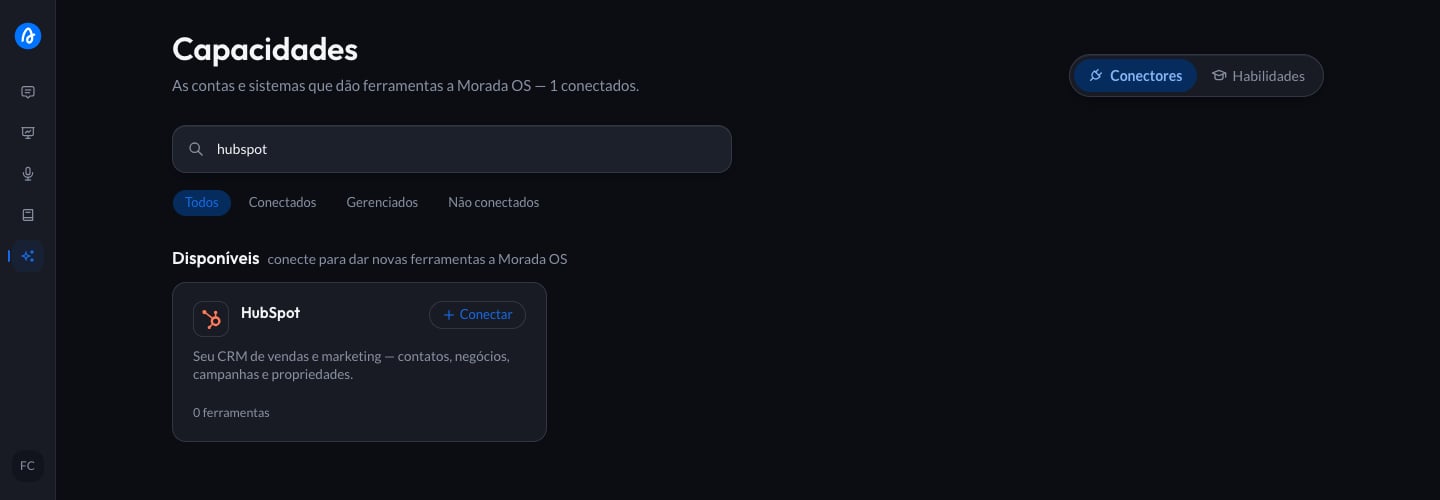
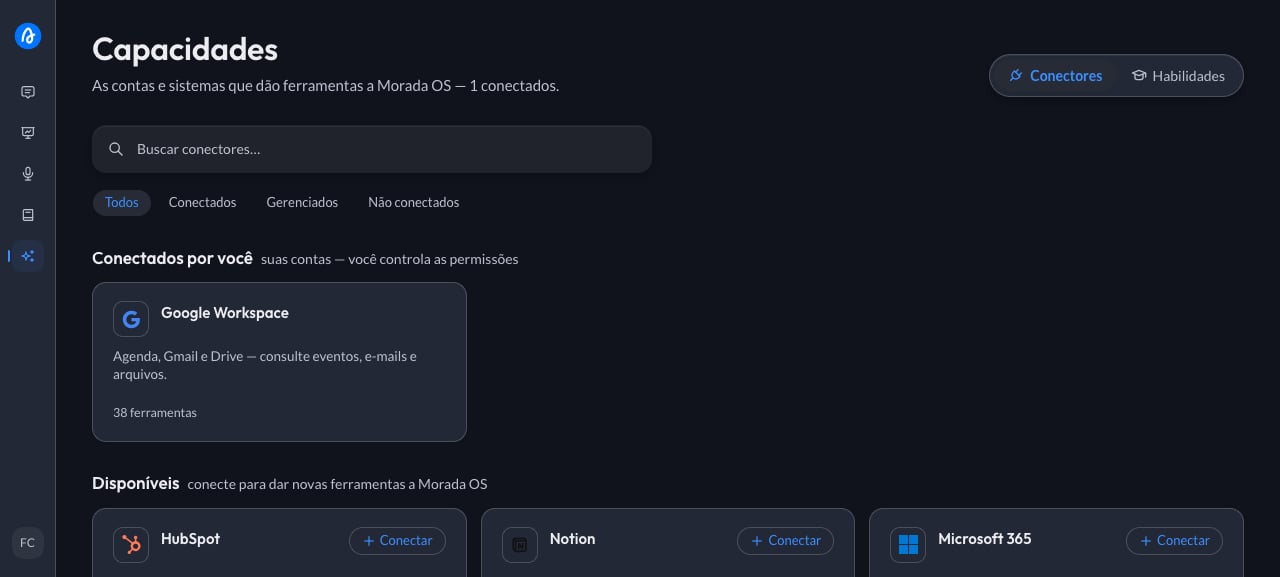 Find the **HubSpot** card and click **Conectar** (Connect). If the shelf is crowded, use the search box at the top.
 HubSpot opens in its own window. If you are not signed in yet, sign in with your email. Then select the account (portal) you want to connect and click **Escolher conta** (Choose account).
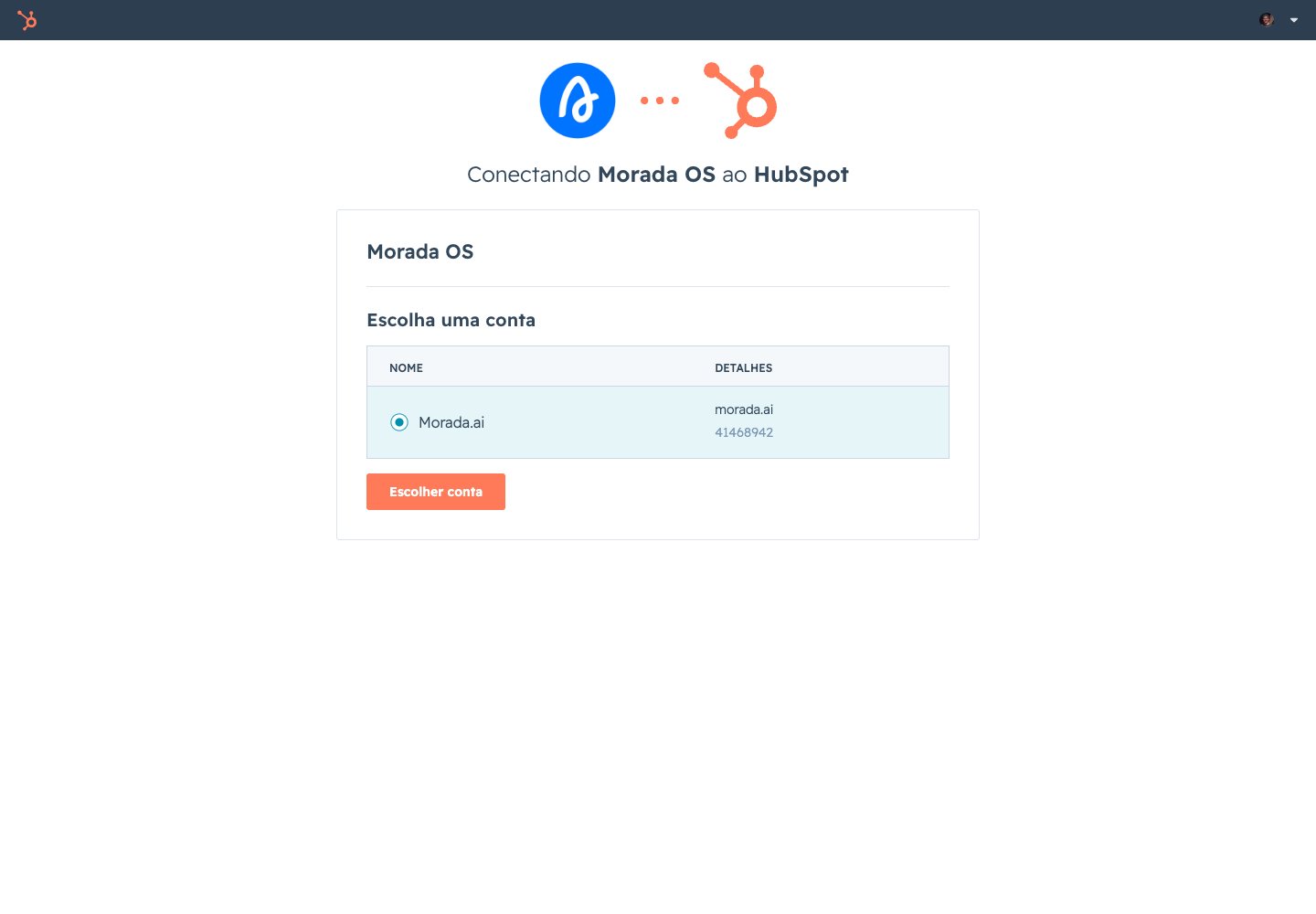 Companies with more than one HubSpot account hold different data in each. Check the account name and number before moving on.
HubSpot lists what Morada OS will be able to access in your account and asks for authorization. Review it and click **Conectar aplicativo** (Connect app).
Companies with more than one HubSpot account hold different data in each. Check the account name and number before moving on.
HubSpot lists what Morada OS will be able to access in your account and asks for authorization. Review it and click **Conectar aplicativo** (Connect app).
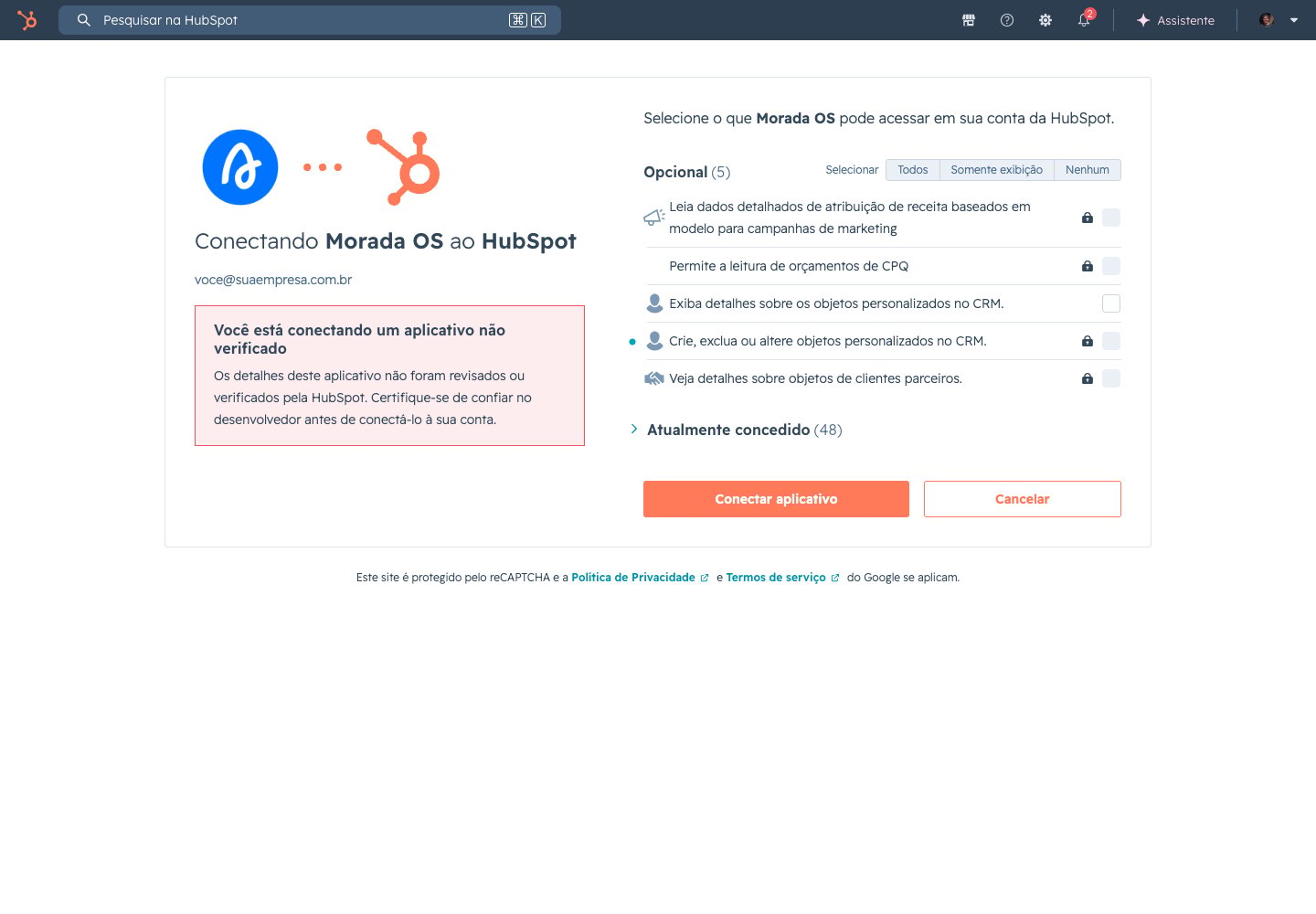 While the Morada OS app completes its HubSpot App Marketplace listing, HubSpot shows an unverified-app notice and asks you to type **Eu aceito o risco** (I accept the risk) to continue. See [what that means](#common-problems) below.
You land back in Morada OS and HubSpot appears under **Conectados por você** (Connected by you). From there the assistant can query the CRM whenever you ask.
***
## What the assistant can do
| Queries (run directly) | Records (only with your approval) |
| ----------------------------------------------------------------------- | --------------------------------------------------------------- |
| Contacts, companies, deals, and tickets. | Create and update contacts, companies, deals, and tickets. |
| A customer's history: notes, tasks, emails, calls, and logged meetings. | Log a note, task, email, call, or meeting on a contact or deal. |
| Owners, pipeline stages, and your account's custom properties. | Associate a new record with the right contact or deal. |
The assistant inherits your HubSpot permissions. If your account can't see a pipeline or a team, neither can the assistant. Morada OS never widens an access you don't have.
***
## Adjusting permissions after you connect
There is nothing to configure on the HubSpot side after connecting: the fine-tuning lives in Morada OS. Open **Conectores > HubSpot** (Connectors) and you see two lists, **O que Morada OS pode ler** (What Morada OS can read) and **O que Morada OS pode fazer** (What Morada OS can do), with a permission pill on each tool:
* **Sempre permitir** (Always allow): the tool runs directly whenever your request needs it. This is the default for queries, which change nothing.
* **Perguntar antes** (Ask first): the assistant asks for your confirmation in the chat before using that tool. This is the default for anything that writes to the CRM.
You can change the pill on a specific tool, or use **Aplicar a todas** (Apply to all) to change the whole list at once. Nothing runs outside these lists: there is no automatic routine, schedule, or background sync. The assistant touches your HubSpot only when you ask, in the conversation.
***
## Using it day to day
Ask in plain language, the way you would ask a colleague. A few examples to start with:
```text wrap theme={null}
Which deals have been stuck for more than 15 days? Give me the amount, the stage, and the owner of each one.
```
```text wrap theme={null}
Summarize the history of contact [customer name] before my meeting tomorrow: what was discussed, what is pending, and the points to watch.
```
```text wrap theme={null}
Log a note on deal [deal name] with today's conversation summary: [paste your notes here].
```
The third one changes the CRM, so it goes through your approval: the assistant assembles the record, shows exactly what will be saved, and waits for you to click **Aprovar** (Approve). Nothing reaches HubSpot before that, and you can adjust or cancel.
Want better results? Read [How to ask well](/morada-os/en/use-cases/how-to-ask-well): a three-minute read that improves every request you make.
***
## How to disconnect in Morada OS
Go to **Conectores** (Connectors) in the side menu and click the **HubSpot** card.
Click **Desvincular** (Unlink) and confirm.
The authorization stored by Morada OS is deleted immediately and the assistant stops accessing your HubSpot.
Unlinking settles the Morada OS side. To end the authorization on the HubSpot side as well, remove the app from your account as shown in the next section.
***
## How to uninstall Morada OS from your HubSpot account
In HubSpot, click the **settings** icon in the top navigation bar.
In the left sidebar menu, go to **Integrations > Connected Apps**.
On the **Morada OS** app, click **Actions > Uninstall**.
Type `uninstall` in the confirmation box and finish. Access ends immediately.
Uninstalling requires the same permission as installing: **Super Admin** or **App Marketplace access**.
***
## Common problems
Right after you authorize, HubSpot shows a security screen asking you to type **Eu aceito o risco** (I accept the risk) to continue. This happens with every app that has not finished its HubSpot App Marketplace listing, which is in progress for Morada OS, and does not indicate a problem with the connection. If your company's policy does not allow authorizing apps in that state, talk to your Morada.ai contact before proceeding.
Installing apps in HubSpot requires **Super Admin** or the **App Marketplace access** permission. Ask your company's HubSpot administrator to grant the permission or to connect with their own account.
1. Check that you connected the right account (portal): companies with more than one HubSpot account usually hold different data in each.
2. Confirm that your HubSpot user has access to that pipeline or team. The assistant sees the same as you.
Authorizations can expire, for example when the HubSpot password changes or an administrator revokes the app. Unlink HubSpot under **Conectores** (Connectors) and connect again.
* **Help center**: [support.morada.ai](https://support.morada.ai)
* **Email**: `suporte@morada.ai`
* **Platform status**: [status.morada.ai](https://status.morada.ai)
***
## Next steps
Ready-made recipes for everyday work: copy the request, paste it into the chat, adapt it.
What the assistant sees, what it never does on its own, and how your data is handled.
While the Morada OS app completes its HubSpot App Marketplace listing, HubSpot shows an unverified-app notice and asks you to type **Eu aceito o risco** (I accept the risk) to continue. See [what that means](#common-problems) below.
You land back in Morada OS and HubSpot appears under **Conectados por você** (Connected by you). From there the assistant can query the CRM whenever you ask.
***
## What the assistant can do
| Queries (run directly) | Records (only with your approval) |
| ----------------------------------------------------------------------- | --------------------------------------------------------------- |
| Contacts, companies, deals, and tickets. | Create and update contacts, companies, deals, and tickets. |
| A customer's history: notes, tasks, emails, calls, and logged meetings. | Log a note, task, email, call, or meeting on a contact or deal. |
| Owners, pipeline stages, and your account's custom properties. | Associate a new record with the right contact or deal. |
The assistant inherits your HubSpot permissions. If your account can't see a pipeline or a team, neither can the assistant. Morada OS never widens an access you don't have.
***
## Adjusting permissions after you connect
There is nothing to configure on the HubSpot side after connecting: the fine-tuning lives in Morada OS. Open **Conectores > HubSpot** (Connectors) and you see two lists, **O que Morada OS pode ler** (What Morada OS can read) and **O que Morada OS pode fazer** (What Morada OS can do), with a permission pill on each tool:
* **Sempre permitir** (Always allow): the tool runs directly whenever your request needs it. This is the default for queries, which change nothing.
* **Perguntar antes** (Ask first): the assistant asks for your confirmation in the chat before using that tool. This is the default for anything that writes to the CRM.
You can change the pill on a specific tool, or use **Aplicar a todas** (Apply to all) to change the whole list at once. Nothing runs outside these lists: there is no automatic routine, schedule, or background sync. The assistant touches your HubSpot only when you ask, in the conversation.
***
## Using it day to day
Ask in plain language, the way you would ask a colleague. A few examples to start with:
```text wrap theme={null}
Which deals have been stuck for more than 15 days? Give me the amount, the stage, and the owner of each one.
```
```text wrap theme={null}
Summarize the history of contact [customer name] before my meeting tomorrow: what was discussed, what is pending, and the points to watch.
```
```text wrap theme={null}
Log a note on deal [deal name] with today's conversation summary: [paste your notes here].
```
The third one changes the CRM, so it goes through your approval: the assistant assembles the record, shows exactly what will be saved, and waits for you to click **Aprovar** (Approve). Nothing reaches HubSpot before that, and you can adjust or cancel.
Want better results? Read [How to ask well](/morada-os/en/use-cases/how-to-ask-well): a three-minute read that improves every request you make.
***
## How to disconnect in Morada OS
Go to **Conectores** (Connectors) in the side menu and click the **HubSpot** card.
Click **Desvincular** (Unlink) and confirm.
The authorization stored by Morada OS is deleted immediately and the assistant stops accessing your HubSpot.
Unlinking settles the Morada OS side. To end the authorization on the HubSpot side as well, remove the app from your account as shown in the next section.
***
## How to uninstall Morada OS from your HubSpot account
In HubSpot, click the **settings** icon in the top navigation bar.
In the left sidebar menu, go to **Integrations > Connected Apps**.
On the **Morada OS** app, click **Actions > Uninstall**.
Type `uninstall` in the confirmation box and finish. Access ends immediately.
Uninstalling requires the same permission as installing: **Super Admin** or **App Marketplace access**.
***
## Common problems
Right after you authorize, HubSpot shows a security screen asking you to type **Eu aceito o risco** (I accept the risk) to continue. This happens with every app that has not finished its HubSpot App Marketplace listing, which is in progress for Morada OS, and does not indicate a problem with the connection. If your company's policy does not allow authorizing apps in that state, talk to your Morada.ai contact before proceeding.
Installing apps in HubSpot requires **Super Admin** or the **App Marketplace access** permission. Ask your company's HubSpot administrator to grant the permission or to connect with their own account.
1. Check that you connected the right account (portal): companies with more than one HubSpot account usually hold different data in each.
2. Confirm that your HubSpot user has access to that pipeline or team. The assistant sees the same as you.
Authorizations can expire, for example when the HubSpot password changes or an administrator revokes the app. Unlink HubSpot under **Conectores** (Connectors) and connect again.
* **Help center**: [support.morada.ai](https://support.morada.ai)
* **Email**: `suporte@morada.ai`
* **Platform status**: [status.morada.ai](https://status.morada.ai)
***
## Next steps
Ready-made recipes for everyday work: copy the request, paste it into the chat, adapt it.
What the assistant sees, what it never does on its own, and how your data is handled.