> ## Documentation Index
> Fetch the complete documentation index at: https://docs.morada.ai/llms.txt
> Use this file to discover all available pages before exploring further.
# Microsoft 365: administrator guide
> For the Microsoft 365 administrator: what you approve, what you release to the organization, how to grant SharePoint access, and how to revoke.
This page is for your organization's **Microsoft 365 administrator**. When you finish, the team can ask the assistant to read and analyze documents, email, calendar, and Teams, within the limits you set here.
It takes about 15 minutes. You don't have to create anything in Azure: the application already exists and is maintained by Morada.ai. You approve it and choose what to release.
The product interface is currently in Portuguese, so Morada OS labels below are shown as they appear on screen, with English translations in parentheses.
***
## The access model, in four guarantees
All access is **delegated**: the assistant acts on behalf of whoever made the request, with the permissions that person already holds in Microsoft 365. Permissions ending in `.All` mean "on behalf of the user, across everything they already reach", not "access to everything in the company".
Whatever is checked here is the maximum anyone in the company can have. Unchecking drops access for everyone, including people who had already allowed it on their own account. It is your revocation lever, and it is immediate.
Releasing here authorizes the organization. Each person still allows it on their own account before using it and, to write (send email, create an event, save a file), approves each action at the moment it happens.
Either you grant access site by site in Microsoft (fine-grained control), or you check the SharePoint rows on this screen (simpler, limited to what each person already accesses). Step 3 covers both.
***
## What you do
Connect your own Microsoft account under **Conectores > Microsoft 365** (Connectors) and, in the **Administração** (Administration) tab, enable management.
Microsoft asks for your approval on two permissions:
| Permission | What for |
| ---------------------------------------- | --------------------------------------------------------------------------------------------------- |
| `Application.Read.All` | Discover the application's identifier in your tenant, needed to build the grant. Changes nothing. |
| `DelegatedPermissionGrant.ReadWrite.All` | What lets you turn permissions on and off from the Morada screen, without opening the Azure portal. |
The second is the strongest on the list, so here are the safeguards, explicitly:
* There is no permanent credential: this capability lives only in your session, on an isolated connection, and the AI tools never receive it.
* The code only writes Morada's own permissions. There is no path to grant anything else, or to grant it to another application.
* Your consent policy and directory role remain the real control: without the proper role, Microsoft refuses the operation.
* The tab does not appear for non-administrators.
On Microsoft's consent screen the application appears as **Morada OS**. Managing permissions requires a role such as **Cloud Application Administrator** or equivalent in Microsoft Entra.
Still in the **Administração** tab, check what makes sense for your company. Each service opens into a list of individual permissions: you can turn on the whole service or pick permission by permission.
**OneDrive**
| Permission | What it allows |
| ----------------- | ---------------------------------------- |
| `Files.Read` | Read the user's OneDrive files. |
| `Files.ReadWrite` | Read and edit the user's OneDrive files. |
**SharePoint**
| Permission | What it allows |
| --------------------- | ---------------------------------------------------------------------------------------------------------------------------------------------------------------------- |
| `Sites.Selected` | Access only the SharePoint sites you grant in step 3. |
| `Files.Read.All` | Read every file the user can access. |
| `Files.ReadWrite.All` | Create and edit every file the user can access: their OneDrive, any site's document libraries, and files shared with them. Replaces site-by-site granting for writing. |
**SharePoint (all sites)**
| Permission | What it allows |
| ---------------- | --------------------------------------------------------------------------------------------------------------------------------------- |
| `Sites.Read.All` | Find any site the user already accesses and read its content: list items and library files. Replaces site-by-site granting for reading. |
**Outlook**
| Permission | What it allows |
| ---------------------------------------- | -------------------------------------------- |
| `Mail.Read` · `Calendars.Read` | Read the user's email and calendar. |
| `Mail.ReadWrite` · `Calendars.ReadWrite` | Read and edit the user's email and calendar. |
| `Mail.Send` | Send email on the user's behalf. |
**Teams**
| Permission | What it allows |
| ---------------------------------------------- | -------------------------------------------- |
| `Team.ReadBasic.All` · `Channel.ReadBasic.All` | See team and channel names and descriptions. |
| `Chat.Read` | Read the user's Teams chats. |
| `ChannelMessage.Read.All` | Read channel messages. |
Check only what the team will use now. Turning on more later takes ten seconds.
Three operational notes:
1. **Writing depends on reading.** Revoking a read permission drops the write that depended on it, and the screen warns you before saving.
2. **Checking `Files.ReadWrite.All` turns on the SharePoint reads with it.** Not a side effect: that permission already grants those reads in Microsoft, and the screen refuses a selection that pretends otherwise.
3. **Changing permissions recreates the authorization from scratch.** If an error appears mid-change, check them again: nothing stays permanently half-applied.
Pick one of the two paths.
**Path A: site by site, in Microsoft.** For each site the team should reach, grant the application permission on that site, choosing the role (read, or read and write). The grant is made through the Microsoft Graph API (`POST /sites/{id}/permissions`). It is the only step that does not happen inside Morada OS, and that is deliberate: this is where you keep fine-grained control. Until a site is granted, it simply does not exist for the assistant.
**Path B: from the Morada OS screen.** Check `Sites.Read.All` (to read) and `Files.ReadWrite.All` (to write) in step 2. You don't have to touch any site: the assistant reaches the sites **each person already accesses**, never more than that, because access stays delegated.
Path A is the most restrictive, path B the most practical. You can start with A and move later.
Releasing permissions for the organization does **not** refresh your own session. Go back to **Microsoft 365** and reconnect your account once: only then do the tools show as released for you. This applies to everyone, not just you.
If you release something and test before reconnecting, it will look like it didn't work.
***
## What each person on the team does
Under **Conectores > Microsoft 365** (Connectors). The first sign-in asks only for identity (name, email, and permission to keep the session). No content access.
When a request needs something not yet released, a card appears in the conversation asking for that specific permission, and only that one, always within what you checked in step 2.
To send an email, create an event, or save a document, the person allows writing on their own account and approves each action before it happens. This applies to everyone, administrators included.
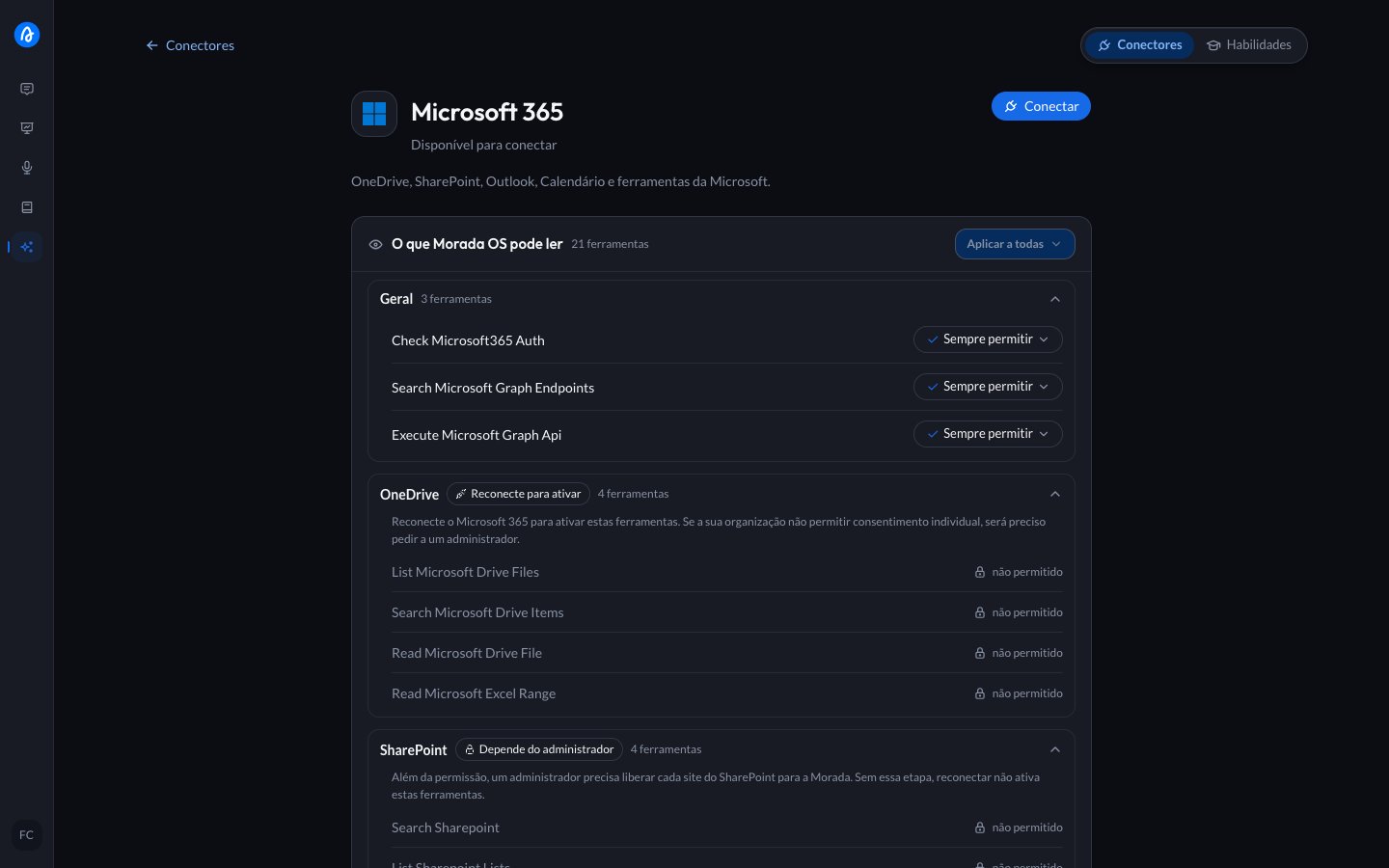 **Reading documents does not require write permission.** The assistant opens `.docx`, `.pptx`, `.xlsx`, `.xls`, and `.csv` files already in OneDrive or SharePoint to summarize and analyze them, with nobody having to attach anything in the conversation, and `Files.Read` (or SharePoint read access) is enough. That includes reading Excel spreadsheets.
***
## How to revoke access
Three paths, from fastest to most definitive:
| Path | Who does it | Effect |
| ------------------------------------ | ----------------------- | -------------------------------------------------------------------------------------------------------------------------------------------------------------------------------------------------------------------------------------------------------------------------- |
| **Uncheck in the Administração tab** | Administrator | Drops that access for the whole organization immediately, including people who had allowed it individually. This is the day-to-day lever. |
| **Unlink in Morada OS** | The person | Deletes the stored credential and the assistant stops acting on their behalf immediately. The authorization in your tenant stays registered, which is why reconnecting later is instant. |
| **Revoke in Microsoft** | Person or administrator | Person: [myapplications.microsoft.com](https://myapplications.microsoft.com) > app > revoke permissions. Organization: Microsoft Entra > **Enterprise applications** > **Morada OS** > **Permissions** > revoke. Removing the application revokes it for everyone at once. |
***
## If something doesn't work
Reconnect your account once. If it persists, tell Morada.ai: a setting in the application is missing, and only we can change it.
Your directory role does not allow managing tenant consent. A role such as **Cloud Application Administrator** or equivalent is required.
Step 3 is missing: neither of the two paths was completed.
You still need to reconnect your account (step 4).
Expected: the first sign-in does not ask for content. The card that appears in the conversation is how each request unlocks what it needs.
Writing is a separate decision: check that the write permission is enabled in step 2 **and** that the person has allowed it on their own account.
Ask the person to unlink and connect again. If it repeats, talk to Morada.ai.
Security questions this page doesn't answer: talk to Morada.ai before approving. One extra question beats a permission released without clarity.
**Reading documents does not require write permission.** The assistant opens `.docx`, `.pptx`, `.xlsx`, `.xls`, and `.csv` files already in OneDrive or SharePoint to summarize and analyze them, with nobody having to attach anything in the conversation, and `Files.Read` (or SharePoint read access) is enough. That includes reading Excel spreadsheets.
***
## How to revoke access
Three paths, from fastest to most definitive:
| Path | Who does it | Effect |
| ------------------------------------ | ----------------------- | -------------------------------------------------------------------------------------------------------------------------------------------------------------------------------------------------------------------------------------------------------------------------- |
| **Uncheck in the Administração tab** | Administrator | Drops that access for the whole organization immediately, including people who had allowed it individually. This is the day-to-day lever. |
| **Unlink in Morada OS** | The person | Deletes the stored credential and the assistant stops acting on their behalf immediately. The authorization in your tenant stays registered, which is why reconnecting later is instant. |
| **Revoke in Microsoft** | Person or administrator | Person: [myapplications.microsoft.com](https://myapplications.microsoft.com) > app > revoke permissions. Organization: Microsoft Entra > **Enterprise applications** > **Morada OS** > **Permissions** > revoke. Removing the application revokes it for everyone at once. |
***
## If something doesn't work
Reconnect your account once. If it persists, tell Morada.ai: a setting in the application is missing, and only we can change it.
Your directory role does not allow managing tenant consent. A role such as **Cloud Application Administrator** or equivalent is required.
Step 3 is missing: neither of the two paths was completed.
You still need to reconnect your account (step 4).
Expected: the first sign-in does not ask for content. The card that appears in the conversation is how each request unlocks what it needs.
Writing is a separate decision: check that the write permission is enabled in step 2 **and** that the person has allowed it on their own account.
Ask the person to unlink and connect again. If it repeats, talk to Morada.ai.
Security questions this page doesn't answer: talk to Morada.ai before approving. One extra question beats a permission released without clarity.