> ## Documentation Index
> Fetch the complete documentation index at: https://docs.morada.ai/llms.txt
> Use this file to discover all available pages before exploring further.
# Proposals: how a change gets into the Brain and into skills
> Propose, review and apply changes to the Brain and to skills, on the screen or with the assistant, with nothing going in without the OK of whoever looks after the place.
When someone who does not look after a shared place wants to change something in it, or when the assistant writes to a shared place, the change goes through a **proposal**: a new or edited page in the Brain of a group, of the workspace or of the organization, or a new or adjusted skill. Someone proposes, whoever looks after the place reviews, and only then does the change go in.
It works like a text review done by many hands: everyone can contribute, and nothing changes without the OK of whoever answers for that content.
**Meu Brain** (My Brain) has no review: you look after your own space, so applying is already your OK.
***
## Who does what
Anyone in the place. The simplest way is to ask in the conversation: the assistant builds the proposal and shows where it goes.
The group manager, the workspace administrator or the organization's. Reviews, comments, decides and applies.
Prepares, reads, summarizes and comments. It never decides on its own: every decision waits for your OK.
Whoever looks after the place can also edit directly, with no proposal. The assistant cannot: what it writes to a shared place always becomes a proposal, and whoever looks after the place applies it with one click.
***
## The path of a proposal
```mermaid theme={null}
flowchart LR
A["Aberta (Open)"] -->|"Só aprovar (Just approve)"| B["Aprovada (Approved)"]
A -->|"Aprovar e aplicar (Approve and apply)"| C["Aplicada (Applied)"]
B -->|"Aplicar (Apply)"| C
A -->|"Devolver com comentário (Return with a comment)"| D["Devolvida (Returned)"]
D -->|"New version"| A
A -->|"Recusar (Decline)"| E["Recusada (Declined)"]
A -->|"Retirar (Withdraw)"| F["Retirada (Withdrawn)"]
```
For example: *"anota no Brain do Comercial que o prazo de reserva passou para 72 horas"* (note in the Comercial Brain that the reservation deadline is now 72 hours). The assistant drafts the page and shows a card with what will be written and where. If you look after that place, your OK applies it. If not, the proposal goes to whoever does.
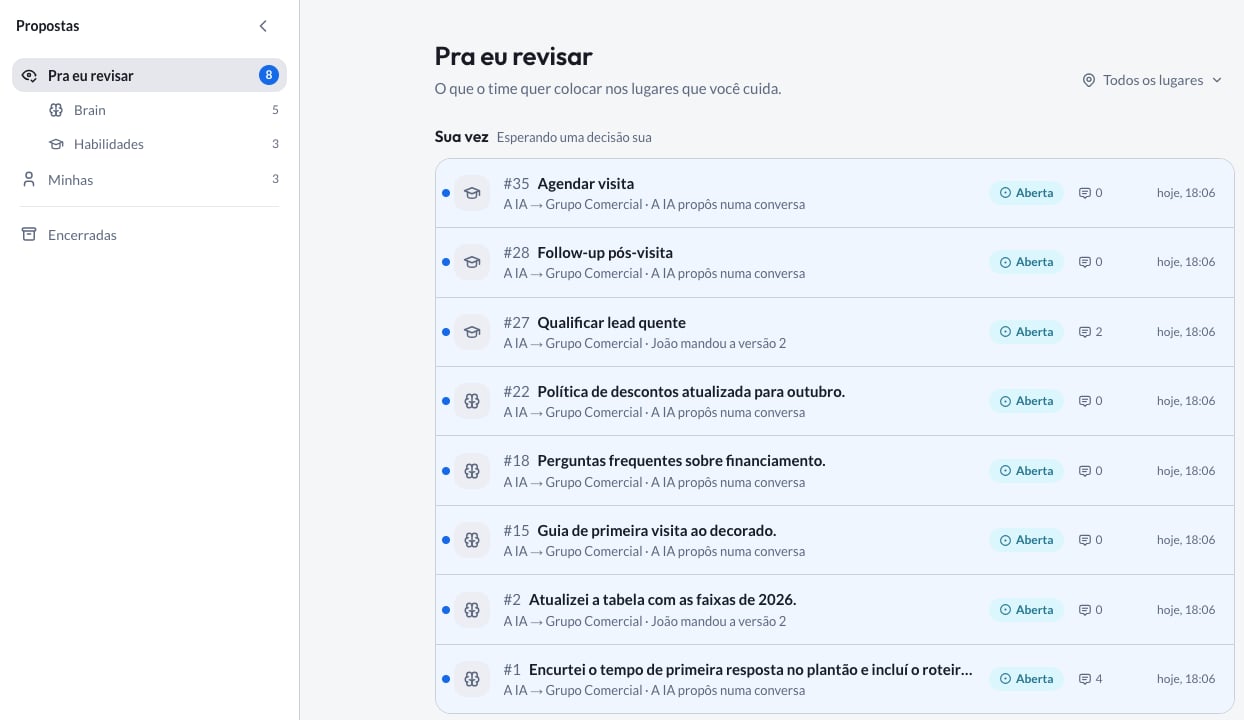
The proposal shows up in **Propostas** (Proposals), in the **Pra eu revisar** (To review) tab of whoever looks after the place, with the number next to it counting how many are waiting.
**Aprovar e aplicar** (Approve and apply), **Só aprovar** (Just approve), **Devolver com comentário** (Return with a comment) to ask for an adjustment, or **Recusar** (Decline). Whoever proposed can **Retirar** (Withdraw) while the proposal is open.
Once applied, the change shows up in the place, and the proposal moves to **Encerradas** (Closed) with its whole history.
**Approving is not applying.** An approved proposal waits for someone to apply it: whoever proposed or whoever looks after the place. When the content is ready and you look after the place, use **Aprovar e aplicar** (Approve and apply).
***
## Where proposals live
**Propostas** (Proposals), in the side menu, brings together everything proposed for the Brain and for skills:
* **Pra eu revisar** (To review): what your team wants to add to the places you look after. **Sua vez** (Your turn) holds what waits for a decision of yours; **Com outras pessoas** (With others) holds what you already did your part on.
* **Minhas** (Mine): what you proposed, and where it stands.
* **Encerradas** (Closed): the applied, declined and withdrawn ones.
You can filter by kind (**Brain** or **Habilidades**, Skills) and by place. A dot on the **Propostas** icon tells you there is news since your last visit. In the Brain and in **Habilidades** (Skills), the **Propostas** row opens the list already filtered.
 ***
## A proposal's page
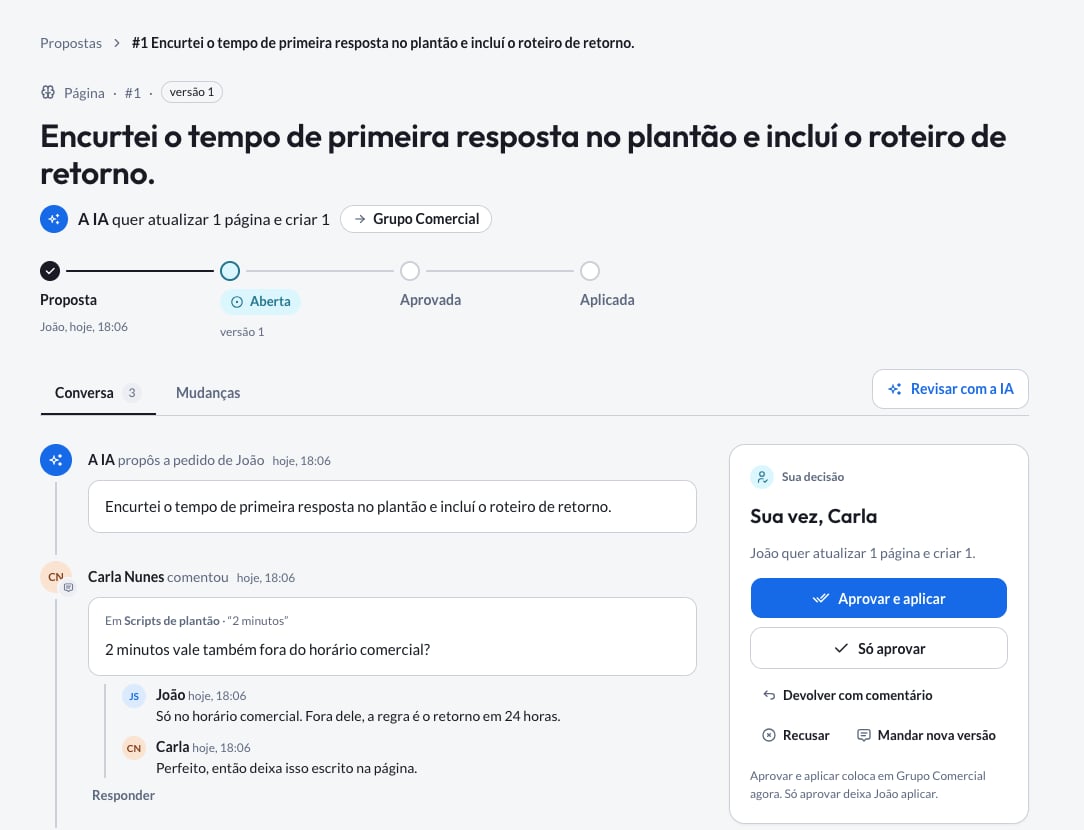
Each proposal has its own page, with everything you need to decide:
* **Conversa** (Conversation): the comments, versions and decisions, in order. Type **@** to loop someone in and **#** to cite another proposal.
* **Mudanças** (Changes): what the proposal adds or changes, item by item, as it will look if you apply it now. Green goes in, struck through comes out.
* **Sua decisão** (Your decision), in the side panel: the decision buttons and who takes part (whoever proposed and whoever looks after the place).
***
## A proposal's page
Each proposal has its own page, with everything you need to decide:
* **Conversa** (Conversation): the comments, versions and decisions, in order. Type **@** to loop someone in and **#** to cite another proposal.
* **Mudanças** (Changes): what the proposal adds or changes, item by item, as it will look if you apply it now. Green goes in, struck through comes out.
* **Sua decisão** (Your decision), in the side panel: the decision buttons and who takes part (whoever proposed and whoever looks after the place).
 Reviewers read the proposal, never the conversation it was born in: your conversation stays private.
***
## How to review well
The **Mudanças** (Changes) tab shows the result if you apply now, already including what changed in the place after the proposal. That is what will go in.
Instead of declining something that is almost right, use **Devolver com comentário** (Return with a comment) and say what is missing: *"troca o prazo para 72 horas úteis e cita a tabela de outubro"* (change the deadline to 72 business hours and cite the October table). Whoever proposed sends a new version in the same proposal, with the same number and the whole history.
A comment about a change shows next to it in **Mudanças** (Changes), so whoever reads later understands what you meant.
Type **@** and pick the person. Only people who can see the proposal get the notice, and you learn if someone was left out.
If the proposal changes after it was approved, the earlier approvals stop counting and it goes back to review. That way nobody approves one thing and sees another go in.
***
## When the place changed after the proposal
Sometimes someone edits the Brain page or the skill while the proposal waits. When it is applied, nothing is lost:
* **Changes to different passages merge on their own**, and what was edited in the meantime stays.
* **Only what overlaps asks for a choice.** When both changes touch the same passage, the **Mudanças** (Changes) tab shows both sides, with who changed each one, and you choose which stays. In **Juntar as duas** (Combine both), you write the text that combines both sides.
Reviewers read the proposal, never the conversation it was born in: your conversation stays private.
***
## How to review well
The **Mudanças** (Changes) tab shows the result if you apply now, already including what changed in the place after the proposal. That is what will go in.
Instead of declining something that is almost right, use **Devolver com comentário** (Return with a comment) and say what is missing: *"troca o prazo para 72 horas úteis e cita a tabela de outubro"* (change the deadline to 72 business hours and cite the October table). Whoever proposed sends a new version in the same proposal, with the same number and the whole history.
A comment about a change shows next to it in **Mudanças** (Changes), so whoever reads later understands what you meant.
Type **@** and pick the person. Only people who can see the proposal get the notice, and you learn if someone was left out.
If the proposal changes after it was approved, the earlier approvals stop counting and it goes back to review. That way nobody approves one thing and sees another go in.
***
## When the place changed after the proposal
Sometimes someone edits the Brain page or the skill while the proposal waits. When it is applied, nothing is lost:
* **Changes to different passages merge on their own**, and what was edited in the meantime stays.
* **Only what overlaps asks for a choice.** When both changes touch the same passage, the **Mudanças** (Changes) tab shows both sides, with who changed each one, and you choose which stays. In **Juntar as duas** (Combine both), you write the text that combines both sides.
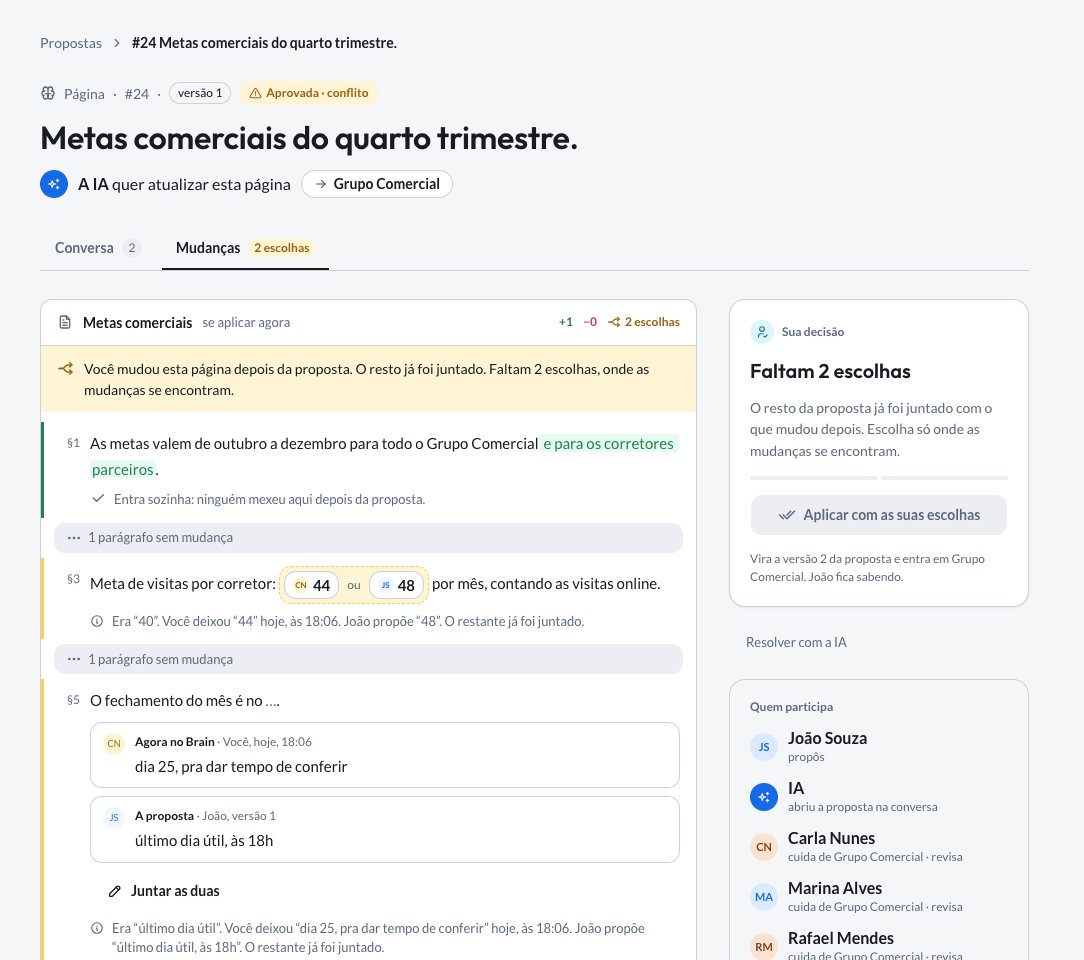 With everything chosen, the panel shows the right next step for you:
| You are | The button | What happens |
| - | - | - |
| Whoever looks after the place | **Aplicar com as suas escolhas** (Apply with your choices) | Your choices become a new version, which goes in right away. Whoever proposed is told. |
| Whoever proposed, without edit rights in the place | **Criar a versão** (Create version) next | Your choices go in a new version, which goes back to review. |
| A reviewer keeping everything as the place has it | **Devolver** (Return) to whoever proposed | Your choices go as a comment, and whoever proposed decides the next step. |
Rather talk it through? Click **Resolver com a IA** (Resolve with AI), or ask in the chat: *"resolve a proposta 12 mantendo o 48"* (resolve proposal 12 keeping 48). The assistant shows what stays from each side and takes the same path as the panel (apply, create the next version or return), always after your OK.
***
## With the assistant
Everything you can do on the screen, you can ask for in the chat. Some requests that work well:
| You want to | Ask |
| - | - |
| Know what is waiting for you | *"O que tem pra eu revisar?"* (what do I have to review?) |
| Open the right list | *"Tem proposta do Brain pra mim?"* (any Brain proposals for me?), and it sends the link to the filtered list |
| Understand a proposal | *"Lê a proposta 12 e me diz o que muda."* (read proposal 12 and tell me what changes) |
| Comment and loop someone in | *"Comenta na proposta 12 que falta a tabela de outubro e chama a Ana."* (comment on proposal 12 that the October table is missing and loop in Ana) |
| Decide | *"Aprova e aplica a 12."* (approve and apply 12) |
| Resolve a conflict | *"Resolve a proposta 12 mantendo o 48."* (resolve proposal 12 keeping 48) |
| Propose a skill | *"Cria uma habilidade para resumir visitas do grupo Comercial."* (create a skill to summarize visits for the Comercial group) |
Every decision, and every comment someone else will read, shows up in a card for you to confirm first. If you choose **Sempre permitir** (Always allow) for an action, the assistant does that action from then on without asking.
For a proposal decision, only the **Sempre permitir** (Always allow) you chose yourself counts. Even if your company allows the action for everyone, the card keeps showing up for you until you decide.
***
## Frequently asked questions
Whoever can see the destination place. A proposal for the Comercial group's Brain is seen by the people in the group and by whoever administers the organization, who sees the content of every group in the workspace; a proposal in your Meu Brain (My Brain), only by you.
Approving is not applying. Open the proposal: the panel says who can apply it now.
Yes. Ask the assistant for a new version, in the same conversation or with the proposal number. It goes back to review.
Not for what you edit directly. What the assistant writes, yes: it always proposes, and you apply with one click.
Not yet. Notices show up in Morada OS: the dot on the **Propostas** icon, the number on **Pra eu revisar** (To review) and mentions in **Notificações** (Notifications).
***
Who looks after each place and who sees what.
This documentation is built and hosted on [Mintlify](https://mintlify.com), a developer documentation platform.
With everything chosen, the panel shows the right next step for you:
| You are | The button | What happens |
| - | - | - |
| Whoever looks after the place | **Aplicar com as suas escolhas** (Apply with your choices) | Your choices become a new version, which goes in right away. Whoever proposed is told. |
| Whoever proposed, without edit rights in the place | **Criar a versão** (Create version) next | Your choices go in a new version, which goes back to review. |
| A reviewer keeping everything as the place has it | **Devolver** (Return) to whoever proposed | Your choices go as a comment, and whoever proposed decides the next step. |
Rather talk it through? Click **Resolver com a IA** (Resolve with AI), or ask in the chat: *"resolve a proposta 12 mantendo o 48"* (resolve proposal 12 keeping 48). The assistant shows what stays from each side and takes the same path as the panel (apply, create the next version or return), always after your OK.
***
## With the assistant
Everything you can do on the screen, you can ask for in the chat. Some requests that work well:
| You want to | Ask |
| - | - |
| Know what is waiting for you | *"O que tem pra eu revisar?"* (what do I have to review?) |
| Open the right list | *"Tem proposta do Brain pra mim?"* (any Brain proposals for me?), and it sends the link to the filtered list |
| Understand a proposal | *"Lê a proposta 12 e me diz o que muda."* (read proposal 12 and tell me what changes) |
| Comment and loop someone in | *"Comenta na proposta 12 que falta a tabela de outubro e chama a Ana."* (comment on proposal 12 that the October table is missing and loop in Ana) |
| Decide | *"Aprova e aplica a 12."* (approve and apply 12) |
| Resolve a conflict | *"Resolve a proposta 12 mantendo o 48."* (resolve proposal 12 keeping 48) |
| Propose a skill | *"Cria uma habilidade para resumir visitas do grupo Comercial."* (create a skill to summarize visits for the Comercial group) |
Every decision, and every comment someone else will read, shows up in a card for you to confirm first. If you choose **Sempre permitir** (Always allow) for an action, the assistant does that action from then on without asking.
For a proposal decision, only the **Sempre permitir** (Always allow) you chose yourself counts. Even if your company allows the action for everyone, the card keeps showing up for you until you decide.
***
## Frequently asked questions
Whoever can see the destination place. A proposal for the Comercial group's Brain is seen by the people in the group and by whoever administers the organization, who sees the content of every group in the workspace; a proposal in your Meu Brain (My Brain), only by you.
Approving is not applying. Open the proposal: the panel says who can apply it now.
Yes. Ask the assistant for a new version, in the same conversation or with the proposal number. It goes back to review.
Not for what you edit directly. What the assistant writes, yes: it always proposes, and you apply with one click.
Not yet. Notices show up in Morada OS: the dot on the **Propostas** icon, the number on **Pra eu revisar** (To review) and mentions in **Notificações** (Notifications).
***
Who looks after each place and who sees what.
This documentation is built and hosted on [Mintlify](https://mintlify.com), a developer documentation platform.