> ## Documentation Index
> Fetch the complete documentation index at: https://docs.morada.ai/llms.txt
> Use this file to discover all available pages before exploring further.
# Setup and usage guide
> Step by step to sign in to Morada OS, connect your tools, approve assistant actions, and manage permissions.
This guide shows how to sign in to Morada OS, connect the tools you already use every day, and stay in control of everything the assistant does. The product interface is currently in Portuguese, so UI labels below are shown as they appear on screen, with English translations in parentheses.
***
## 1. First sign-in
Morada OS uses your company's corporate login (Morada SSO). Only people authorized by your organization can get in.
In your browser, go to [os.morada.ai](https://os.morada.ai).
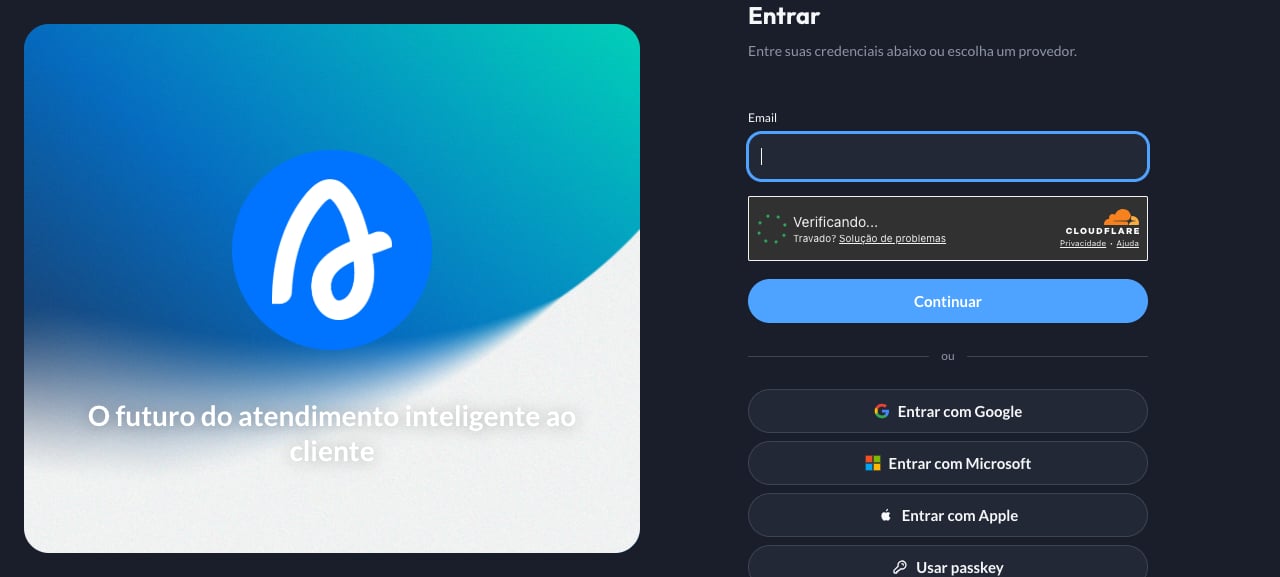 Use your corporate email or your company's login (Google or Microsoft).
Workspaces are your company's work areas, usually one per team (for example, *Sales*, *Projects*, *Leadership*). Pick yours.
Use your corporate email or your company's login (Google or Microsoft).
Workspaces are your company's work areas, usually one per team (for example, *Sales*, *Projects*, *Leadership*). Pick yours.
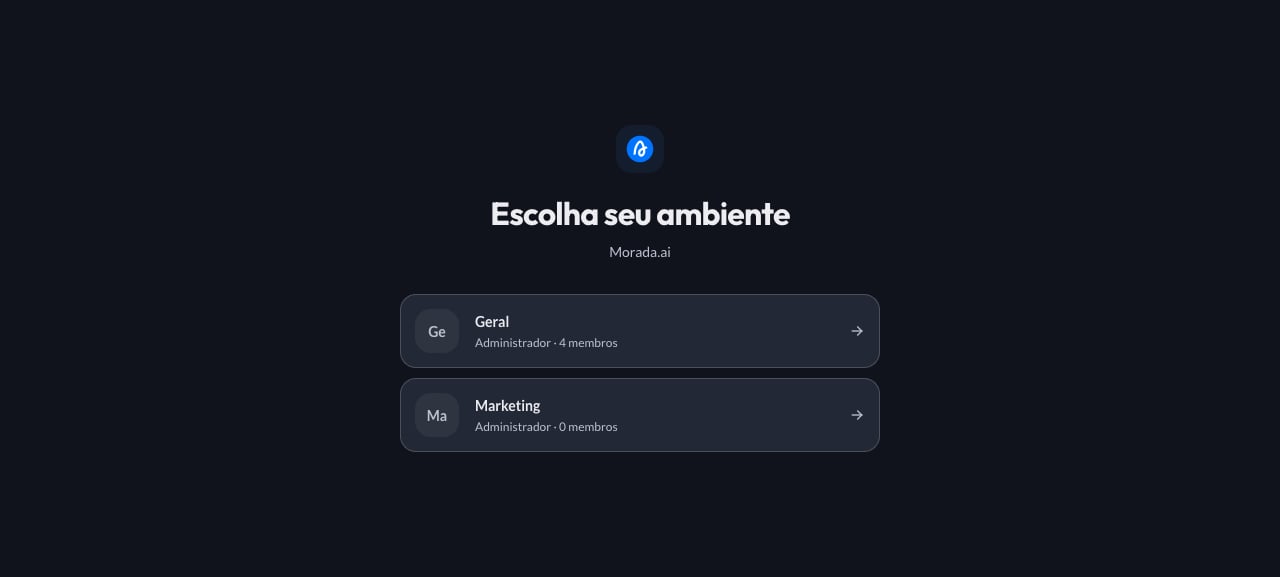 If you have access to a single workspace, you land in it directly.
***
## 2. Connect your tools
Morada OS connects to the tools your team already uses: **Google Workspace** (Gmail, Calendar, Drive), **Microsoft 365** (Outlook, Teams, OneDrive), **Notion**, and **HubSpot**. Once connected, you can ask things like "summarize today's emails" or "what meetings do I have tomorrow?".
In the side menu, click **Conectores** (Connectors). The page shows the available accounts and systems.
If you have access to a single workspace, you land in it directly.
***
## 2. Connect your tools
Morada OS connects to the tools your team already uses: **Google Workspace** (Gmail, Calendar, Drive), **Microsoft 365** (Outlook, Teams, OneDrive), **Notion**, and **HubSpot**. Once connected, you can ask things like "summarize today's emails" or "what meetings do I have tomorrow?".
In the side menu, click **Conectores** (Connectors). The page shows the available accounts and systems.
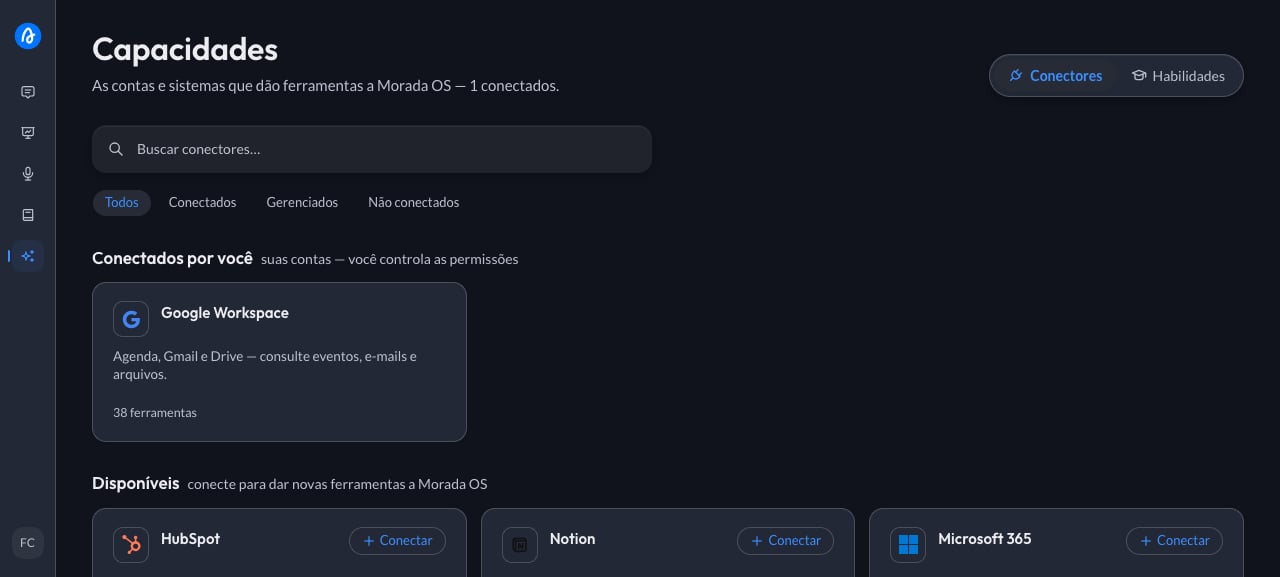 Find the tool you want to connect (for example, **Google Workspace**) and click **Conectar** (Connect).
A secure window from the provider itself (Google, Microsoft, Notion, or HubSpot) opens asking for your authorization. It's the same kind of screen you see when signing in to a site "with your Google account".
### What each connector can access
| Connector | On connect (read only) | With your approval on each action (write) |
| -------------------- | ------------------------------------------------------------------------------ | ------------------------------------------------------------ |
| **Microsoft 365** | Read emails (Outlook), calendar events, and files (OneDrive/SharePoint). | Send Teams messages, create email drafts, and update events. |
| **Google Workspace** | Read emails (Gmail), calendar (Google Calendar), and documents (Google Drive). | Send emails and create calendar events. |
| **HubSpot** | Look up contacts, companies, deals, and CRM history. | Create deals and update lead status. |
| **Notion** | Search and read project pages and databases. | Add notes and create new authorized pages. |
Morada OS asks for the least access possible: on connect, the assistant can only **read**. Any action that changes something (send, create, update) requires an additional authorization from you.
When you finish, the tool appears under **Conectados por você** (Connected by you), showing how many tools it provides. From then on the assistant can look up that information whenever you ask.
HubSpot and Microsoft 365 have their own guides, each with a full walkthrough: see [Integrations](/morada-os/en/connectors/index).
***
## 3. You approve before it happens
To prevent accidental actions, anything that changes something outside Morada OS (sending an email, updating the CRM, messaging on Teams) goes through your approval.
It works like this: you ask, the assistant prepares the action and shows a card with every detail (recipient, subject, content). Nothing happens until you click **Aprovar** (Approve). You can also adjust the request or cancel.
Queries and reads (for example, "summarize today's emails") don't need approval: they don't change anything.
***
## 4. Analyze spreadsheets and documents
Upload files directly in the chat and ask for whatever you need: analyses, calculations, summaries, comparisons, or new files.
* **Supported formats**: Excel spreadsheets (`.xlsx`) and `.csv`, Word documents (`.docx`), PowerPoint presentations (`.pptx`), PDFs, images, and audio files.
* **What you can ask for**: feasibility studies, financial projections (sales volume, NPV, IRR), sales table consolidation, cross-referencing spreadsheets, and generating new Excel files and ready-to-share reports.
Calculations run in a protected environment designed so your files never leave it.
***
## 5. How to disconnect a tool
You can unlink an account or revoke a tool's access at any time:
Go to **Conectores** (Connectors) in the side menu.
Open the connected tool's card and click **Desvincular** (Unlink).
Confirm the action. The authorization is deleted immediately and the assistant loses access to your data in that service.
Unlinking in Morada OS removes access on Morada's side. To also revoke it on the provider's side, open the security settings of your Google or Microsoft account.
***
## 6. Troubleshooting
Some companies require IT approval before a new application can be used. Forward your company's IT team the [Microsoft 365 administrator guide](/morada-os/en/connectors/microsoft-365): it takes about 15 minutes and shows exactly what to approve and what to release.
1. Check that the file doesn't exceed the workspace size limit (50 MB per attachment).
2. Make sure the file isn't password protected or corrupted.
1. Confirm the document was added to the organization's library or to the right workspace.
2. Documents in another person's *Personal Space* are private: only the owner can query them.
* **Support center**: [support.morada.ai](https://support.morada.ai)
* **Email**: `suporte@morada.ai`
* **Platform status**: [status.morada.ai](https://status.morada.ai)
***
## All set? Now see what you can do
Ready-made recipes for the day-to-day: copy the request, paste it into the chat, and adapt it to your reality.
Find the tool you want to connect (for example, **Google Workspace**) and click **Conectar** (Connect).
A secure window from the provider itself (Google, Microsoft, Notion, or HubSpot) opens asking for your authorization. It's the same kind of screen you see when signing in to a site "with your Google account".
### What each connector can access
| Connector | On connect (read only) | With your approval on each action (write) |
| -------------------- | ------------------------------------------------------------------------------ | ------------------------------------------------------------ |
| **Microsoft 365** | Read emails (Outlook), calendar events, and files (OneDrive/SharePoint). | Send Teams messages, create email drafts, and update events. |
| **Google Workspace** | Read emails (Gmail), calendar (Google Calendar), and documents (Google Drive). | Send emails and create calendar events. |
| **HubSpot** | Look up contacts, companies, deals, and CRM history. | Create deals and update lead status. |
| **Notion** | Search and read project pages and databases. | Add notes and create new authorized pages. |
Morada OS asks for the least access possible: on connect, the assistant can only **read**. Any action that changes something (send, create, update) requires an additional authorization from you.
When you finish, the tool appears under **Conectados por você** (Connected by you), showing how many tools it provides. From then on the assistant can look up that information whenever you ask.
HubSpot and Microsoft 365 have their own guides, each with a full walkthrough: see [Integrations](/morada-os/en/connectors/index).
***
## 3. You approve before it happens
To prevent accidental actions, anything that changes something outside Morada OS (sending an email, updating the CRM, messaging on Teams) goes through your approval.
It works like this: you ask, the assistant prepares the action and shows a card with every detail (recipient, subject, content). Nothing happens until you click **Aprovar** (Approve). You can also adjust the request or cancel.
Queries and reads (for example, "summarize today's emails") don't need approval: they don't change anything.
***
## 4. Analyze spreadsheets and documents
Upload files directly in the chat and ask for whatever you need: analyses, calculations, summaries, comparisons, or new files.
* **Supported formats**: Excel spreadsheets (`.xlsx`) and `.csv`, Word documents (`.docx`), PowerPoint presentations (`.pptx`), PDFs, images, and audio files.
* **What you can ask for**: feasibility studies, financial projections (sales volume, NPV, IRR), sales table consolidation, cross-referencing spreadsheets, and generating new Excel files and ready-to-share reports.
Calculations run in a protected environment designed so your files never leave it.
***
## 5. How to disconnect a tool
You can unlink an account or revoke a tool's access at any time:
Go to **Conectores** (Connectors) in the side menu.
Open the connected tool's card and click **Desvincular** (Unlink).
Confirm the action. The authorization is deleted immediately and the assistant loses access to your data in that service.
Unlinking in Morada OS removes access on Morada's side. To also revoke it on the provider's side, open the security settings of your Google or Microsoft account.
***
## 6. Troubleshooting
Some companies require IT approval before a new application can be used. Forward your company's IT team the [Microsoft 365 administrator guide](/morada-os/en/connectors/microsoft-365): it takes about 15 minutes and shows exactly what to approve and what to release.
1. Check that the file doesn't exceed the workspace size limit (50 MB per attachment).
2. Make sure the file isn't password protected or corrupted.
1. Confirm the document was added to the organization's library or to the right workspace.
2. Documents in another person's *Personal Space* are private: only the owner can query them.
* **Support center**: [support.morada.ai](https://support.morada.ai)
* **Email**: `suporte@morada.ai`
* **Platform status**: [status.morada.ai](https://status.morada.ai)
***
## All set? Now see what you can do
Ready-made recipes for the day-to-day: copy the request, paste it into the chat, and adapt it to your reality.