> ## Documentation Index
> Fetch the complete documentation index at: https://docs.morada.ai/llms.txt
> Use this file to discover all available pages before exploring further.
# Create visuals that follow your company’s brand
> Organize brand assets, prepare reusable instructions, and create campaigns without sending the logo again in every conversation.
**You need:** your company's approved logo and brand materials, accessible in Morada OS · **Last updated:** September 11, 2026
Stop explaining the colors and sending the logo again for every campaign. Save the references once and use them for your next piece.
In this recipe, **Aurora Incorporadora, a fictional company**, saves its logo and colors to create a campaign. Replace the names and rules with your company's. The example is not included in the product; you can download its logo below to practice.
 ## 1. Save the logo and colors in Brain
**Brain** is where you keep files and information to use later. Already have a page with your brand materials? Skip to the next section. The button names below match the Portuguese interface.
Click **Conversas** (Conversations), then **Novo chat** (New chat).
[Open the fictional Aurora logo](/images/morada-os/casos-de-uso/aurora-logo.png). The request below already includes its link; you do not need to attach it. For your own brand, choose an image already accessible in Brain and specify its page or file in the request.
Copy this request and click **Enviar** (Send). Replace the names and colors with your company's.
```text wrap theme={null}
Prepare a page in Meu Brain called "Brand Kit — Aurora Incorporadora". Include the image from this link on the page, together with the instructions below:
https://docs.morada.ai/images/morada-os/casos-de-uso/aurora-logo.png
Colors: forest green #243F35, sand #F6F1E7, and copper #B67A4D.
Style: welcoming, with gardens, soft light, and clear space around the logo.
Do not invent prices, addresses, or promises.
Aurora Incorporadora is a fictional brand for this exercise.
Show me the proposal to review before saving.
```
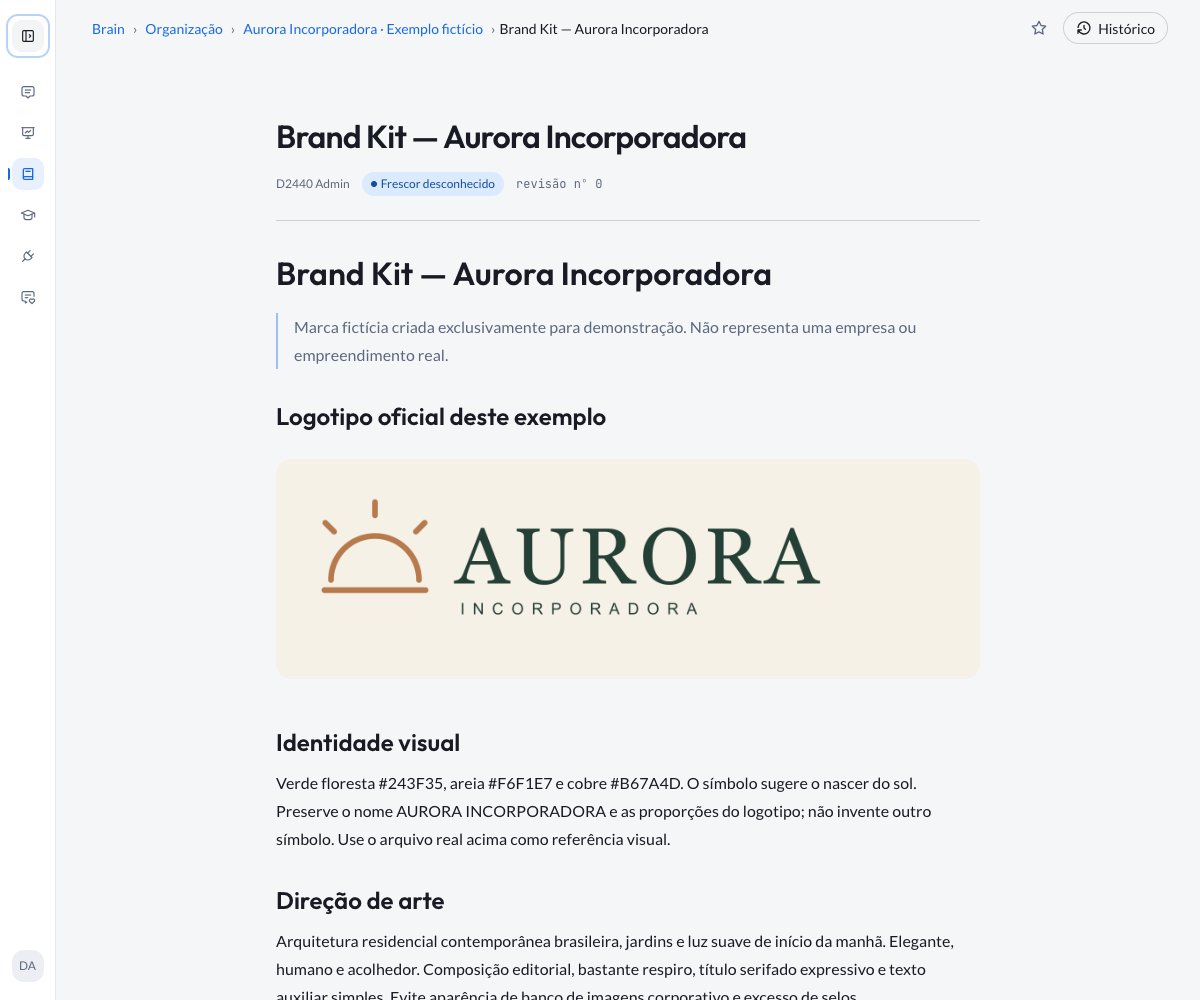
Check the name, destination, and content. If they are correct, approve the items in the proposal card. Then open the page in **Brain** and check that the logo and colors appear.
## 1. Save the logo and colors in Brain
**Brain** is where you keep files and information to use later. Already have a page with your brand materials? Skip to the next section. The button names below match the Portuguese interface.
Click **Conversas** (Conversations), then **Novo chat** (New chat).
[Open the fictional Aurora logo](/images/morada-os/casos-de-uso/aurora-logo.png). The request below already includes its link; you do not need to attach it. For your own brand, choose an image already accessible in Brain and specify its page or file in the request.
Copy this request and click **Enviar** (Send). Replace the names and colors with your company's.
```text wrap theme={null}
Prepare a page in Meu Brain called "Brand Kit — Aurora Incorporadora". Include the image from this link on the page, together with the instructions below:
https://docs.morada.ai/images/morada-os/casos-de-uso/aurora-logo.png
Colors: forest green #243F35, sand #F6F1E7, and copper #B67A4D.
Style: welcoming, with gardens, soft light, and clear space around the logo.
Do not invent prices, addresses, or promises.
Aurora Incorporadora is a fictional brand for this exercise.
Show me the proposal to review before saving.
```
Check the name, destination, and content. If they are correct, approve the items in the proposal card. Then open the page in **Brain** and check that the logo and colors appear.
 ## 2. Save how you want the brand to be used
A **Habilidade** (Skill) is a set of saved instructions for repeating a way of working. Here, it tells the assistant how to use Aurora's materials. This step is optional: you can also keep the instructions on the Brain page.
Click **Habilidades** (Skills) in the sidebar, then **Adicionar habilidade** (Add skill).
In **Nome** (Name), enter:
```text theme={null}
Campanhas da Aurora
```
In **Descrição curta** (Short description), paste:
```text wrap theme={null}
Use when creating pieces with the logo and colors of Aurora Incorporadora, the fictional brand in this example.
```
Paste this text in **SKILL.md**. This is the instructions field; you do not need to know how to code.
```text wrap theme={null}
# Campanhas da Aurora
Consult the "Brand Kit — Aurora Incorporadora" page in Brain before creating pieces for this fictional brand.
Open and examine the logo. Confirm which file you found. If access is missing, ask; do not invent a replacement logo.
Use forest green (#243F35), sand (#F6F1E7), and copper (#B67A4D). Favor gardens, soft light, and a welcoming layout with clear space around the logo.
Use the logo file as a reference. Follow the text I provide and do not invent prices, addresses, or promises.
When adjusting a piece, change only what I ask. Show the result for review before publishing.
```
## 2. Save how you want the brand to be used
A **Habilidade** (Skill) is a set of saved instructions for repeating a way of working. Here, it tells the assistant how to use Aurora's materials. This step is optional: you can also keep the instructions on the Brain page.
Click **Habilidades** (Skills) in the sidebar, then **Adicionar habilidade** (Add skill).
In **Nome** (Name), enter:
```text theme={null}
Campanhas da Aurora
```
In **Descrição curta** (Short description), paste:
```text wrap theme={null}
Use when creating pieces with the logo and colors of Aurora Incorporadora, the fictional brand in this example.
```
Paste this text in **SKILL.md**. This is the instructions field; you do not need to know how to code.
```text wrap theme={null}
# Campanhas da Aurora
Consult the "Brand Kit — Aurora Incorporadora" page in Brain before creating pieces for this fictional brand.
Open and examine the logo. Confirm which file you found. If access is missing, ask; do not invent a replacement logo.
Use forest green (#243F35), sand (#F6F1E7), and copper (#B67A4D). Favor gardens, soft light, and a welcoming layout with clear space around the logo.
Use the logo file as a reference. Follow the text I provide and do not invent prices, addresses, or promises.
When adjusting a piece, change only what I ask. Show the result for review before publishing.
```
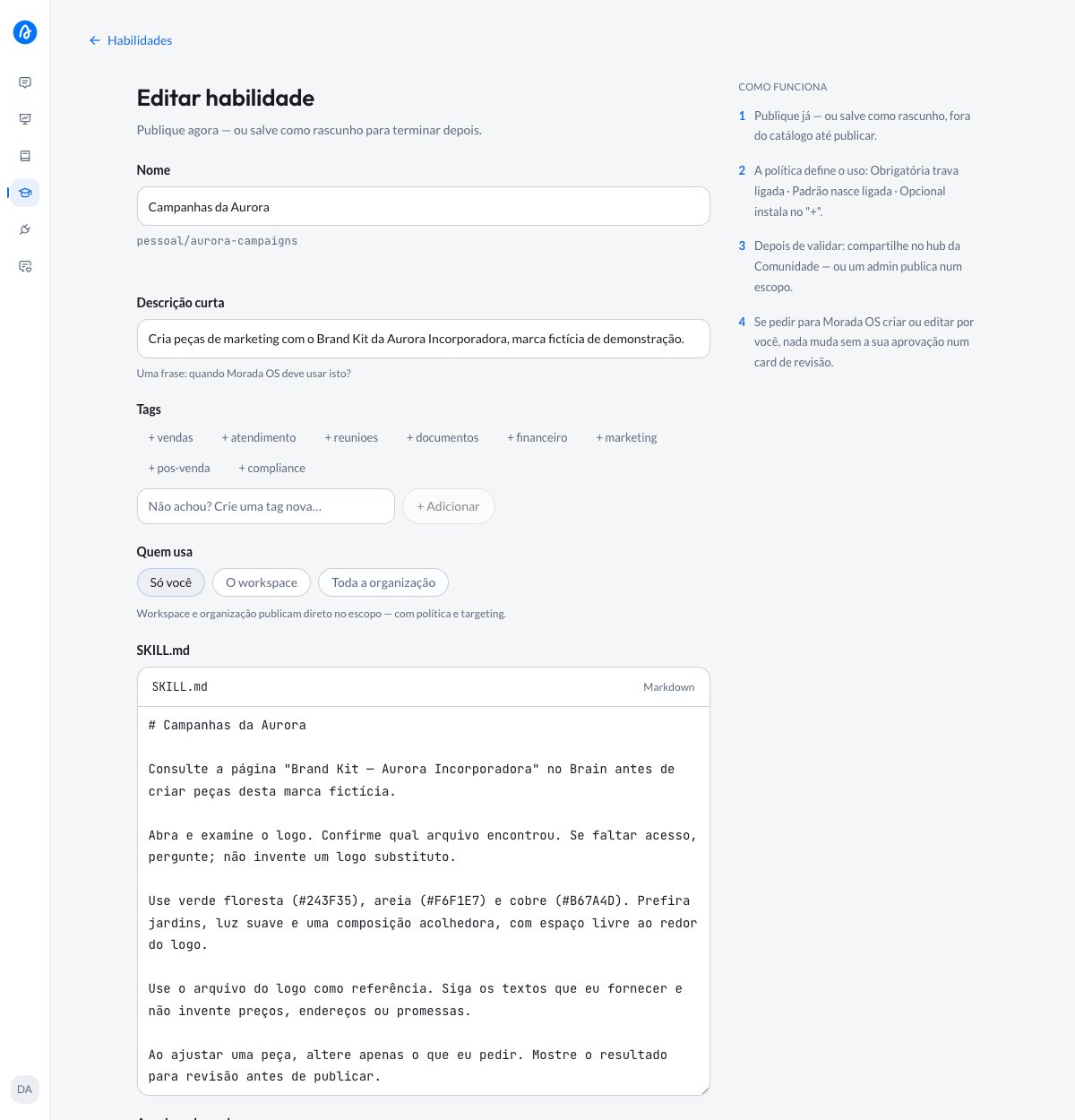 Under **Quem usa** (Who uses it), choose **Só você** (Only you). Click **Publicar** (Publish). When editing an existing skill, the button is **Salvar alterações** (Save changes).
## 3. Check the logo and request the campaign
In **Conversas → Novo chat**, type **@Aurora** in the message box and click **Brand Kit — Aurora Incorporadora** in the list.
From the **Habilidades** button in the message box, click **Ver todas** (View all) and choose **Campanhas da Aurora**. If you skipped creating the skill, continue with just the page.
Paste this text after the page reference and send it:
```text wrap theme={null}
Examine the main logo and tell me what appears in it and where it came from. Do not create any image yet.
```
Under **Quem usa** (Who uses it), choose **Só você** (Only you). Click **Publicar** (Publish). When editing an existing skill, the button is **Salvar alterações** (Save changes).
## 3. Check the logo and request the campaign
In **Conversas → Novo chat**, type **@Aurora** in the message box and click **Brand Kit — Aurora Incorporadora** in the list.
From the **Habilidades** button in the message box, click **Ver todas** (View all) and choose **Campanhas da Aurora**. If you skipped creating the skill, continue with just the page.
Paste this text after the page reference and send it:
```text wrap theme={null}
Examine the main logo and tell me what appears in it and where it came from. Do not create any image yet.
```
 Check the reply. If the assistant found a different logo, point it to the correct one before continuing.
In the same conversation, send this request, adapted from the demonstration at the start of this guide:
```text wrap theme={null}
Now create a square piece for Residencial Jardim Aurora, a fictional development. Follow the brand instructions we just consulted and use the logo file as a reference.
Show Brazilian residential architecture, gardens, and soft morning light. Use forest green, sand, and copper, with clear space around the logo.
Exact text: "RESIDENCIAL JARDIM AURORA", "Conheça seu novo lar", "Espaço para viver o que importa.", and "Descubra o Jardim Aurora".
Discreetly include "Projeto fictício • Imagem ilustrativa". Do not include prices or an address.
Show the image for me to review and download, with a short caption in Portuguese.
```
Enlarge the result and check the **logo, lettering, colors, and readability** before publishing. Generation can change logo details; if you need an exact reproduction or a vector file, finish it with your design team.
## Share the skill with a group
To let the whole Marketing team use the same guidelines, a group **Gestor** (Manager) can create a team skill:
Open **Habilidades** → **Adicionar habilidade** (Add skill). Under **Quem usa** (Who uses it), choose **Um grupo** (A group), then select the destination under **Grupo** (Group). The choices are the groups you manage. The selector shows each group with its workspace, because that is where the skill applies.
Add the name, description, and instructions, as in the example above, and click **Publicar** (Publish). Also check that the group can access the Brain page and files mentioned in the skill.
If you are a **Membro** (Member), ask for the skill to be created or changed in a conversation, naming the group. The manager reviews it in **Habilidades** → **Para sua revisão** (For your review), without accessing your private conversation. See [who can propose and approve](/morada-os/en/brain/spaces-and-groups#skills-for-the-same-group).
## Other ways to use it
In the same conversation, request one change at a time:
```text wrap theme={null}
In the image you just created, increase only the clear space around the headline. Keep the logo, text, and colors. Use that piece as the starting point and show the new version.
```
Also check what should have stayed the same. For other formats, see [Create an image for an Instagram post](/morada-os/en/use-cases/instagram-post).
**Meu Brain** (My Brain) is personal. To let colleagues use the materials, put them in a [Brain space your team can access](/morada-os/en/brain/spaces-and-groups) and check that they can open the page and files. Make the skill available to them too; it does not grant access to the files it mentions.
As a next use, someone in HR could open another conversation and ask:
```text wrap theme={null}
Consult the "Brand Kit — Aurora Incorporadora" page and follow the "Campanhas da Aurora" skill. I want a poster with the phrase "Que bom ter você aqui". First check the logo, then create the piece with the brand colors. Show it for review.
```
This is a suggested next request, not a piece already demonstrated. HR reuses the materials, not marketing's private conversation.
Yes. Both can bring together instructions and images. You can keep everything on a Brain page or use the skill's own files and adjust the instructions to point to them. Combining them is an organizational choice.
Images already inserted in a page do not need to move to **Fontes** (Sources). If the logo is on a child page, specify that page. Original files in Fontes can also serve as references.
Check access to the page and file. An external image that requires another login may appear for you but still be inaccessible to the assistant. For images inserted in pages, the limit is 25 MiB per file.
If the page changed, ask to consult it again. If the rules were not followed, select or explicitly request the skill and say what to correct. Saving it does not guarantee it will be used for every request.
Check the reply. If the assistant found a different logo, point it to the correct one before continuing.
In the same conversation, send this request, adapted from the demonstration at the start of this guide:
```text wrap theme={null}
Now create a square piece for Residencial Jardim Aurora, a fictional development. Follow the brand instructions we just consulted and use the logo file as a reference.
Show Brazilian residential architecture, gardens, and soft morning light. Use forest green, sand, and copper, with clear space around the logo.
Exact text: "RESIDENCIAL JARDIM AURORA", "Conheça seu novo lar", "Espaço para viver o que importa.", and "Descubra o Jardim Aurora".
Discreetly include "Projeto fictício • Imagem ilustrativa". Do not include prices or an address.
Show the image for me to review and download, with a short caption in Portuguese.
```
Enlarge the result and check the **logo, lettering, colors, and readability** before publishing. Generation can change logo details; if you need an exact reproduction or a vector file, finish it with your design team.
## Share the skill with a group
To let the whole Marketing team use the same guidelines, a group **Gestor** (Manager) can create a team skill:
Open **Habilidades** → **Adicionar habilidade** (Add skill). Under **Quem usa** (Who uses it), choose **Um grupo** (A group), then select the destination under **Grupo** (Group). The choices are the groups you manage. The selector shows each group with its workspace, because that is where the skill applies.
Add the name, description, and instructions, as in the example above, and click **Publicar** (Publish). Also check that the group can access the Brain page and files mentioned in the skill.
If you are a **Membro** (Member), ask for the skill to be created or changed in a conversation, naming the group. The manager reviews it in **Habilidades** → **Para sua revisão** (For your review), without accessing your private conversation. See [who can propose and approve](/morada-os/en/brain/spaces-and-groups#skills-for-the-same-group).
## Other ways to use it
In the same conversation, request one change at a time:
```text wrap theme={null}
In the image you just created, increase only the clear space around the headline. Keep the logo, text, and colors. Use that piece as the starting point and show the new version.
```
Also check what should have stayed the same. For other formats, see [Create an image for an Instagram post](/morada-os/en/use-cases/instagram-post).
**Meu Brain** (My Brain) is personal. To let colleagues use the materials, put them in a [Brain space your team can access](/morada-os/en/brain/spaces-and-groups) and check that they can open the page and files. Make the skill available to them too; it does not grant access to the files it mentions.
As a next use, someone in HR could open another conversation and ask:
```text wrap theme={null}
Consult the "Brand Kit — Aurora Incorporadora" page and follow the "Campanhas da Aurora" skill. I want a poster with the phrase "Que bom ter você aqui". First check the logo, then create the piece with the brand colors. Show it for review.
```
This is a suggested next request, not a piece already demonstrated. HR reuses the materials, not marketing's private conversation.
Yes. Both can bring together instructions and images. You can keep everything on a Brain page or use the skill's own files and adjust the instructions to point to them. Combining them is an organizational choice.
Images already inserted in a page do not need to move to **Fontes** (Sources). If the logo is on a child page, specify that page. Original files in Fontes can also serve as references.
Check access to the page and file. An external image that requires another login may appear for you but still be inaccessible to the assistant. For images inserted in pages, the limit is 25 MiB per file.
If the page changed, ask to consult it again. If the rules were not followed, select or explicitly request the skill and say what to correct. Saving it does not guarantee it will be used for every request.