

Before you start
Access to Morada OS
An active account at os.morada.ai, using your company’s corporate login.
Permission in HubSpot
A HubSpot account allowed to install apps: Super Admin or the App Marketplace access permission. If you don’t have it, ask your company’s HubSpot administrator.
The connection is per person. Each user connects their own HubSpot account, and the assistant sees exactly what that account sees: no more, no less.
How to connect
1
Open the connectors
In the Morada OS side menu, click Conectores (Connectors). The page shows the available accounts and systems.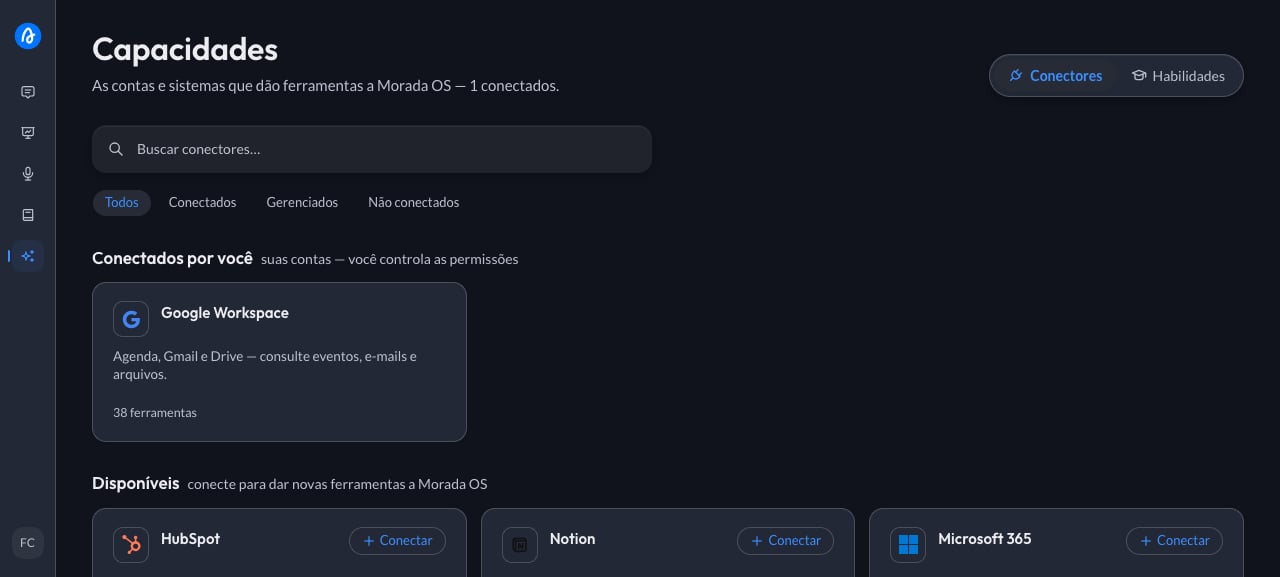
2
Pick HubSpot
Find the HubSpot card and click Conectar (Connect). If the shelf is crowded, use the search box at the top.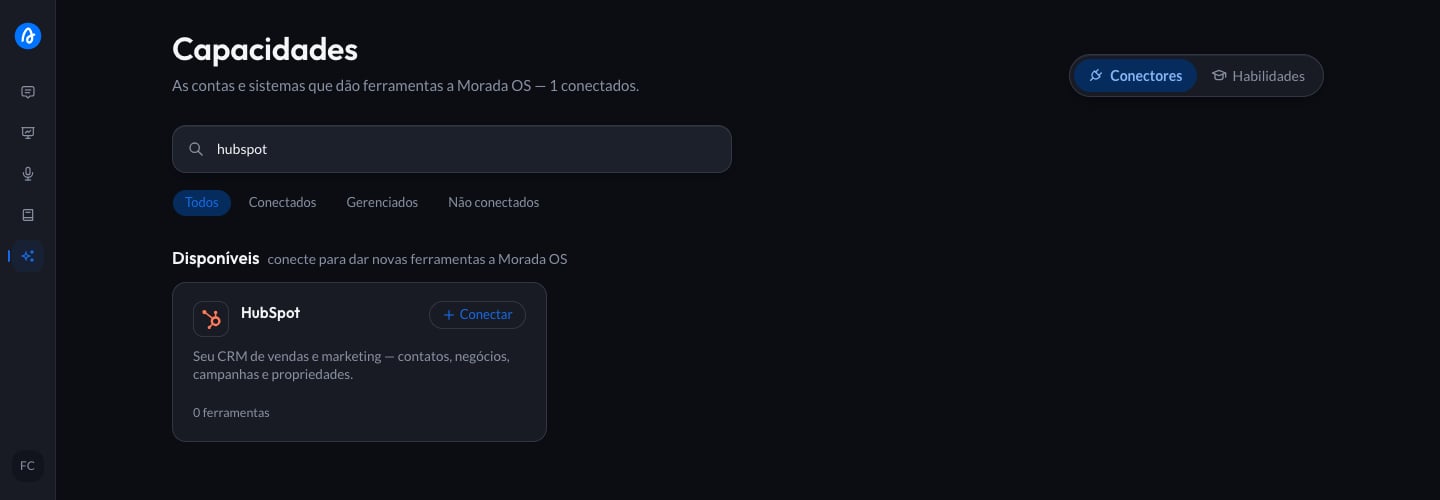
3
Choose the HubSpot account
HubSpot opens in its own window. If you are not signed in yet, sign in with your email. Then select the account (portal) you want to connect and click Escolher conta (Choose account).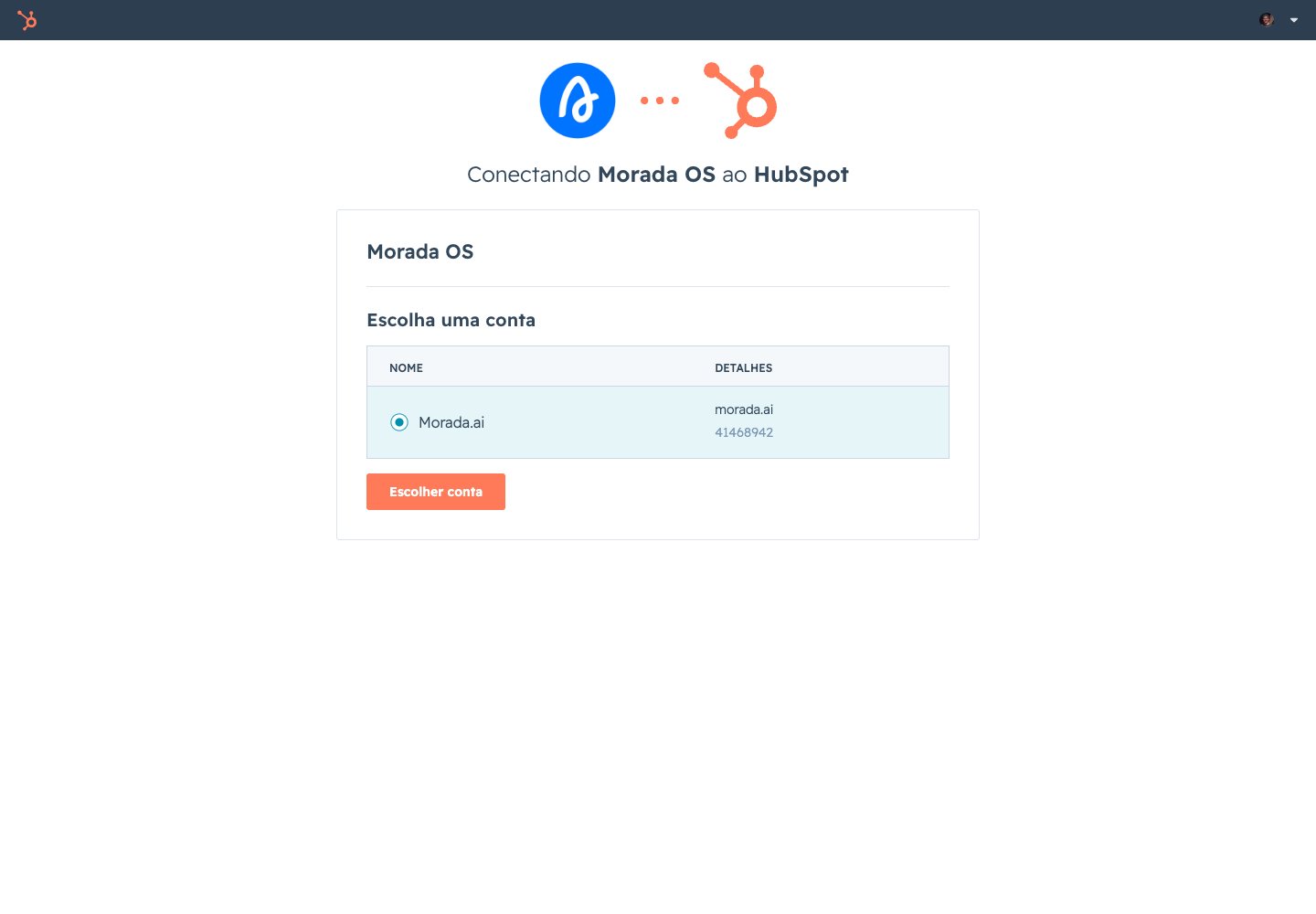
4
Authorize access
HubSpot lists what Morada OS will be able to access in your account and asks for authorization. Review it and click Conectar aplicativo (Connect app).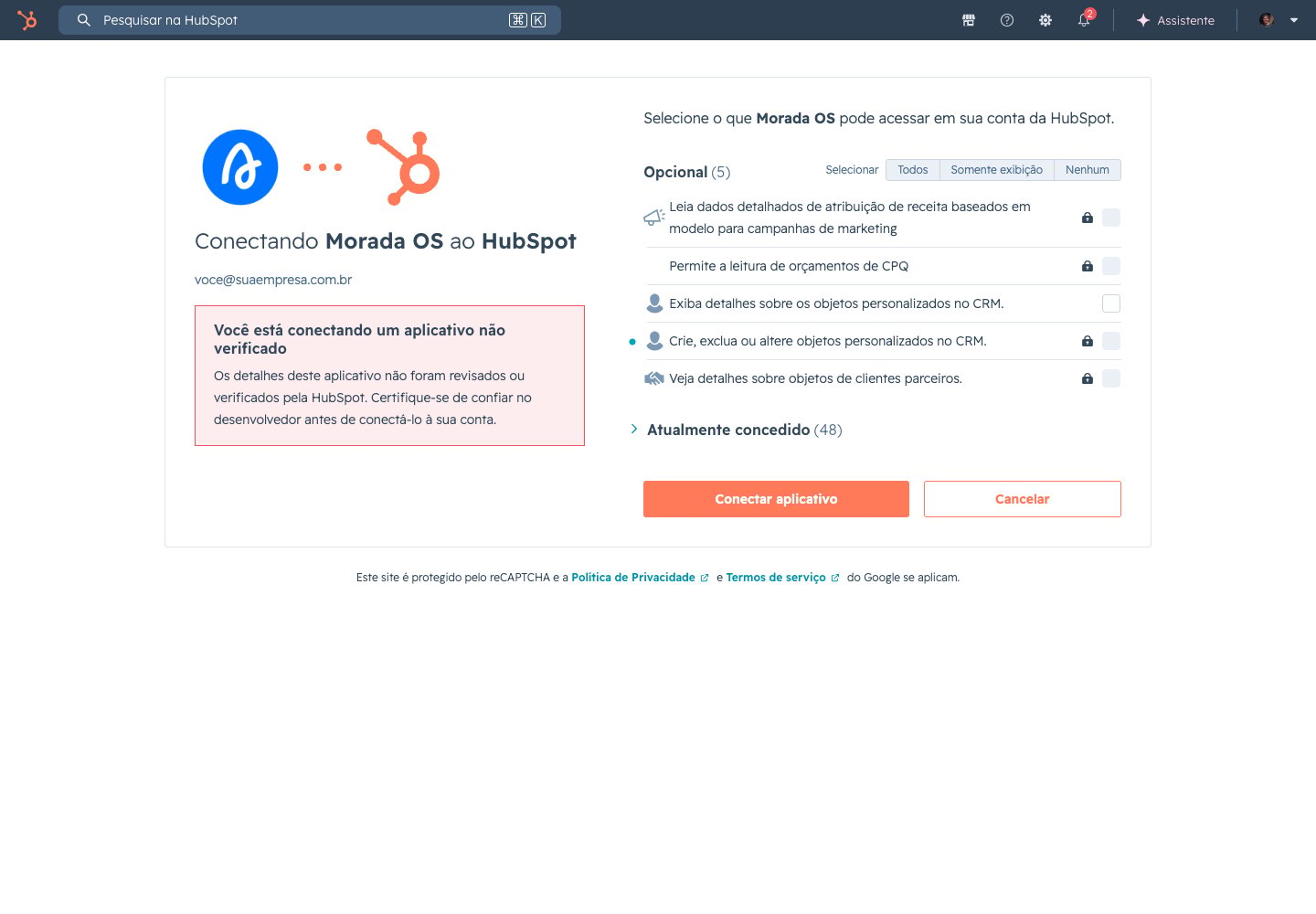
While the Morada OS app completes its HubSpot App Marketplace listing, HubSpot shows an unverified-app notice and asks you to type Eu aceito o risco (I accept the risk) to continue. See what that means below.
5
Ready to use
You land back in Morada OS and HubSpot appears under Conectados por você (Connected by you). From there the assistant can query the CRM whenever you ask.
What the assistant can do
Adjusting permissions after you connect
There is nothing to configure on the HubSpot side after connecting: the fine-tuning lives in Morada OS. Open Conectores > HubSpot (Connectors) and you see two lists, O que Morada OS pode ler (What Morada OS can read) and O que Morada OS pode fazer (What Morada OS can do), with a permission pill on each tool:- Sempre permitir (Always allow): the tool runs directly whenever your request needs it. This is the default for queries, which change nothing.
- Perguntar antes (Ask first): the assistant asks for your confirmation in the chat before using that tool. This is the default for anything that writes to the CRM.
Using it day to day
Ask in plain language, the way you would ask a colleague. A few examples to start with:How to disconnect in Morada OS
1
Open the connector
Go to Conectores (Connectors) in the side menu and click the HubSpot card.
2
Unlink the account
Click Desvincular (Unlink) and confirm.
How to uninstall Morada OS from your HubSpot account
1
Open settings
In HubSpot, click the settings icon in the top navigation bar.
2
Go to connected apps
In the left sidebar menu, go to Integrations > Connected Apps.
3
Uninstall the app
On the Morada OS app, click Actions > Uninstall.
4
Confirm
Type
uninstall in the confirmation box and finish. Access ends immediately.Uninstalling requires the same permission as installing: Super Admin or App Marketplace access.
Common problems
An unverified-app notice appears
An unverified-app notice appears
Right after you authorize, HubSpot shows a security screen asking you to type Eu aceito o risco (I accept the risk) to continue. This happens with every app that has not finished its HubSpot App Marketplace listing, which is in progress for Morada OS, and does not indicate a problem with the connection. If your company’s policy does not allow authorizing apps in that state, talk to your Morada.ai contact before proceeding.
I can't install the app
I can't install the app
Installing apps in HubSpot requires Super Admin or the App Marketplace access permission. Ask your company’s HubSpot administrator to grant the permission or to connect with their own account.
The assistant can't find a deal I can see in HubSpot
The assistant can't find a deal I can see in HubSpot
- Check that you connected the right account (portal): companies with more than one HubSpot account usually hold different data in each.
- Confirm that your HubSpot user has access to that pipeline or team. The assistant sees the same as you.
The connection stopped working
The connection stopped working
Authorizations can expire, for example when the HubSpot password changes or an administrator revokes the app. Unlink HubSpot under Conectores (Connectors) and connect again.
Support channels
Support channels
- Help center: support.morada.ai
- Email:
suporte@morada.ai - Platform status: status.morada.ai
Next steps
Use cases
Ready-made recipes for everyday work: copy the request, paste it into the chat, adapt it.
Security and privacy
What the assistant sees, what it never does on its own, and how your data is handled.