

The ladder of reach
The places go from the widest to the most restricted. Click each rung to see how many people it reaches.How many workspaces does your company need?
In most cases, just one. The whole company works in a single workspace, the areas become groups, and Morada OS does not even show the workspace picker on screen. A second workspace shows up when there are distinct companies or brands inside the same organization, each with its own administrator and its own day to day.The common case
One company, one workspace. Marketing, Tecnologia, Comercial and Financeiro are groups inside it.
When a second workspace appears
A developer with two brands, each with its own administrator: one workspace per brand and, inside each one, the groups Comercial, Jurídico and Marketing.
With a single workspace, Morada OS merges the two top levels and shows only Organização in the sidebar. Nothing changes in practice: it is just a simpler screen for whoever does not need the separation.
Who sees what, in practice
In the example below, the organization is a developer with two brands: Vila Verde and Alto da Serra. Each brand is a workspace, and inside each one the areas are groups. Pick a person and see the Brain exactly as it appears to them.Grupos: the areas inside a workspace
A grupo (group) is an area of the company inside a workspace: Comercial, Jurídico, after-sales, Marketing, Financeiro. If the workspace is the company (or the brand), groups are the workspaces of the workspace. The important part: a group is a space, not a permission toggle. It has its own root in the Brain sidebar, with its own folders and pages. Every group your company creates becomes one more root under Grupos.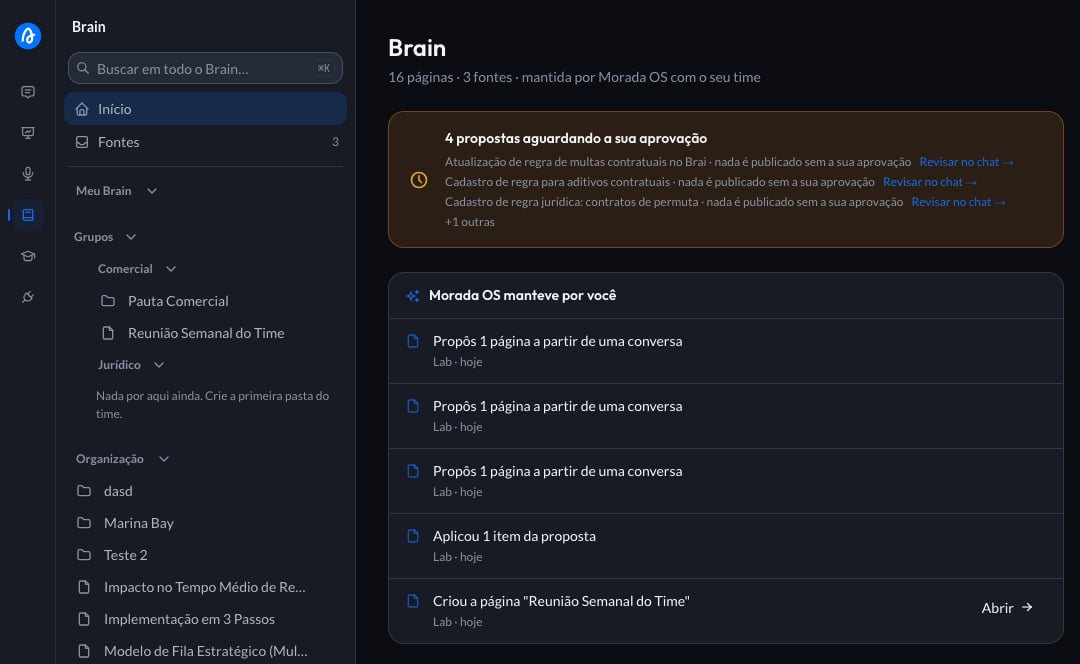
An empty group shows “Nada por aqui ainda.” (nothing here yet) in the sidebar. Whoever can organize the space also sees the invitation to create the team’s first folder.
For an outsider, the content simply does not exist
This holds everywhere in the product, at the same time:Sidebar
The group’s root does not appear. There is no greyed-out folder, no padlock, no “restricted content”.
Search
The group’s pages do not enter the results of anyone outside the team.
Fontes
Files uploaded to the group do not appear in an outsider’s library.
Assistant answers
The assistant does not use the group’s content to answer someone outside the team.
The three rules that settle almost everything
1. Each piece of content lives in one place only
Like a file lives in one folder. There is no “publish to Comercial and also to Jurídico”: either the content belongs to both teams, and then it moves one rung up, or it belongs to one.2. What two teams share belongs one rung up
If Comercial and Jurídico both need the same contract draft, it belongs to neither: it belongs to the workspace. If every brand in the organization needs it, it belongs to the organization. That is the quick test: ask who needs it and pick the rung that is exactly enough.3. The container decides
Whatever is created or uploaded inside a group’s tree is already that group’s, automatically. You do not tick anything, do not pick a permission, do not check afterwards. Just like saving a file inside a folder: it stays where you saved it.Moving an existing folder into a group
Sometimes the team organizes itself after the content. A folder that today sits in the workspace can be moved into a group’s space. On the folder, open the actions menu and choose Mover para um grupo (Move to a group). As soon as you pick the group, Morada OS shows the size of the change before anything happens: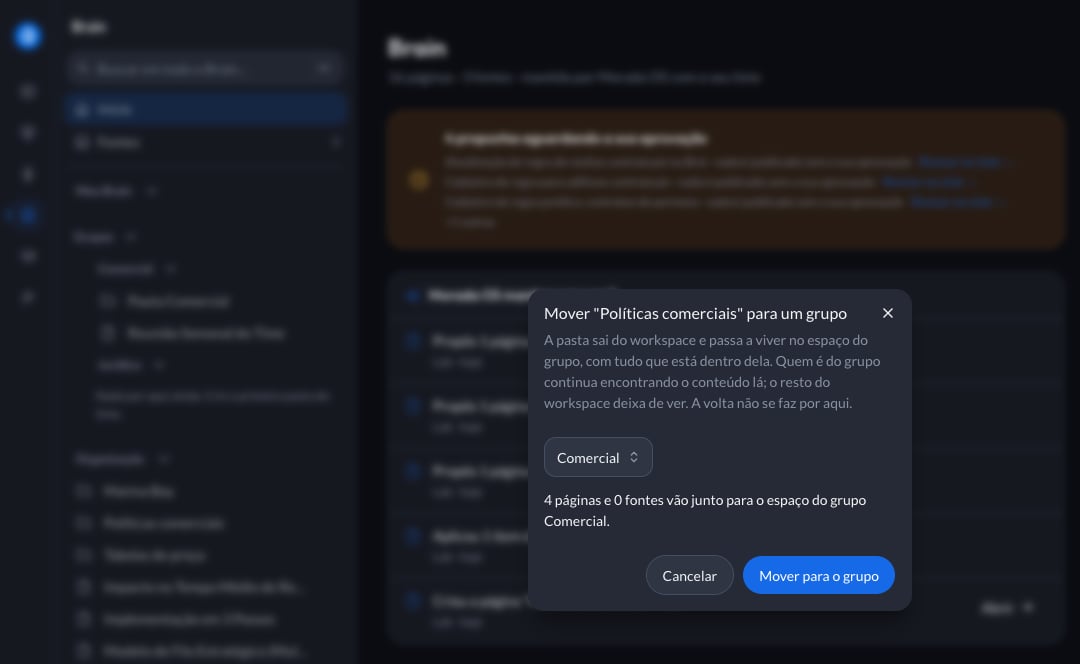
The folder is not a root folder
The folder is not a root folder
Only a root folder changes space. A subfolder follows the folder above it.
You are not part of the destination group
You are not part of the destination group
Administering the workspace does not put you inside the team. Join the group, or ask whoever administers the organization.
The folder has proposals waiting for approval
The folder has proposals waiting for approval
A proposal remembers the space it was made in and would stop being valid after the change. Approve or discard the pending ones before moving.
Mover para and Mover para um grupo are different things. “Mover para” (Move to) reorganizes the folder inside the same space, without touching who sees it. “Mover para um grupo” is the one that changes the audience.
Uploading a source into a group
When you upload a file, groups appear as destinations at the same rank as the other spaces. Each option explains in one line who will see it: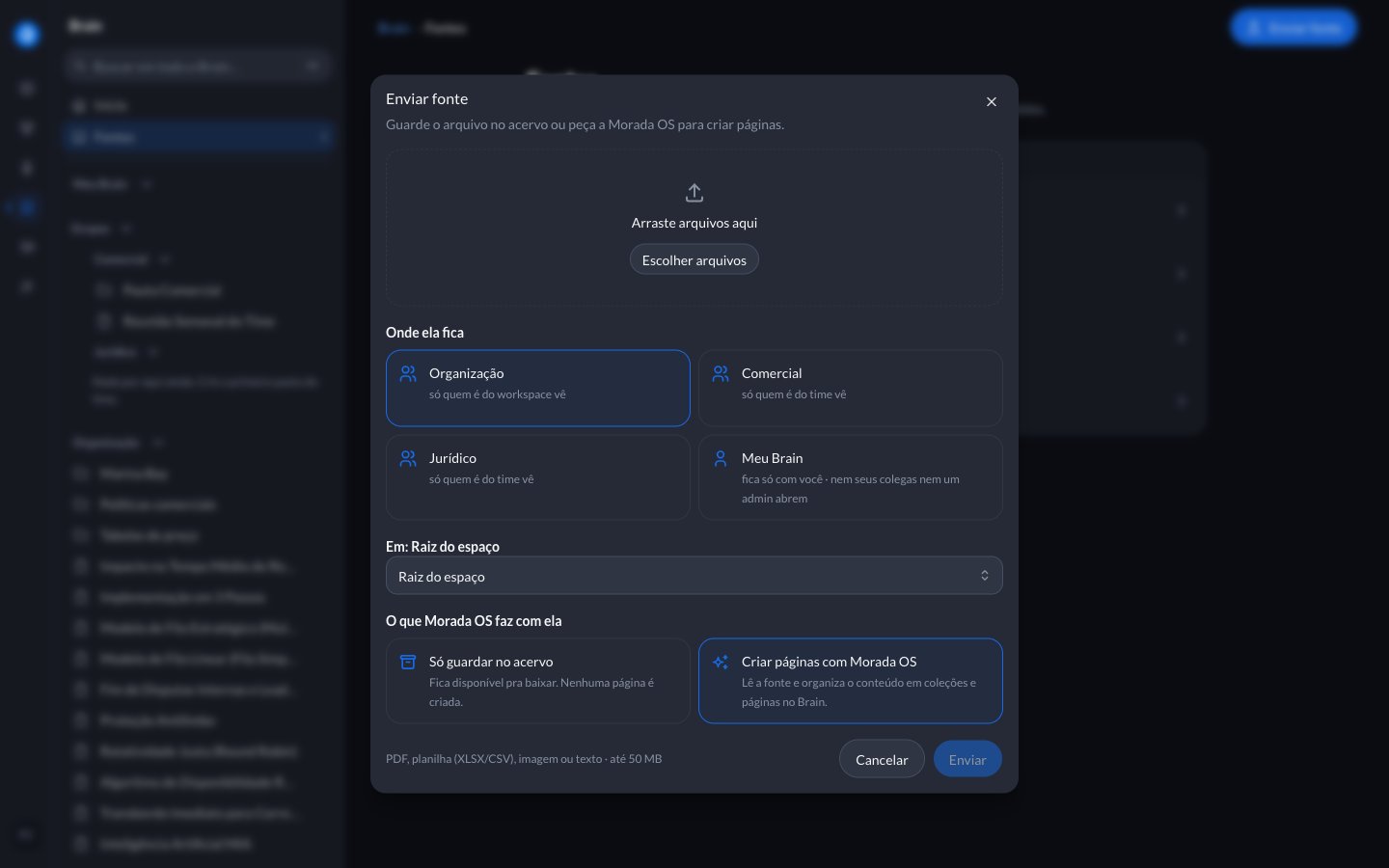
Asking the assistant to file it in a group
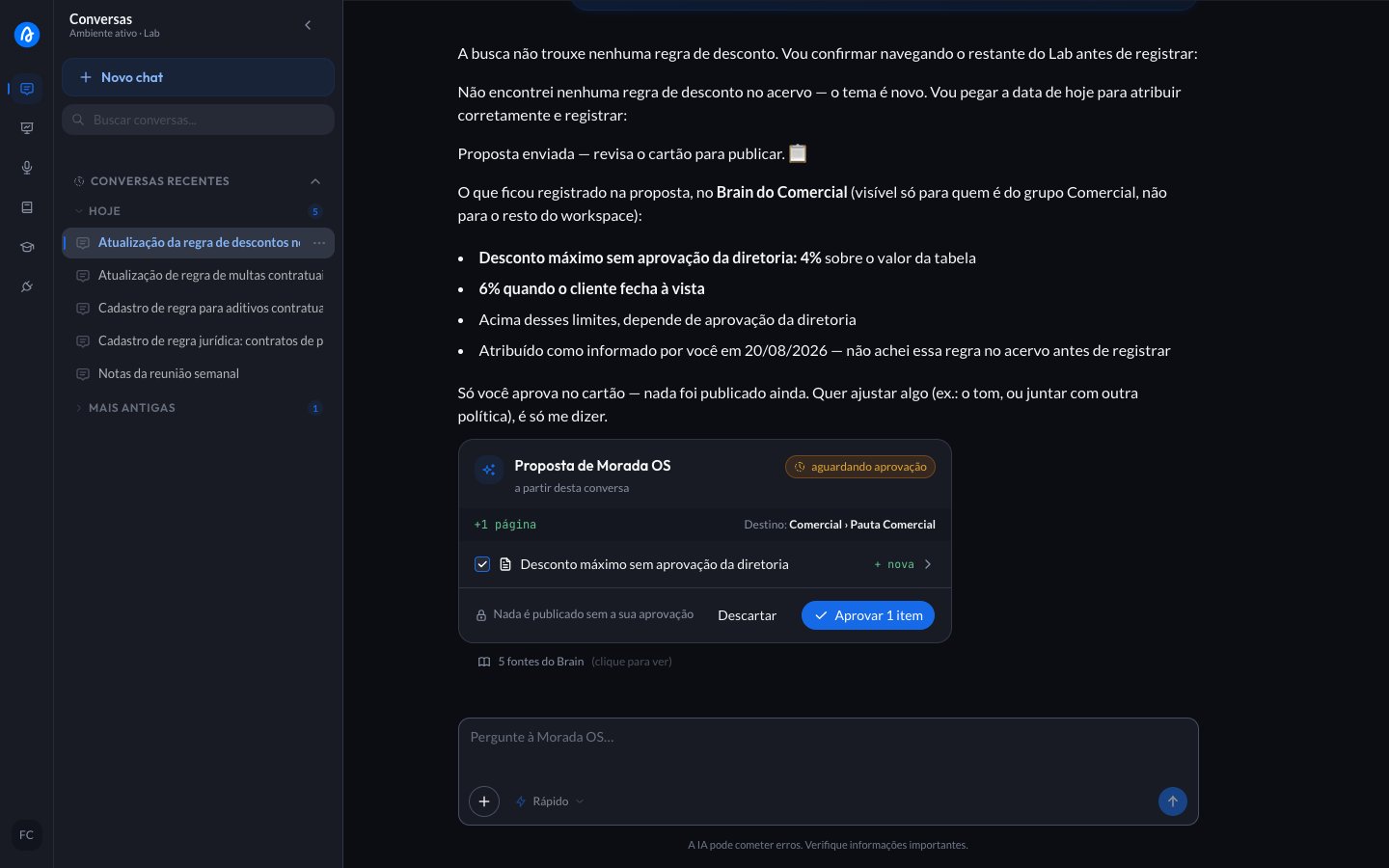
The assistant knows the groups you belong to and files content in them when you say the name:anota no Brain do Comercial: desconto máximo sem aprovação da diretoria é 4% na tabela, e 6% quando o cliente fecha à vista. (make a note in the Comercial Brain: the maximum discount without board approval is 4% off the list price, and 6% when the client pays in full.)It prepares the page, shows the destination on the card, and waits for approval from a group manager. If you are a manager, your OK is enough.
Creating and administering groups
Groups are administered in Configurações (Settings), under the workspace’s Grupos section. Whoever administers the organization, and whoever administers that workspace, can create, rename, deactivate and staff a group.
1
Create the group
Click Criar grupo (Create group) and give it a name. The name is the only information required, and it is how the assistant recognizes the team when someone asks it to file something.
2
Add the people
Open the group and use Adicionar membro (Add member). Only people already in the workspace show up. Each person joins as Membro (Member) or Gestor (Manager).
3
Create the first folder
In the Brain, at the group’s root, create the team’s first folder. From then on, everything born inside it already belongs to the group.
Membro and Gestor
Deactivating a group hides its folders from the people who were in it, but deletes nothing: the people stay registered in the group and it can be reactivated later.
Skills for the same group
Habilidades (Skills) uses the same groups as Brain: you do not need to set up the team again. Membership grants access to the group’s skills and files; the Gestor (Manager) role lets you create, edit, and approve changes for the team. A group skill is available to the group’s members, in the chats of that group’s workspace. In Habilidades, the Grupo (Group) tab gathers the skills of the groups you belong to.- Membro (Member): views, uses, and proposes changes through a conversation.
- Gestor (Manager): creates and edits directly, and reviews members’ proposals.
Propose and review a skill
1
Name the group the skill is for
In a conversation, ask something like: “Create a skill to summarize visits for the Comercial group. Include interest, questions, and next contact.” You can only propose skills for groups you belong to. To create a skill for a group, open a chat in that group’s workspace. From another workspace, the AI declines and tells you which chat to open.
2
Check your proposal
If you are a member, the card shows Aguardando aprovação do gestor do grupo (Awaiting the group manager’s approval). You can request adjustments in the conversation and, for a new skill proposal, edit its name and choose whether to publish it or save it as a draft. To cancel, use Retirar proposta (Withdraw proposal). These actions do not approve the change for the team.
3
The manager reviews in Propostas
A group manager opens Propostas (Proposals), in the Pra eu revisar (To review) tab, and selects the proposal. In Habilidades (Skills), the Propostas row opens the filtered list. The proposal opens on its own page: there is no need to open or share the author’s private conversation. See how proposals work.
4
Approve before applying
The manager checks the content and clicks Aprovar e aplicar (Approve and apply), or Recusar (Decline). Changes are saved only after approval. A new skill saved as a draft still needs to be published before the team can use it.
A personal skill stays private, including from administrators. It only becomes available to colleagues if you explicitly share it in Comunidade (Community). Creating a group skill does not share your conversation or grant access to external pages or files mentioned in its instructions.
Frequently asked questions
What is the difference between a workspace and a group?
What is the difference between a workspace and a group?
The workspace is a company inside the company: a brand or a business unit, with its own administrator. The group is an area inside it: Comercial, Jurídico, Marketing, Financeiro. An area never becomes a workspace, and most companies have a single workspace.
Can whoever administers the organization read my Meu Brain?
Can whoever administers the organization read my Meu Brain?
No. That is the one exception that holds for everyone: Meu Brain belongs to the person. Whatever needs sharing, you move to a shared space when you want to.
Can I be in more than one group?
Can I be in more than one group?
Yes. Every group you belong to becomes a root in the Grupos section of your Brain.
I put a folder in the wrong group. Now what?
I put a folder in the wrong group. Now what?
Talk to whoever administers the organization. Bringing content back, or taking it to another group, is not yet done through the interface, and that is why the confirmation notice shows the size of the change before you confirm.
Why do I not see the Grupos section?
Why do I not see the Grupos section?
It appears when there is at least one group you can see. If your company has not created groups yet, or if you have not joined any, the section stays hidden.
Back to the Brain
Sources, pages, approving proposals and searching the library.