

Before you start
Access to Morada OS
An active account at os.morada.ai, with your company’s corporate login.
Your CV CRM access
Your company’s CV address (the part before
.cvcrm.com.br) and your login e-mail. To sign in you use your password or an administrative token, whichever you have.The connection is personal. Each person connects their own CV access, and the assistant sees exactly what that access sees: no more, no less. If your user cannot see a module in CV, neither can the assistant.
Password or token?
- Password: the one you use to sign in to the CV panel. It is the path for brokers, managers and agencies, and the only one that allows updating a buyer’s record.
- Administrative token: a key generated in CV under Integrações, tied to an administrator user. Only a CV administrator can generate one, and it can be revoked there at any time without changing a password.
How to connect
1
Open the connectors
In the Morada OS sidebar, click Conectores. The page shows the accounts and systems available.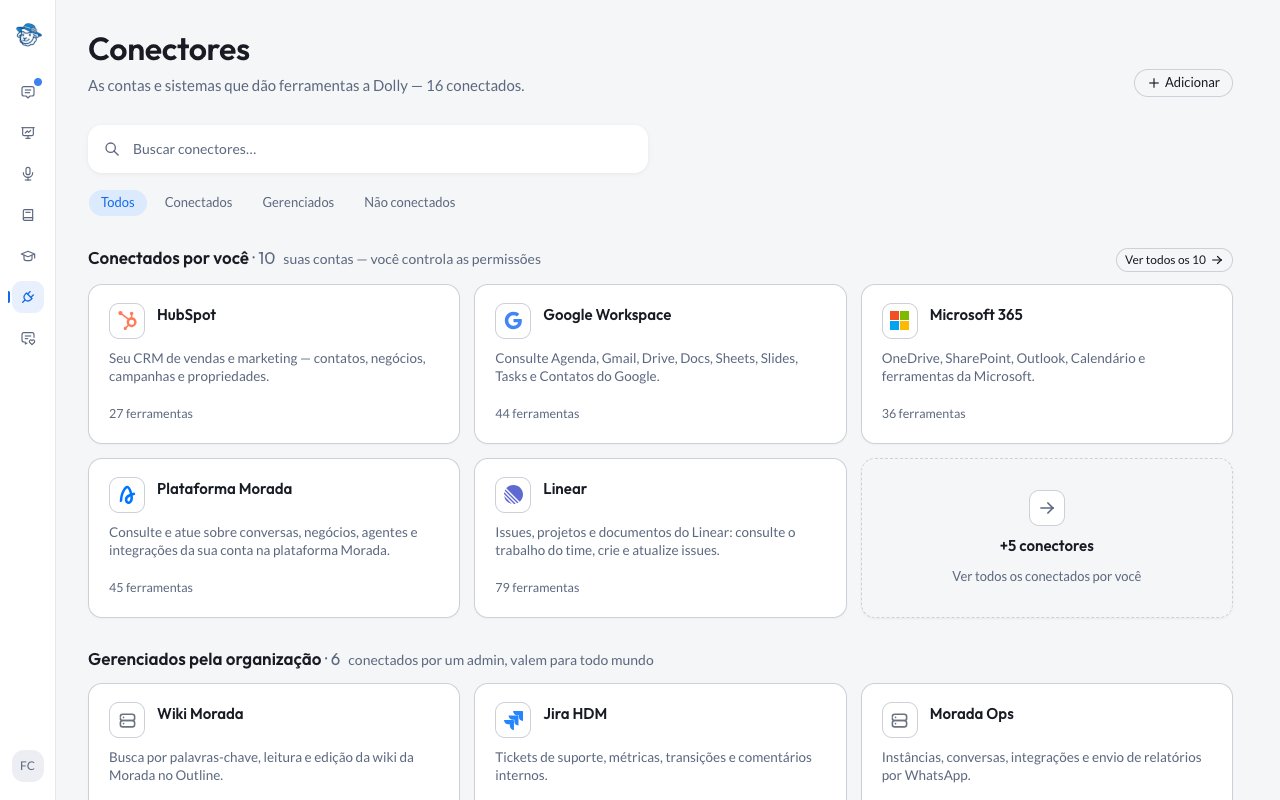
2
Pick CV CRM
Find the CV CRM card and click Conectar. If the shelf is crowded, use the search at the top.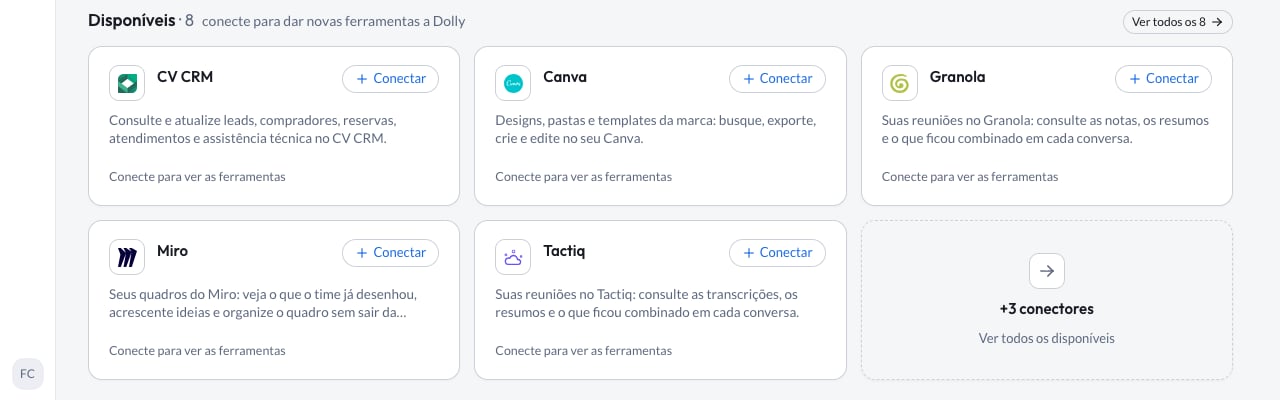
3
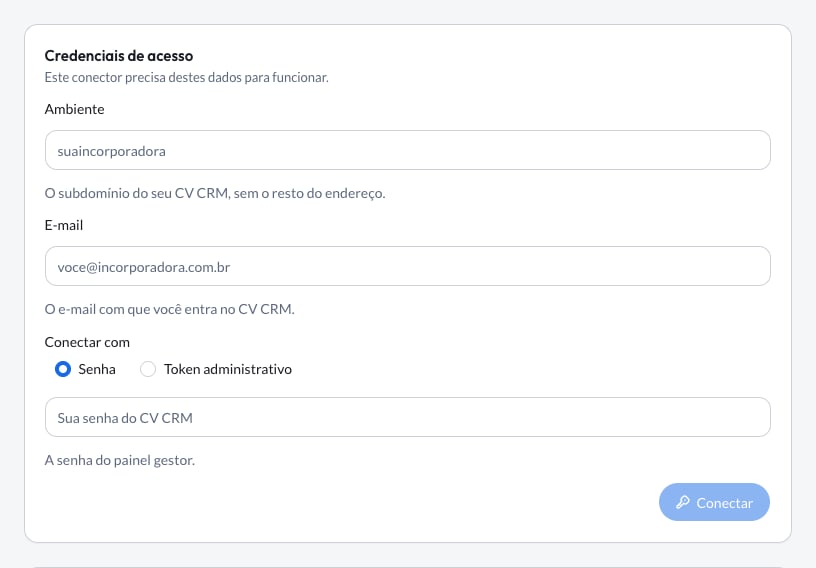
Fill in your access
A short form appears on the card itself:
-
Ambiente: just your CV’s name, without the rest of the address. If you sign in at
yourcompany.cvcrm.com.br, typeyourcompany. - E-mail: the e-mail you sign in to CV with.
-
Conectar com: choose Senha (password) or Token administrativo and fill in the box that appears.
4
Ready to use
CV CRM appears under Conectados por você. From then on the assistant can look things up in CV whenever you ask.
What the assistant can do
Adjusting permissions after connecting
There is nothing to configure in CV after connecting: the fine-tuning happens on the Morada OS side. Open Conectores > CV CRM and you see two lists, O que Morada OS pode ler and O que Morada OS pode fazer, with a permission label on each tool:- Sempre permitir (always allow): the tool runs right away when your request needs it. It is the default for lookups, which change nothing.
- Perguntar antes (ask first): the assistant asks for your confirmation in the chat before using that tool. It is the default for everything that writes to CV.
Day-to-day use
Ask the way you would ask a colleague. A few examples to start with:How to disconnect
1
Open the connector
Go to Conectores in the sidebar and click the CV CRM card.
2
Unlink the account
Click Desvincular and confirm.
Common problems
The form says the credentials could not be validated
The form says the credentials could not be validated
CV refused the access you entered. Check the Ambiente (just the name, no
https:// and no .cvcrm.com.br), the e-mail and the password or token. A token only works together with the e-mail of the administrator who generated it.The assistant says CV denied permission for a module
The assistant says CV denied permission for a module
Your CV access does not reach that module (technical assistance, for example). Ask your company’s CV administrator to enable the module for your user. Reconnecting does not help, because the permission lives in CV.
The assistant asks you to reconnect
The assistant asks you to reconnect
CV stopped accepting the stored access, for example after a password change or a revoked token. Unlink CV CRM under Conectores and connect again.
I cannot update a buyer's record
I cannot update a buyer's record
That update only works with a password connection. If you connected with an administrative token, unlink and connect again choosing Senha.
The assistant cannot find a lead I can see in CV
The assistant cannot find a lead I can see in CV
Check the phone or document used in the search and whether the lead lives in the same environment you connected. Ask for a search by name as an alternative.
Support channels
Support channels
- Help center: support.morada.ai
- E-mail:
suporte@morada.ai - Platform status: status.morada.ai
Next steps
All integrations
Everything else Morada OS connects to and where to find each guide.
How to ask well
Three minutes that improve every request you make to the assistant.