

What to send
The more brand material, the more faithful the result. You can combine:The company website
The brand manual
A company presentation
A description
How to create it
Ask in the conversation
Check the card and give your OK
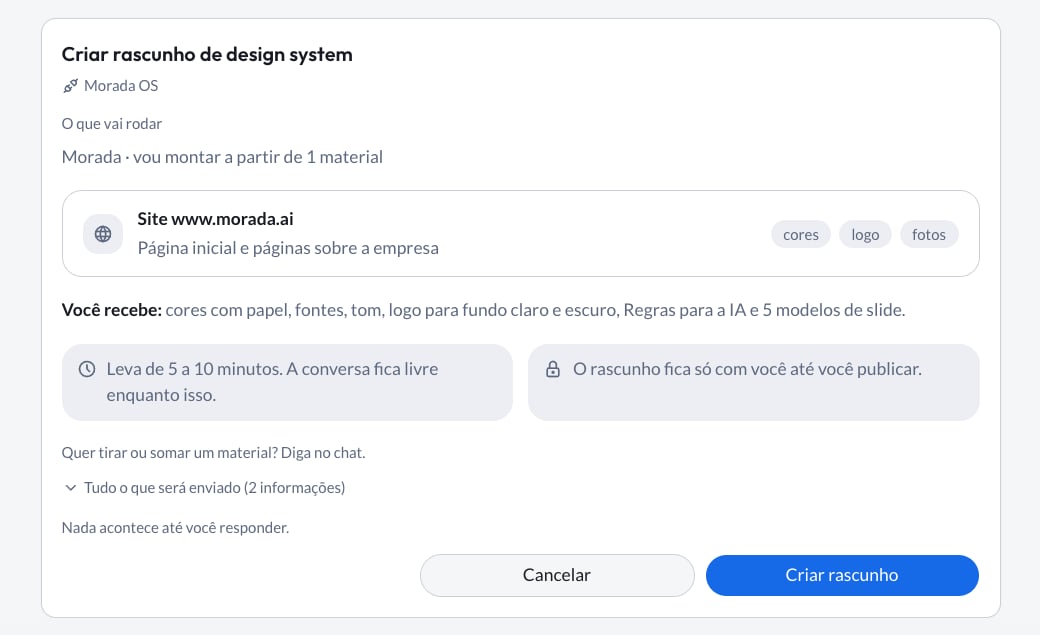
The request card: the materials, what you get and how long it takes.
Keep talking while it gets ready
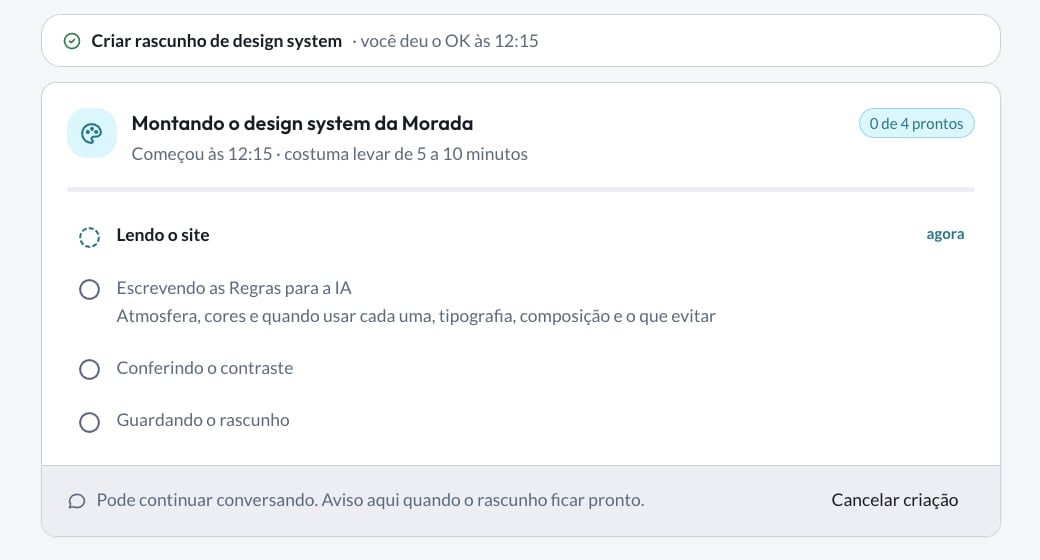
The progress card: each material read and what is left.
Review the draft
What the draft shows
The draft card brings everything together at a glance:- The colors, with the role of each one (background, text, highlight).
- The typography for headings and text. If the brand font is not among Morada OS’s fonts, the assistant uses the closest one and says which it swapped for which.
- The logo, for light and dark backgrounds. When the material has no logo for one of them, the assistant draws one. It only enters the design system after you click Usar este (Use this).
- The slide templates: an example of a cover, a section divider, a content slide, a numbers slide and a closing slide, filled with what your material says about the company. The assistant does not make up numbers: with no numbers in the material, the numbers slide becomes a strong statement about the company.
- The rules for the AI: how to compose headings, blocks and images in the brand’s style.
- O que não achei e o que coloquei no lugar (What I did not find and what I put in its place): what the material was missing and what the assistant used instead, such as the closest font or the photos that did not come from the site. That way you know what to complete, if you want.
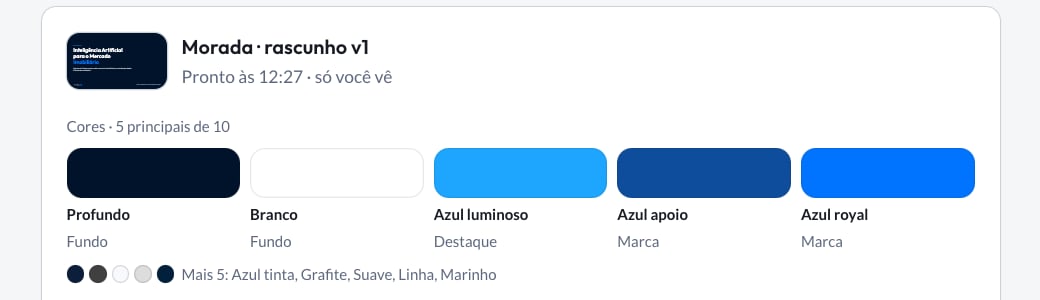
The top of the draft: colors, typography and logo.
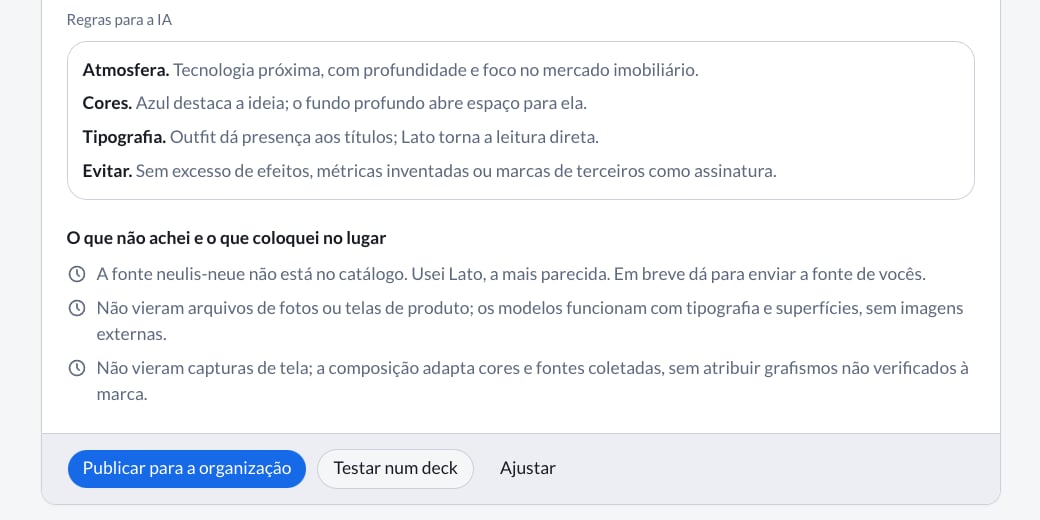
The end of the draft: what the material was missing and the buttons to publish, test and adjust.
Adjust by talking
Ask for the change in the conversation, as you would ask a designer: “deixa o verde mais escuro” (make the green darker), “usa a Lato no texto” (use Lato for the text), “tira o laranja dos títulos” (take the orange out of the headings). Or click Ajustar (Adjust) on the card, which starts the request in the message box for you to finish. The assistant shows a card with the before and after and the contrast of the text against its background. With your OK, the draft gets a new version. Adjust as many times as you like before publishing.Test it in a presentation
Click Testar num deck (Test in a deck). It opens a new conversation with the draft already picked and a presentation request written in the message box, ready to send. Change the subject to a real case of the company if you want, and see how the brand shows up. Like it? Go back and publish. Don’t like it? Adjust and test again.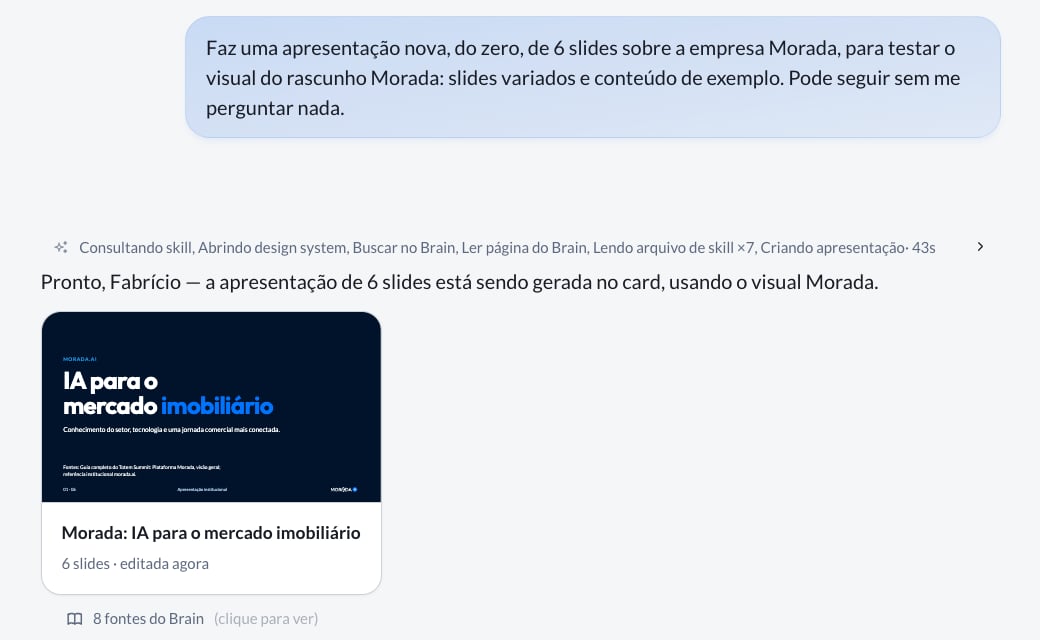
A test presentation made with the draft.
Publish it for the company
Ask to publish
Approve
Ready for everyone
Switch a presentation’s design system
A presentation that already has slides can change style too. The AI redoes every slide in the new design system, with the same content: the same texts, numbers and names. It works for the company’s design system and for any style in the gallery. Open the presentation and ask in the chat next to the slides, in one of these two ways.With the design system button
In your own words
- Refazer os slides (Redo the slides) starts the switch. The request shows up in the conversation as a message from you.
- Escolher sem refazer (Choose without redoing) only saves the choice. The button shows pendente (pending), and the deck keeps its current style until you ask for the redo. In its next reply, the assistant offers to redo the slides.
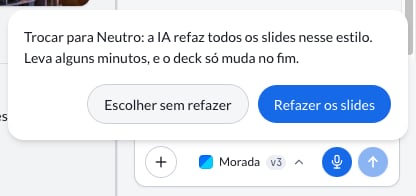
The confirmation when you choose another design system for a deck with slides.
While the switch runs
- A card in the chat shows the progress, for example “5 de 12 slides” (5 of 12 slides). It usually takes a few minutes.
- The deck stays as it is until the last slide. Only then do the slides and the design system change together, all at once.
- A long switch may pause and continue on its own. The card shows Continuando… (Continuing…). If you closed the page midway, the card shows the paused switch, with Continuar (Continue) and Cancelar (Cancel).
Undo
When the switch finishes, the card shows Deck trocado para (Deck switched to) and the name of the new design system, with the Desfazer (Undo) button. Undo brings back the previous slides and design system, together, without redoing anything. You can also ask in the conversation, for example “volta para o estilo de antes” (go back to the previous style). Undo only works while the deck has not changed since the switch. If it has, choose the old design system again: the AI redoes the slides in it, as a new switch.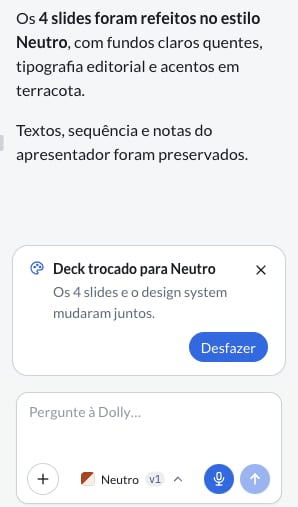
The end of the switch: the slides and the design system changed together, and you can undo it.
Archive and restore a design system
A design system the company no longer uses can be archived. It leaves the picker and the Design area, and the AI stops using it. Presentations made with it stay the same. If you change your mind, you can restore it.Who can
- A personal design system (your draft, for example): its owner.
- An organization’s: whoever administers the organization.
- A workspace’s: whoever administers that workspace.
Archive
Open the design system's page
Confirm
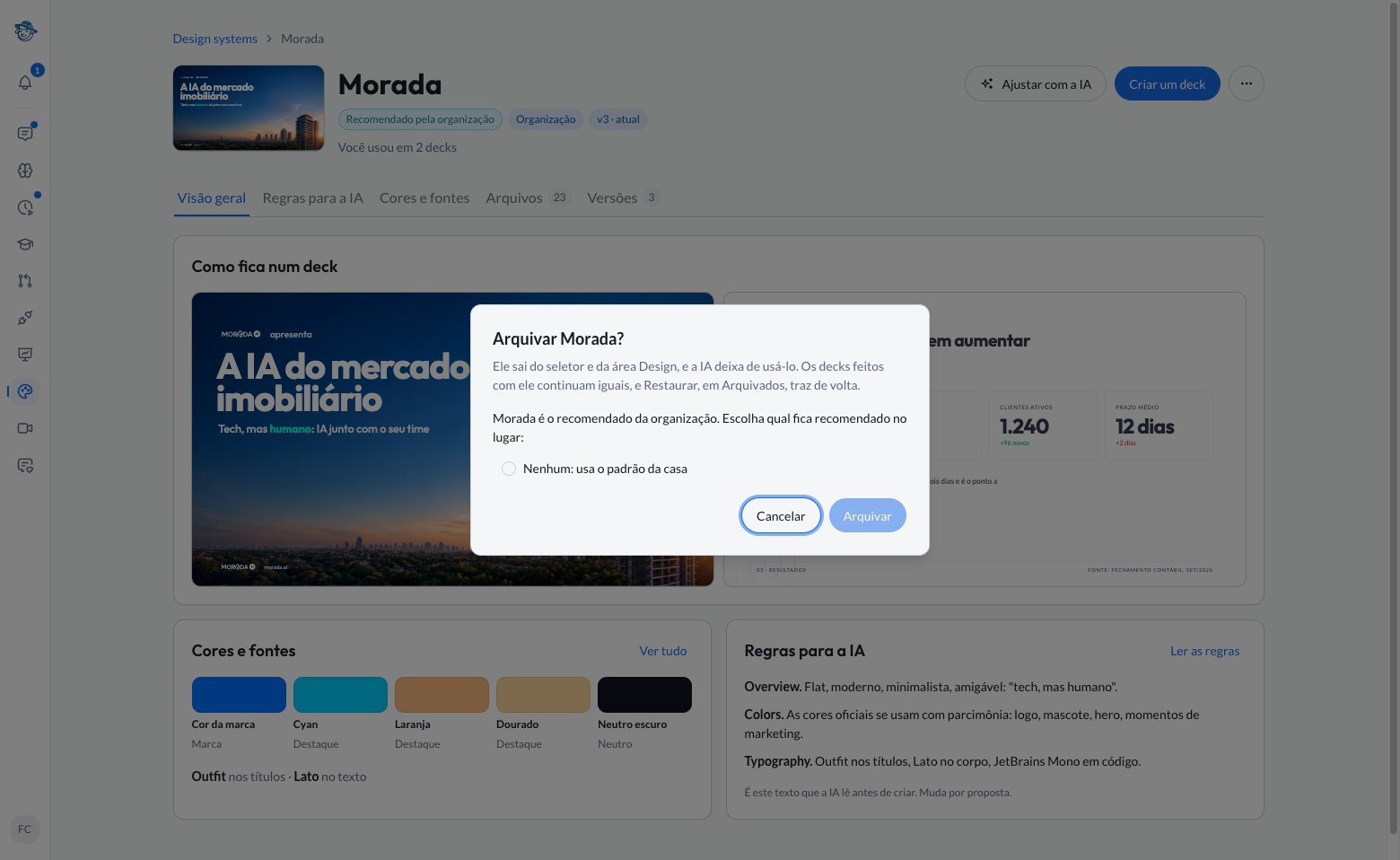
Archiving the recommended design system: choose which one is recommended in its place.
Restore
At the end of the list in the Design area, on the Organização (Organization) tab, there is Arquivados (Archived) with the number of archived ones. Click to open it, then click Restaurar (Restore) on the design system you want back. Only what you can restore shows up. The design system comes back as it was, at the same version, but not as the recommended one.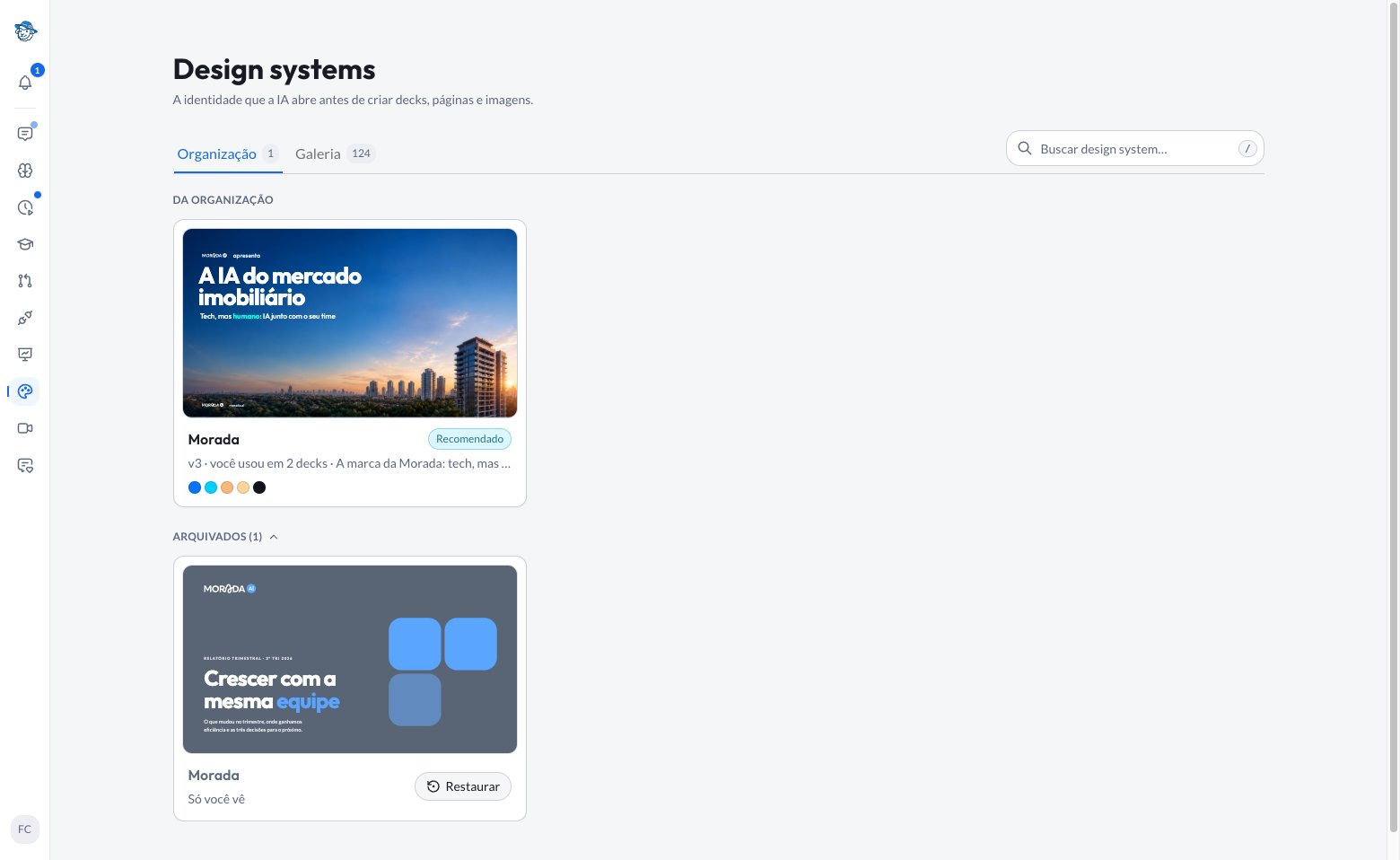
Arquivados, at the end of the Design area, with the Restaurar button.
Through the chat
Your personal design system can also be archived in the conversation. For example: “arquiva o rascunho Vértice” (archive the Vértice draft) or “restaura o Vértice” (restore Vértice). A card shows what will happen, and nothing changes without your OK. For now, this works for whoever administers the organization, who is the one creating design systems today. An organization’s or a workspace’s design system is archived in the Design area, for now. If you ask in the chat, the assistant tells you where to do it.Good to know
- One creation at a time. While a draft of yours is being built, a new request answers with the one in progress. If other drafts of the company are already being built, yours waits in the queue and the card says so.
- Large files. A PDF or PowerPoint over 4 MB is not copied into the design system: it keeps the file’s text and notes where the original came from (the conversation, the Brain or a skill).
- Change the logo before publishing. After publishing, colors, fonts and rules still change by proposal, but changing a file, such as the logo, is not possible through the chat yet.
- Brand fonts. Soon you will be able to send your own font file. Until then, the assistant uses the closest similar font.
- Credits. Creating a design system uses credits, like a presentation. On the credits screen it shows as Criação de design system (Design system creation).