

Before you start
- In Slack, you need to be allowed to create apps in the company’s workspace. If your Slack restricts that, ask whoever administers Slack.
- An icon, if you want one: a square PNG image, 512 to 2000 pixels.
Step by step
Click the button with your initials at the bottom of the sidebar, open Configurações > Conta > Canais (Settings > Account > Channels), choose Slack and open the Administração (Administration) tab. Only organization administrators see this tab.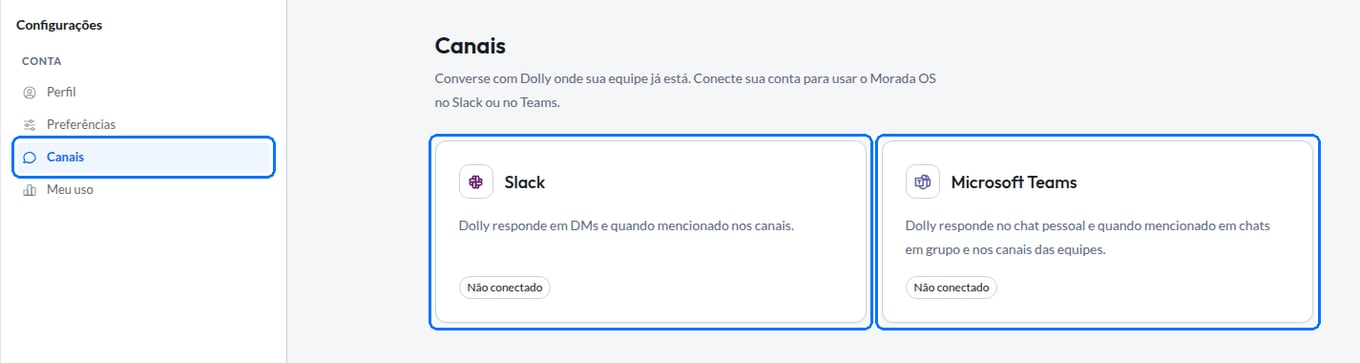
Name the app
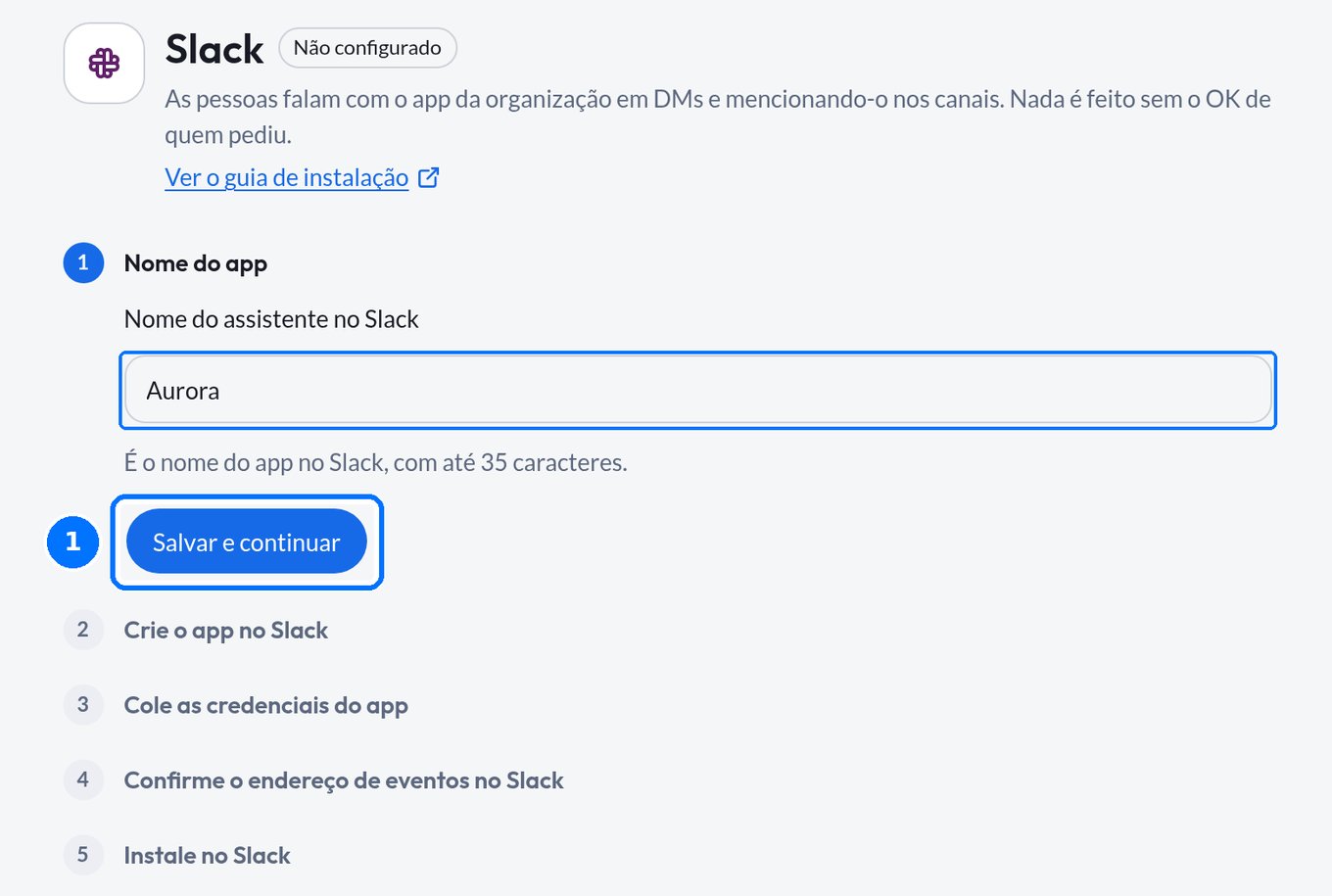
Create the app in Slack
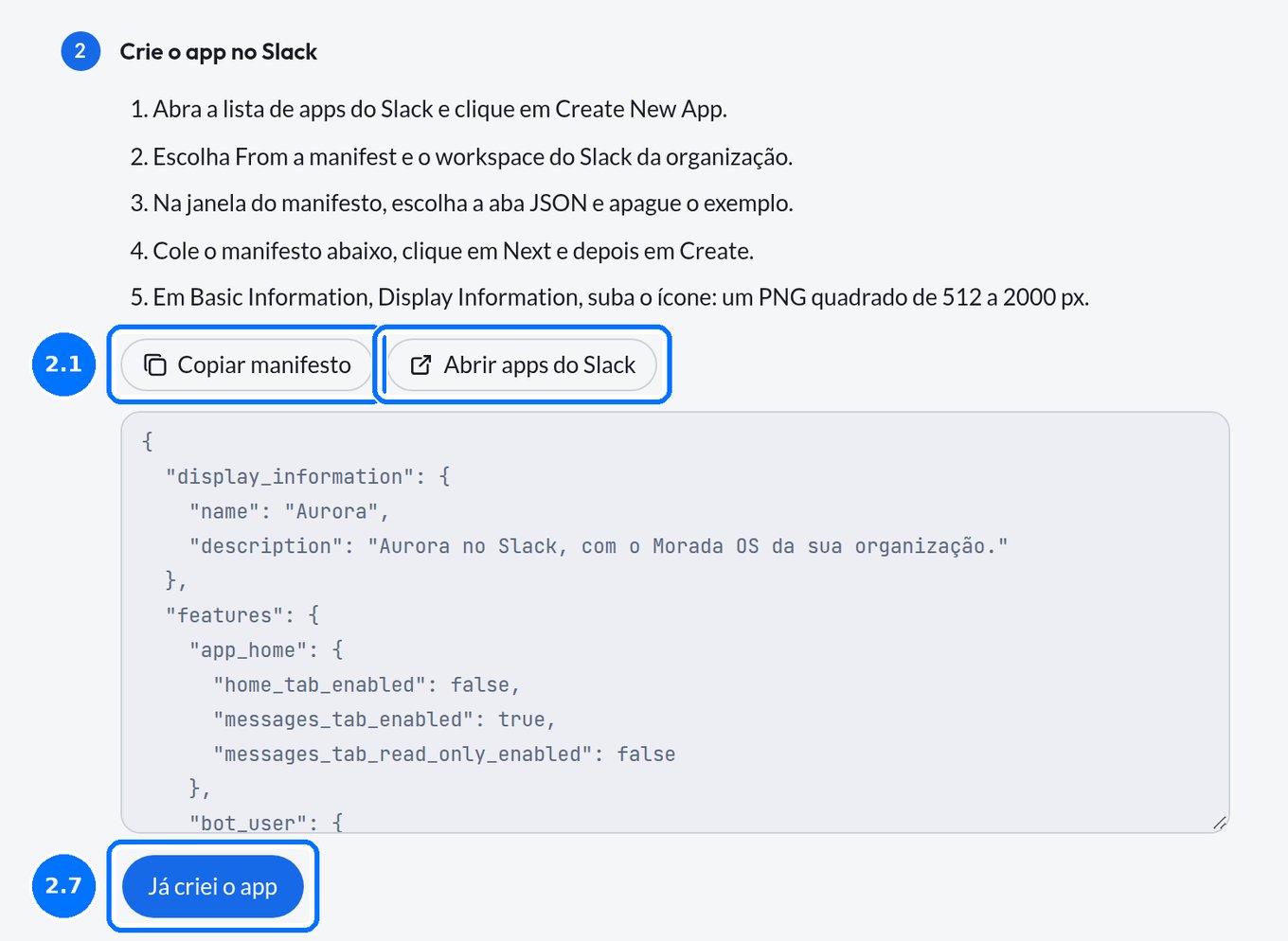
- Click Copiar manifesto (Copy manifest) and then Abrir apps do Slack (Open Slack apps). If Slack asks, sign in with your company Slack account.
-
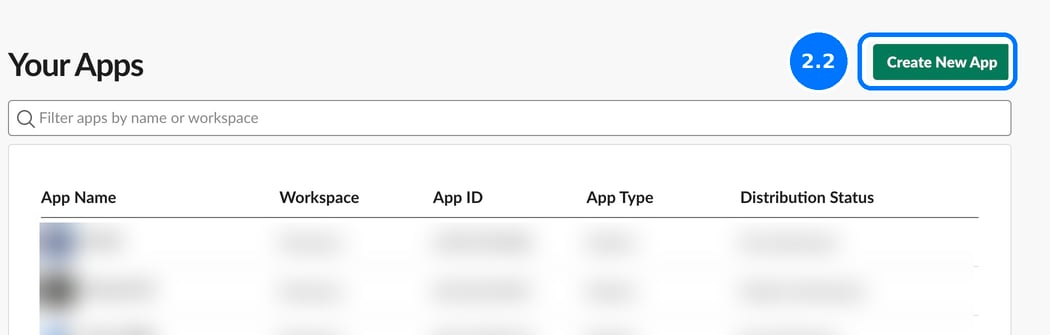
In the Your Apps list, click Create New App.
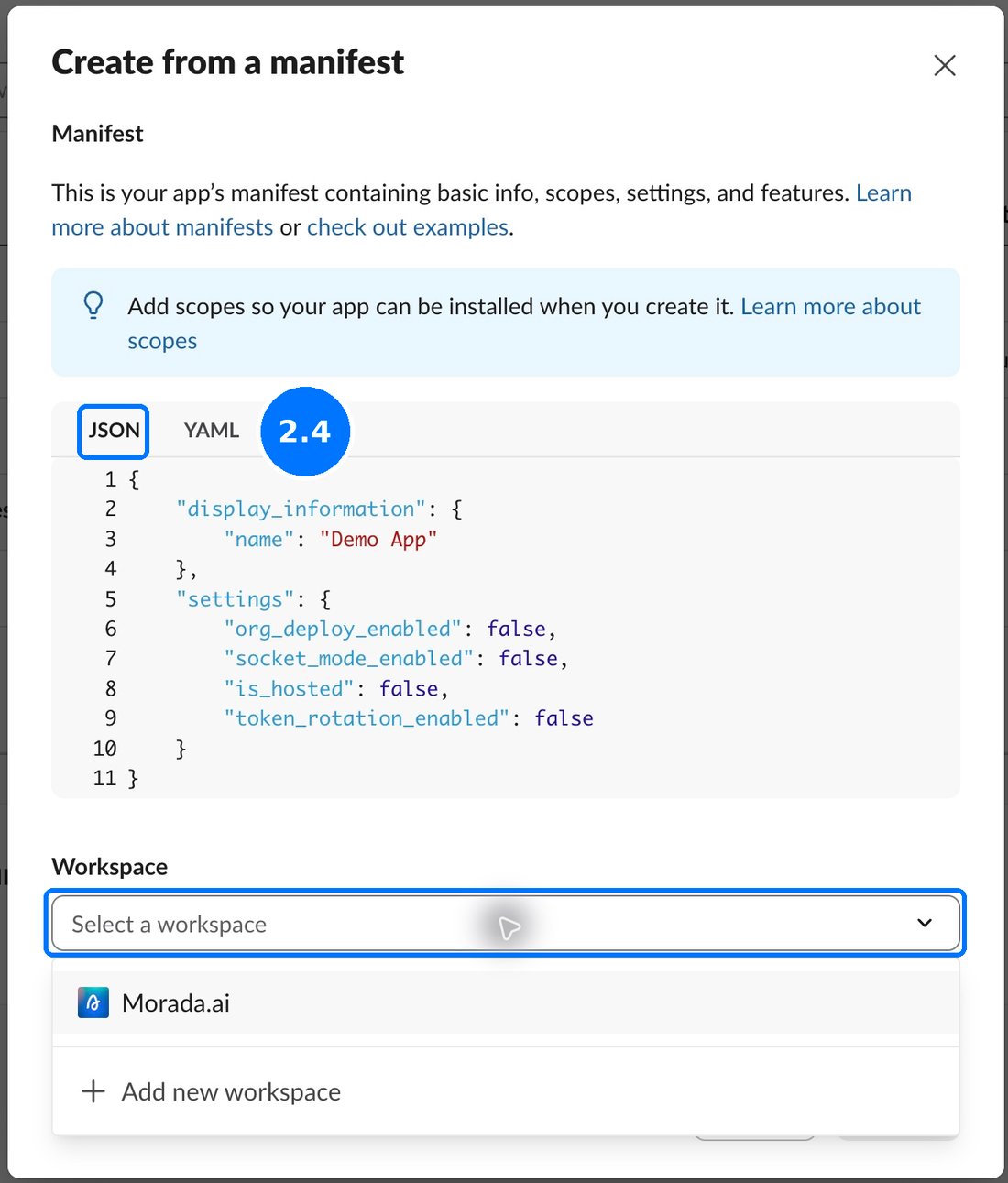
- Choose From a manifest. You see: the Create from a manifest window, with a sample manifest.
-
Choose the JSON tab and delete all the sample text. In Workspace, choose the company’s Slack workspace.
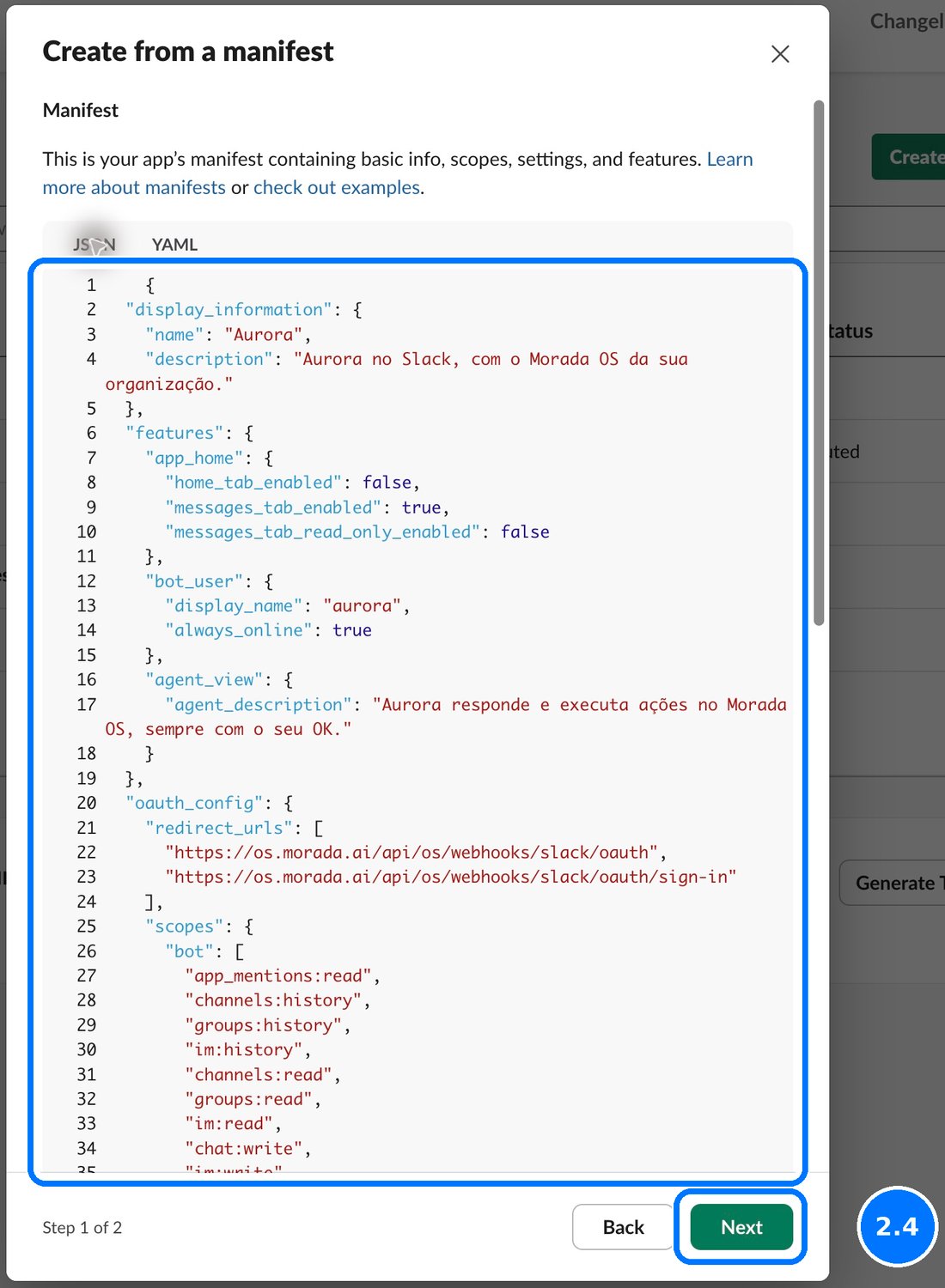
Paste the manifest you copied in Morada OS and click Next.
-
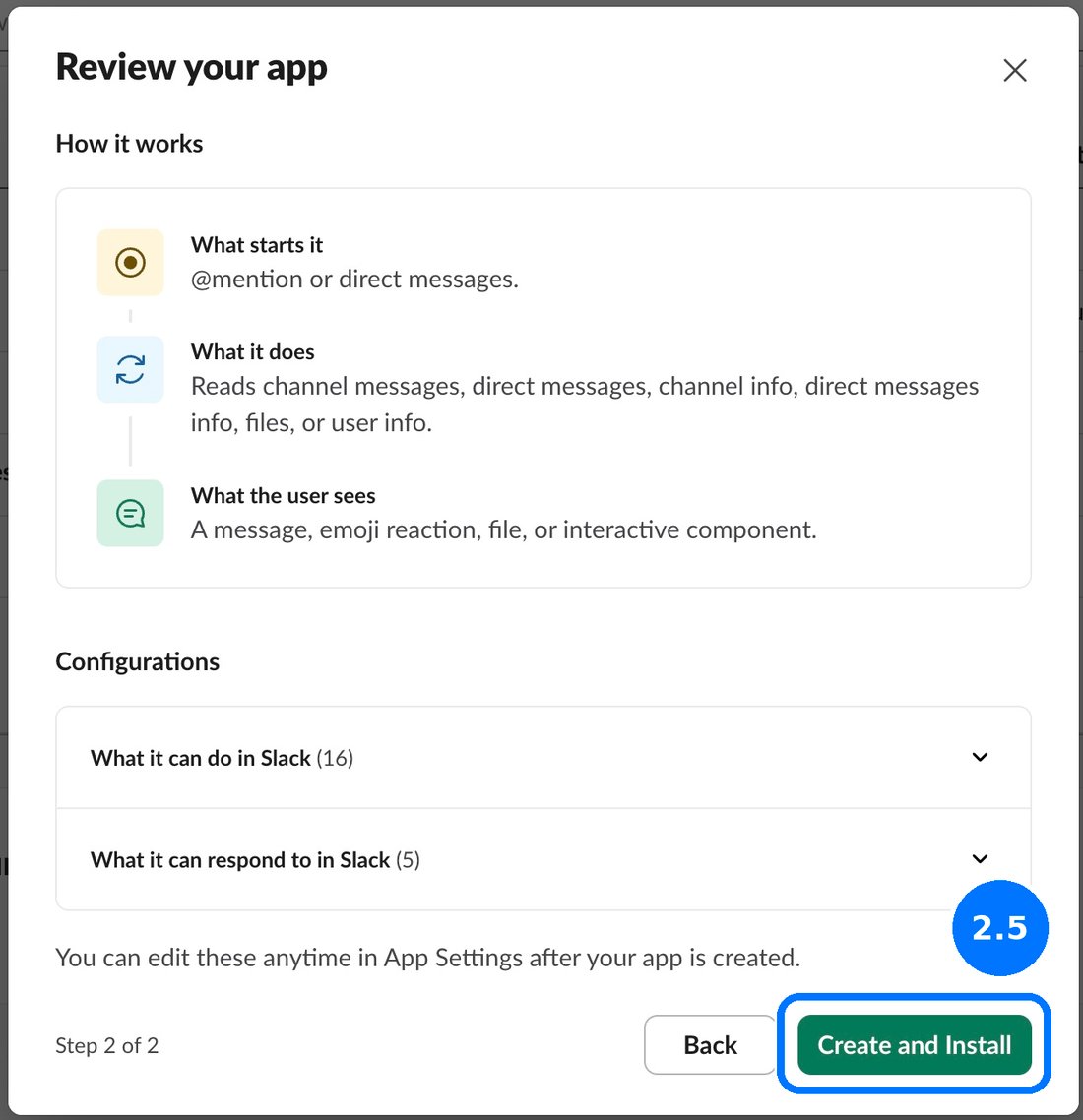
You see: Review your app, with what the app does and the permissions it asks for. Click Create and Install.
If Slack asks you to authorize the app in the workspace, authorize it. If it says it could not verify the events address, carry on: step 4 takes care of that.
- In the new app, in Basic Information, Display Information, upload the icon and click Save Changes.
- Back in Morada OS, click Já criei o app (I created the app). You see: step 2 with a ✓ and step 3 open.
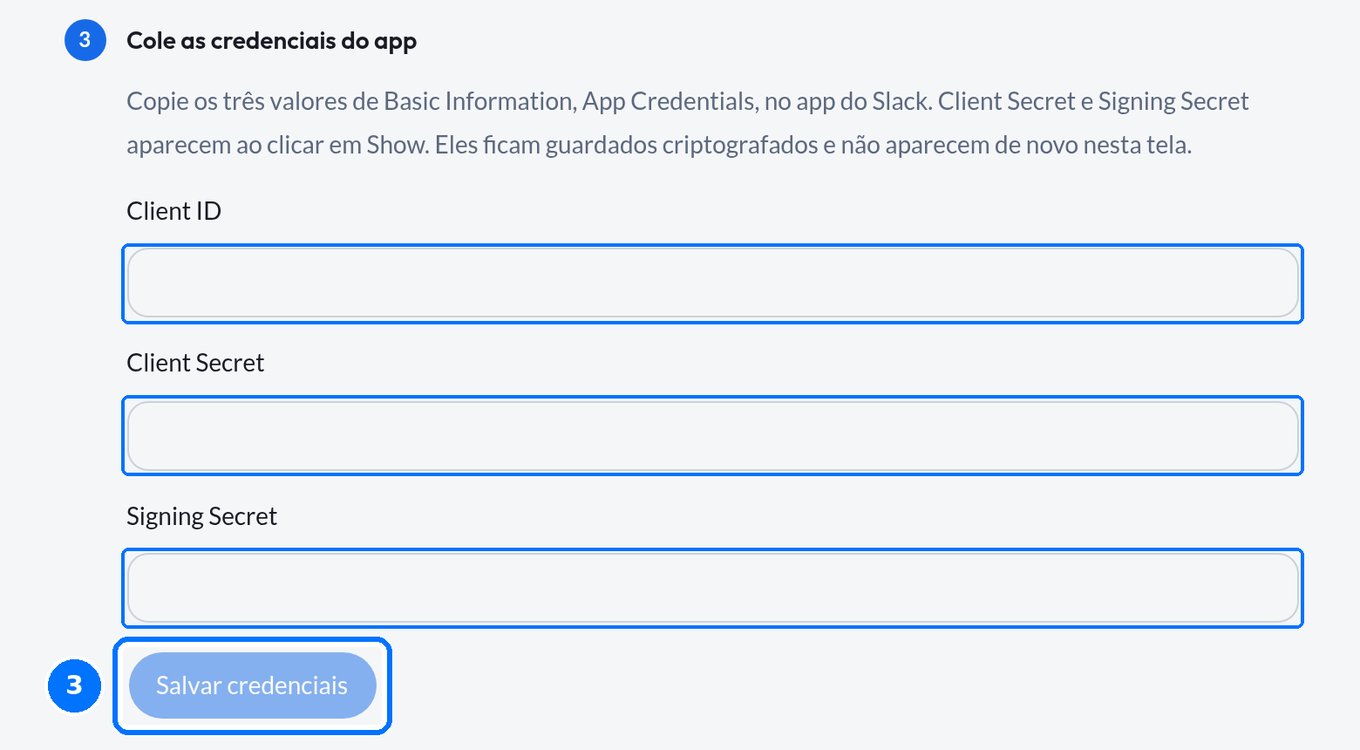
Paste the app's credentials
Confirm the events address in Slack
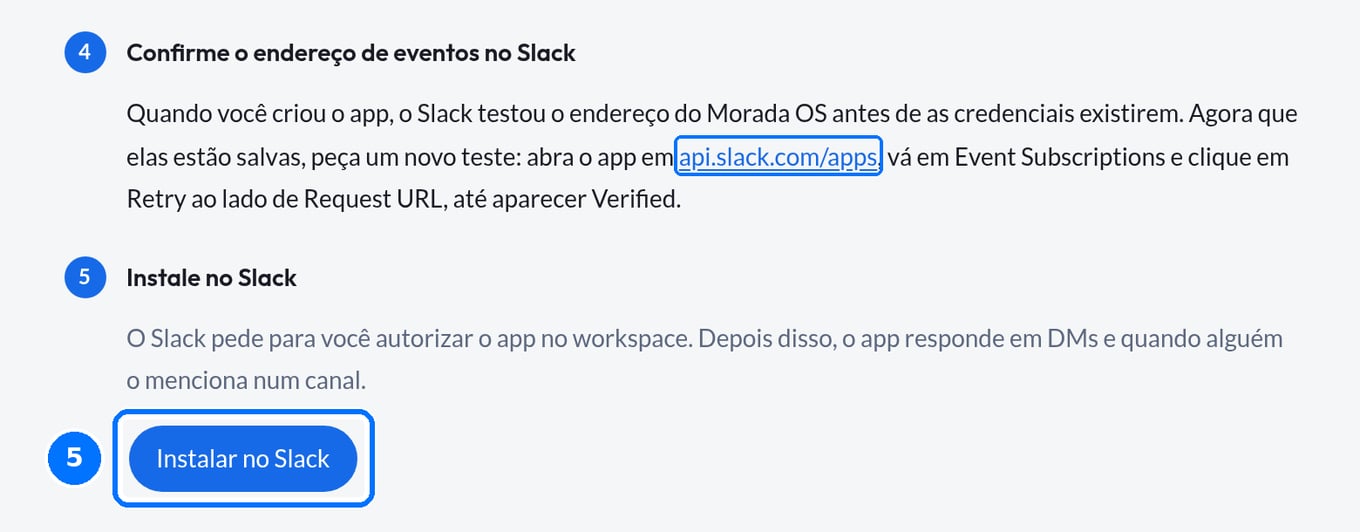
Install in Slack
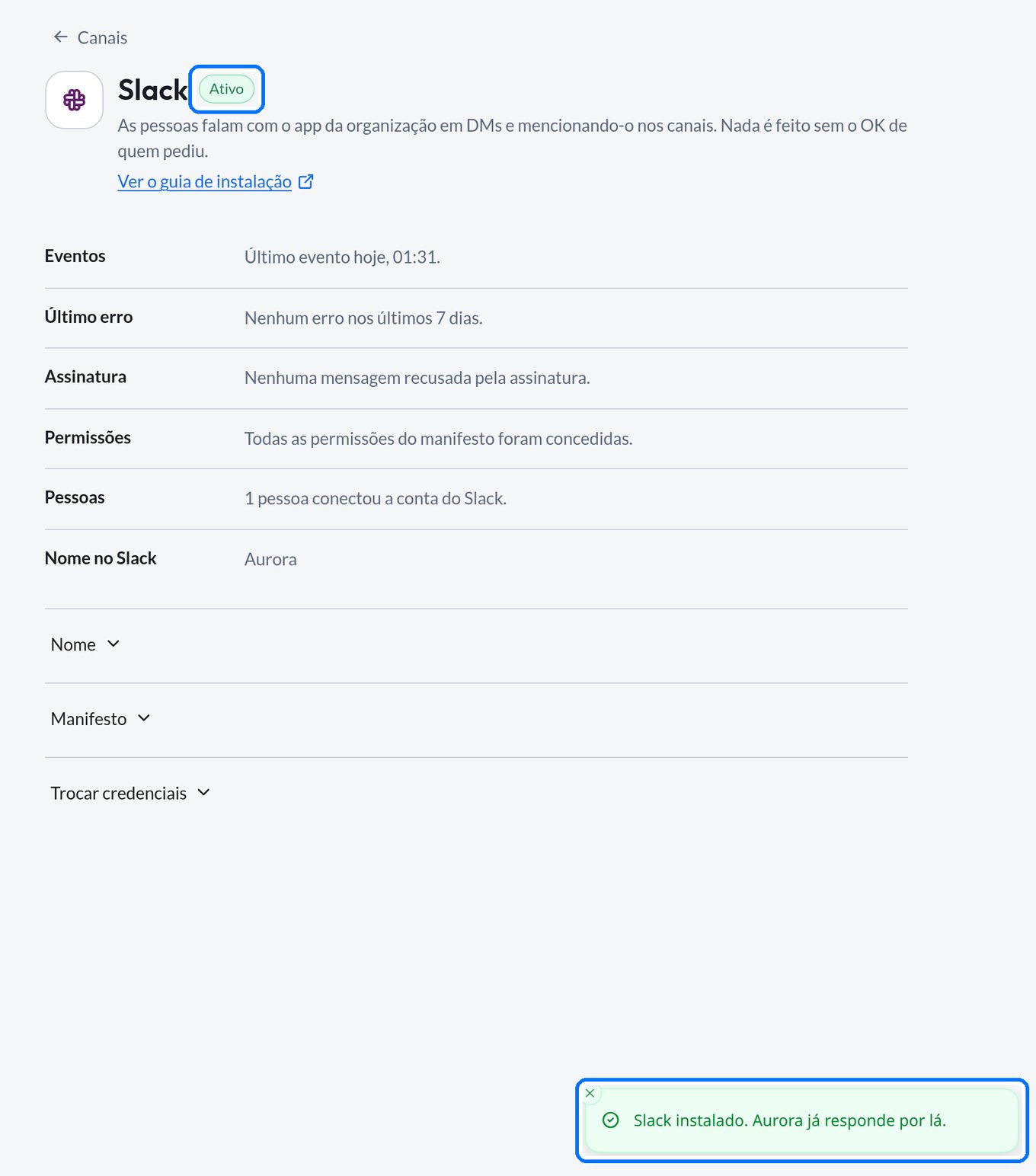
After installing: tell your team
-
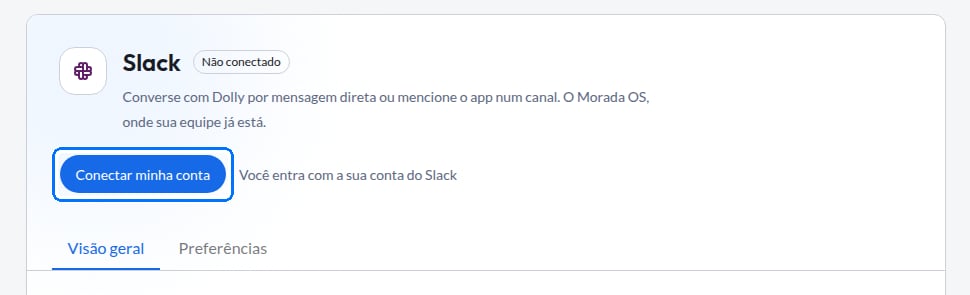
Each person connects their own Slack account, once, before the app answers them. It is in Configurações > Conta > Canais > Slack (Settings > Account > Channels > Slack), with Conectar minha conta (Connect my account) (see Connect your account). Until then, the app does not use the AI or spend credits: it only shows the person a Conectar minha conta button that opens the Slack page in Canais. That goes for you too.
- The app recognizes each person by the email in their Slack profile. Whoever is going to use it needs a Morada OS account with that same email. Invite anyone who does not have one yet.
- The app joins channel by channel. It only receives mentions from the channels it belongs to. When someone mentions the app in a channel it is not in, Slack offers to invite it; in a private channel, invite the app in each channel where it will be used.
Check that everything is working
After the installation, the Administração (Administration) tab of the Slack page, in Canais, shows the app’s health: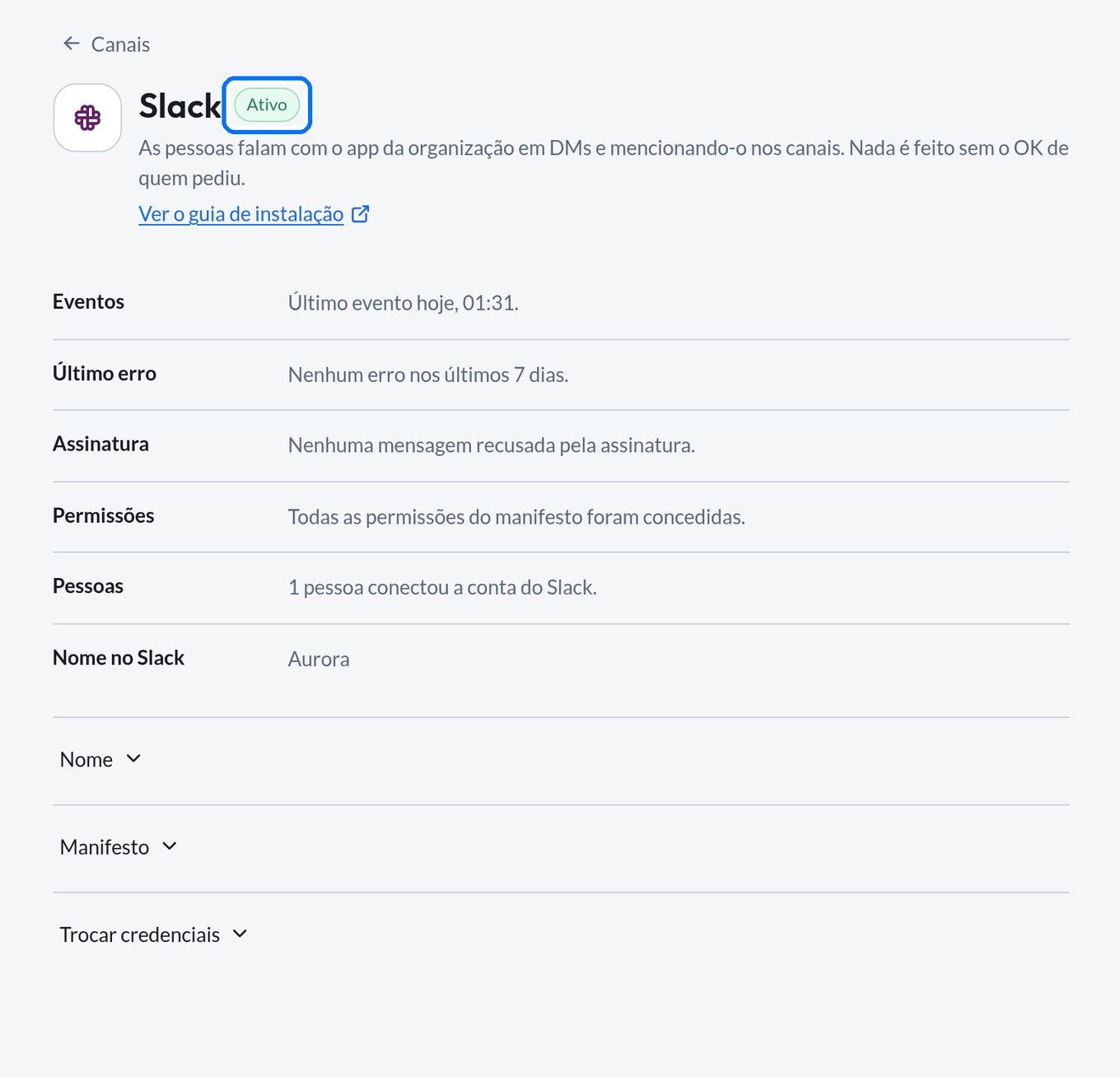
When Morada OS asks for a new manifest
When Morada OS starts needing something new from Slack, the page shows O manifesto do app mudou. (The app’s manifest changed.), with the new manifest right below, and the card in Canais shows Precisa de atenção (Needs attention) for organization administrators.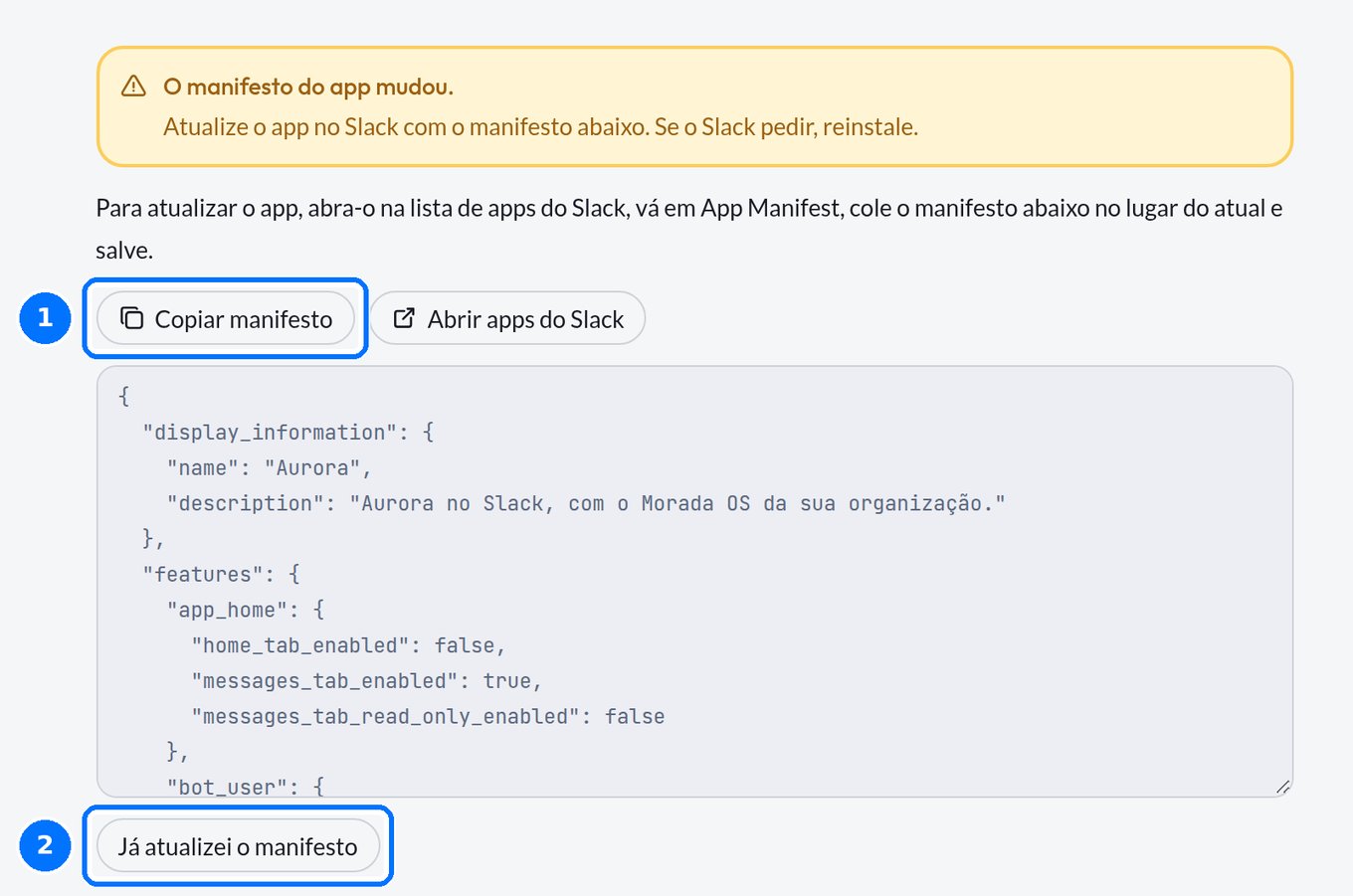
Update the app in Slack
Tell Morada OS
Remove Slack
To take the Slack app out of your organization, for example to install it again from a clean start, open Configurações > Conta > Canais > Slack > Administração (Settings > Account > Channels > Slack > Administration) in Morada OS, open Remover o Slack (Remove Slack) and click Remover o Slack da organização (Remove Slack from the organization). Morada OS asks you to confirm before it removes anything. When you confirm:- The app stops answering in Slack for everyone in the organization.
- Morada OS disconnects the app from the Slack workspace and deletes the credentials it kept for it.
- The conversations stay in Morada OS.
- To use Slack again, an organization admin makes a new installation, and each person connects their account again.
Delete the app in Slack
The app keeps existing in Slack until you delete it. After the removal, the Administração tab links to the app’s page in Slack: under Basic Information, choose Delete App. The notice stays on the page until someone starts a new installation.When something goes wrong
O OS está recusando mensagens do Slack. (The OS is refusing messages from Slack.)
O OS está recusando mensagens do Slack. (The OS is refusing messages from Slack.)
O app foi desinstalado ou perdeu o acesso no Slack. (The app was uninstalled or lost its access in Slack.)
O app foi desinstalado ou perdeu o acesso no Slack. (The app was uninstalled or lost its access in Slack.)
Faltam as credenciais do app. (The app's credentials are missing.)
Faltam as credenciais do app. (The app's credentials are missing.)
The installation was cancelled in Slack, or the installation request expired.
The installation was cancelled in Slack, or the installation request expired.
Não foi possível concluir a instalação. (The installation could not be completed.)
Não foi possível concluir a instalação. (The installation could not be completed.)
Instalações no Enterprise Grid ainda não são aceitas. (Enterprise Grid installations are not accepted yet.)
Instalações no Enterprise Grid ainda não são aceitas. (Enterprise Grid installations are not accepted yet.)
Este app foi instalado antes em outro workspace do Slack. (This app was installed before in another Slack workspace.)
Este app foi instalado antes em outro workspace do Slack. (This app was installed before in another Slack workspace.)
Esse workspace do Slack já está conectado a outra organização do Morada OS. (This Slack workspace is already linked to another Morada OS organization.)
Esse workspace do Slack já está conectado a outra organização do Morada OS. (This Slack workspace is already linked to another Morada OS organization.)
Someone says the app does not recognize them.
Someone says the app does not recognize them.
Someone mentioned the app in a channel and it did not answer.
Someone mentioned the app in a channel and it did not answer.