

This is not the Microsoft 365 connector. The connector, in Conectores (Connectors), lets the assistant read your email, calendar, files and Teams as you, from inside Morada OS. This is the opposite direction: Morada OS becomes an app inside your company’s Teams, and people talk to it there. Neither depends on the other.
Before you start
- An Azure subscription on the company’s Microsoft account. The bot lives in your Azure, and the free Azure Bot plan (F0) is enough.
- Permission to create resources in Azure and to register applications in Microsoft Entra. If your company restricts that, ask whoever administers Azure.
- Someone with the Teams administrator role (or global administrator) in Microsoft 365, to send the app to Teams in step 4.
- The organization’s icon, if you want the app to use it: it comes from Configurações (Settings), Identidade (Identity), in Morada OS.
Step by step
Click the button with your initials at the bottom of the sidebar, open Configurações > Conta > Canais (Settings > Account > Channels), choose Microsoft Teams and open the Administração (Administration) tab. Only organization administrators see this tab.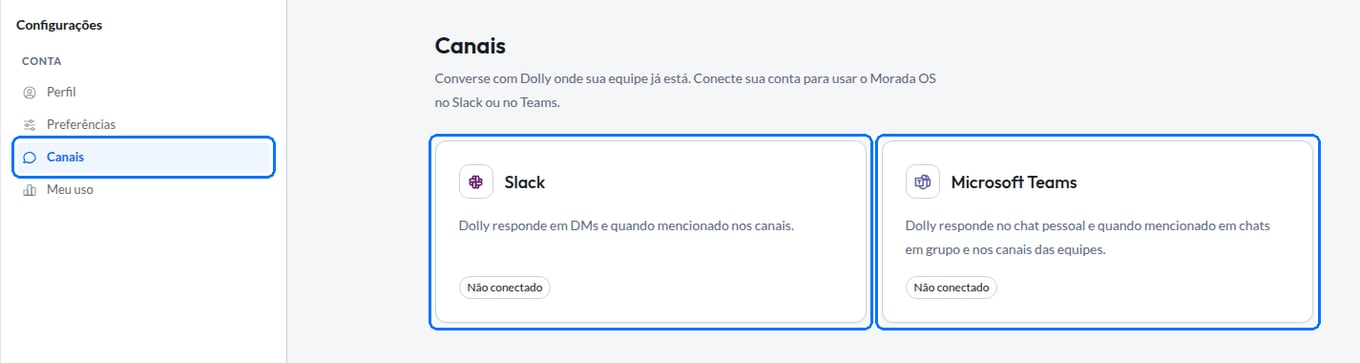
1
Name the app
In Nome do app no Teams (App name in Teams), write how the app will appear in Teams, up to 30 characters. By default, it is the assistant’s name in Morada OS.If the organization has more than one workspace in Morada OS, also choose Onde ficam as conversas do Teams (Where Teams conversations live): the workspace that receives the conversations of anyone who has not picked another one in their own preferences.Click Salvar e continuar (Save and continue).
2
Register the bot in Azure
- With one command (recommended)
- In the Azure portal
Morada OS generates a command you paste into Azure Cloud Shell, the terminal built into the Azure portal. The command creates the bot, the app registration and the client secret in your company’s Azure, with your own account, and sends the values straight to Morada OS. Nothing is copied by hand.
- In step 2, click Gerar o comando (Generate the command) and then Copiar (Copy). The command is valid for 30 minutes and works once.
- Click Abrir o Cloud Shell (Open Cloud Shell) and sign in with your Microsoft account. If Cloud Shell asks, choose Bash. The first time, it also asks about storage: choose No storage account required, select the subscription and click Apply.
-
Paste the command and press Enter. It shows the subscription and the directory it will use, by name and by ID, and everything it will create, including accepting the Microsoft Teams channel terms. Check it and answer
s(yes).If Cloud Shell shows, in yellow, Subscription used to launch your CloudShell … is not registered to Microsoft.CloudShell Namespace, go ahead. The warning is about the subscription Cloud Shell itself runs in, not the one the command uses, and it does not stop the command. - You see: the command goes through six stages and ends with Pronto (Done). The Teams page in Morada OS moves on by itself: steps 2 and 3 get a ✓ and step 4 opens.
Want to read the script before running it? Click Ver o que o comando faz (See what the command does) in step 2: it opens the exact text the command runs. The client secret never shows on screen. It goes straight to Morada OS, which checks it with Microsoft and stores it encrypted.
If the command stops
If the command stops
Running the same command again picks up where it stopped: nothing is created twice. If you would rather undo, the command shows what it created and the commands to delete it.


3
Azure credentials
- With one command (recommended)
- In the Azure portal
There is nothing to copy: the command in step 2 already sent the credentials to Morada OS, and Microsoft accepted them.You see: step 3 with a ✓, the title Credenciais do Azure (Azure credentials) and O comando enviou as credenciais do aplicativo (The command sent the application’s credentials) followed by the ID and the date the client secret expires. Go on to step 4.


4
Send the package to Teams
The package is the app’s file for Teams: it carries the name, the organization’s icon and the bot’s application ID.
-
Click Baixar o pacote (Download the package). You see: a
.zipfile in your downloads folder. Do not open or unzip it. -
Click Abrir o centro de administração do Teams (Open the Teams admin center) and sign in with a Teams administrator account. In Teams apps, Manage apps, click Actions and Upload new app. On some screens, Upload new app shows directly, without the Actions menu.

-
Click Upload and choose the
.zipyou downloaded. You see: the New app added window. Click this link to open the app’s page.
-
Choose who can use it. On the app’s page, open the Users and groups tab and click Edit availability. In Available to, choose everyone, specific users or groups, or no one, and click Apply.
 Guests from other companies do not use the app, even if they are on the list.

- Back in Morada OS, click Já enviei o pacote (I sent the package). You see: step 4 with a ✓ and step 5 open. If you reload the page, step 4 stays done.
- Optional: paste the app link. In Teams, open Apps, find the app, click Share and copy the link. In step 4 of Morada OS, paste it in Link do app no Teams (opcional) (App link in Teams, optional) and click Salvar o link (Save the link). With it, Morada OS shows Abrir no Teams (Open in Teams) to everyone, including people who have not added the app yet, and that button goes straight to the app’s page in Teams. If the app does not show for you in Teams yet, paste the link later: the field stays in step 5 and, after the install, sits in the Administração tab under Link do app no Teams. You can also ask in the Morada OS chat: “save this Teams app link”, with the link in the same message.
Teams can take a few hours to show a new app to people. An availability change takes up to 24 hours and, in rare cases, up to six days. Sending the package from Teams itself, outside the admin center, only works if the organization’s policy allows uploading custom apps.
5
Send the app a message in Teams
- In step 5, click Abrir no Teams (Open in Teams), if you saved the app link in step 4. Without the link, open Teams, go to Apps and search for the app by name.
-
Click Add. You see: Added successfully!. Click Open and send any message in the chat with the app. After adding it, Abrir a conversa no Teams (Open the chat in Teams), in step 5, also goes straight to that chat.

-
Go back to Morada OS. You do not need to click anything: step 5 shows Esperando o Teams avisar o Morada OS. (Waiting for Teams to tell Morada OS) and moves on by itself when Teams reports the app was added.

Install the app for everyone at once
Install the app for everyone at once
Instead of each person adding the app, you can install it for everyone, or for the people and groups you choose, from the Teams admin center:
- In Teams apps, Manage apps, open the app’s page.
- Open the Users and groups tab, then Installs, and click Install app.
- Choose who to install it for and click Apply. The app also becomes available to those people, with no other step.
After installing: tell your team
-
Each person connects their own Teams account, once, before the app answers them. It is in Configurações > Conta > Canais > Microsoft Teams (Settings > Account > Channels > Microsoft Teams), with Conectar minha conta (Connect my account). Until then, the app does not use the AI or spend credits: it only shows the person a card with a Conectar minha conta button that opens the Microsoft Teams page in Canais. That goes for you too.
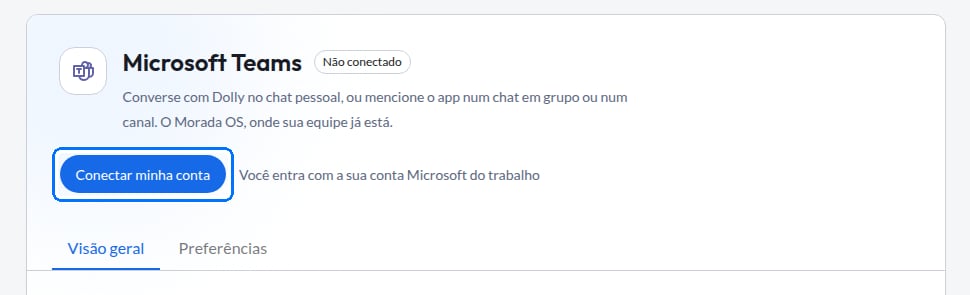
- The app recognizes each person by their Microsoft account’s email. Whoever is going to use it needs a Morada OS account with that same email. Invite anyone who does not have one yet.
- To use it in a channel, someone adds the app to the team. In Teams, in Apps, open the app, pick a channel under Select a channel and confirm. When adding it, Teams shows what the app can do, including reading the messages in the team’s channels: the app only reads the conversation where it is mentioned.
-
In a private channel, the app joins channel by channel. The first time someone mentions the app in a private channel, Teams asks whether to add the app to the channel. Click Add. Each private channel asks once.

- Channels shared with other companies are not served yet.
Check that everything is fine
After the installation, the Administração (Administration) tab of the Microsoft Teams page, in Canais, shows the app’s health:
For organization administrators, the Instalação da organização (Organization installation) badge on the card in Canais sums up the situation:
Below the table are Nome (Name) (or Nome e workspace, Name and workspace), Endereços do bot (Bot addresses), Pacote do app (App package), Link do app no Teams (App link in Teams) and Trocar o segredo do cliente (Change the client secret). If you change the app’s name, download the package again and send it to Teams.
When Morada OS asks for a new package
To use the app in group chats, keep the package up to date. When the Administração (Administration) tab shows a newer package, download it and upload it again in the Teams admin center, following the steps below. When Morada OS starts needing something new from Teams, the page shows O pacote do app mudou. (The app package changed.) and the card in Canais shows Precisa de atenção (Needs attention) for organization administrators.
1
Download the new package
Click Baixar o pacote, in the notice.
2
Send it as a new version
In the Teams admin center, in Manage apps, open the app and click Upload file, under New version, on its page. People who already use the app keep it, and the availability you chose still applies.
3
Tell Morada OS
Back in the Administração tab of Microsoft Teams, in Canais, click Já enviei o pacote. You see: the notice goes away and the installation returns to Ativo (Active) on the card in Canais.
Recreate a bot deleted from Azure

Remove Teams
To take the Teams app out of your organization, for example to install it again from a clean start, open Configurações > Conta > Canais > Microsoft Teams > Administração (Settings > Account > Channels > Microsoft Teams > Administration) in Morada OS, open Remover o Teams (Remove Teams) and click Remover o Teams da organização (Remove Teams from the organization). Morada OS asks you to confirm before it removes anything. When you confirm:- The app stops answering in Teams for everyone in the organization.
- Morada OS deletes the credentials it kept for the app.
- The conversations stay in Morada OS.
- To use Teams again, an organization admin makes a new installation, and each person connects their account again.
What is left to delete outside Morada OS
Morada OS has no access to your company’s Azure or Teams admin center. After the removal, the Administração tab shows what is left, with the installation’s IDs filled in. The notice stays on the page until someone starts a new installation.1
Delete the bot and the app registration in Azure
Copy the command from the page and run it in Azure Cloud Shell, in Bash mode, with an account in the installation’s tenant and in the subscription where the bot is.The command deletes only what the setup command created for this installation:
- the installation’s Azure Bot, when it uses the installation’s application;
- the app registration the setup command created, with its service principal;
- the bot’s resource group, when it is empty and the setup command created it.
- an Azure Bot that uses another application;
- an app registration created by hand in the Azure portal (the command shows the link so you can delete it there);
- a resource group that still holds other resources or that the setup command did not create;
- anything in Teams.
2
Delete the app in Teams
In the Teams admin center, open the app’s page and choose More commands (…) > Actions > Delete. The Morada OS page has a direct link when it knows the app; otherwise, find the app under Teams apps > Manage apps.Teams can keep showing the app for a few hours after it is deleted.
When something goes wrong
O app do Teams está sem acesso. (The Teams app has no access.)
O app do Teams está sem acesso. (The Teams app has no access.)
Morada OS can no longer sign in to Microsoft as the bot, which happens, for example, when the client secret expires or is deleted in Azure. Nobody gets answers in Teams until you fix it. Create a new secret in Certificates & secrets, in the bot’s app registration, and paste the value in Trocar o segredo do cliente, on the Teams page.
O Teams recusou uma resposta do app. (Teams refused a reply from the app.)
O Teams recusou uma resposta do app. (Teams refused a reply from the app.)
Check that the app is still added to the team or chat and that the package sent to the Teams admin center is the latest one.
Nobody can find the app in Teams.
Nobody can find the app in Teams.
A new app can take a few hours to show up, and an availability change takes up to 24 hours (in rare cases, up to six days). Check, in the Teams admin center, that the app is on the Manage apps list and that its availability includes the people looking for it. If the Teams store shows Request approval, do not click it: wait for Teams to release the app.
The page does not get past step 5.
The page does not get past step 5.
Teams has not told Morada OS yet, and with a new app that can take a few hours, up to 24 hours, and the time varies from one person to another. Check that the bot’s Messaging endpoint, in Azure, matches the one in Morada OS (in Ver os endereços do bot, See the bot’s addresses, at step 2), that the Microsoft Teams channel is connected to the bot, and that someone has already added the app in Teams. The page moves on by itself when the notice arrives.
Someone wrote to the app and it did not answer.
Someone wrote to the app and it did not answer.
The chat with the app can show up in someone’s list only because the app was added to a team. What the person writes there does not reach the app until they add it for personal use: Teams shows a banner at the top of the chat with an Add app button (Adicionar aplicação in Portuguese). Ask them to click it and send the message again. With a new app, Teams may also not have released the app to that person yet: wait up to 24 hours.
A person cannot connect their Teams account.
A person cannot connect their Teams account.
The Microsoft Teams page, in Canais, says why. If it is A Microsoft não concluiu a conexão. (Microsoft did not complete the connection.), check that the Morada OS URI de redirecionamento is registered on the Web platform, in Authentication, in the bot’s app registration. The other reasons are in Connect your account.
Could not download the package.
Could not download the package.
The notice says why. If it is the organization’s icon, upload the icon again in Configurações, Identidade, and download the package again.
Someone mentioned the app in a channel and it did not answer.
Someone mentioned the app in a channel and it did not answer.
Check that the app was added to the channel’s team, that the person connected their account, and that the channel is not shared: the app does not answer in shared channels yet. In a private channel, the app needs to be added to that channel itself: Teams asks about it on the first mention.