

Connect your account, just once
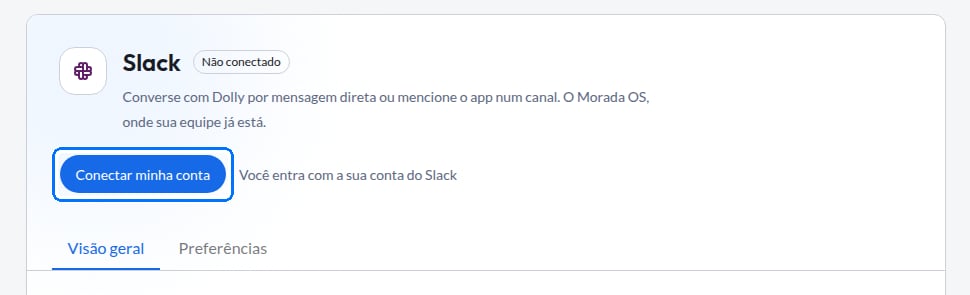
Before your first conversation, link your Slack account to your Morada OS account. That is what guarantees that the person talking to the app is you.Open Channels
Click Conectar minha conta (Connect my account)
Done
Where to talk
In a direct message
In a channel
Files
- Send them with the request. The assistant reads your message’s file and, in a thread, the files of the thread’s messages too.
- Channel files outside the thread are not opened. The assistant knows they exist and says where they are. To use one, mention the app in that file’s thread or attach the file to the request.
- What the assistant creates arrives in the conversation: charts, PDFs, images and spreadsheets show up as files in the thread.
In a channel, everyone reads the answer
In a channel the assistant has the same reach it has with you in Morada OS, including your e-mail, your files and your meetings, for requests like “olha meu e-mail e traz aqui pro pessoal o que o cliente respondeu” (check my e-mail and bring here for everyone what the client replied). It also knows that the answer goes to the thread and that everyone in the channel reads it:- Only the person who mentioned the app makes the request. Other people’s messages in the thread are context, never an order.
- Your private data comes in only when you ask. If the request to look for something of yours came from someone else, the assistant asks you first.
- It brings only what the request needs, and takes extra care when the channel has guests from outside the company.
What the app reads in a channel
Only what comes with a mention. The app does not follow the channel: it works when someone mentions it and, then, reads the mention’s thread or, for a mention outside a thread, the channel’s recent messages, to understand the subject.Nothing is done without your OK
It is the same rule as in Morada OS: you approve before it happens. In Slack, when the assistant needs to act on your behalf, the answer comes with a card in the conversation:In the direct message
In a channel thread
- When you click, the card shows Aprovando… (Approving…) or Recusando… (Declining…) and, when done, Aprovado por @you · feito (Approved by @you · done), or · falhou (· failed), or · confira o resultado no Morada OS (· check the result in Morada OS), or Recusado por @you (Declined by @you). The assistant confirms the result in the conversation. If the approval is gone from the conversation, the card shows Este pedido não está mais na conversa. (This request is no longer in the conversation.)
- Only the person who asked answers. If someone else clicks, they see, privately, Só @you pode responder a este pedido. (Only @you can answer this request.), and nothing changes.
- You can also answer in Morada OS, in the same conversation. The Slack card then shows Respondido no OS · aprovado (Answered in the OS · approved), or recusado (declined), and the assistant’s reply stays in Morada OS, not in the thread. The action runs only once.
- The request does not expire, and there is no Sempre permitir (Always allow) in Slack.
What stays in Morada OS
In Slack, the assistant does almost everything it does in the chat. A few things need the Morada OS screen:- Creating presentations, managing routines, creating or editing skills, connecting accounts, recording videos and sending product feedback. The assistant answers with the link to the conversation in Morada OS, where you carry on.
- Brain change proposals, skill reviews and connector authorizations arrive in Slack as a summary, with the link to answer in Morada OS.
- Group conversations (a direct message with several people) and slash commands are not supported.
Your Slack conversations in Morada OS
Each conversation with the app in Slack is also a conversation of yours in Morada OS, which only you see. It shows up in your list with the Slack icon, and the via Slack button at the top of the conversation opens the thread in Slack. In a channel thread, each person who mentions the app has their own conversation. If you use more than one workspace in Morada OS, choose where they arrive in Canais > Slack > Preferências, under Workspace das suas conversas (Workspace of your conversations). This choice applies to Slack and Teams. By default, each channel uses the workspace the organization chose at installation.The processing level in Slack
On the Slack page, in the Preferências (Preferences) tab, choose Nível de processamento nos canais (Processing level in channels): Leve (Light), Avançado (Advanced) or Profundo (Deep), among the ones your company has. If your company also uses Teams, the level is the same in both. It applies from the next answer on, also in existing conversations. Each answer is charged like one in the chat, on your credits, and deeper levels spend more per answer. You can also ask in the Morada OS chat: “muda meu nível do Slack para Leve” (change my Slack level to Light). A card asks for your OK before saving.When the app does not answer you
When the app cannot serve you, it explains why in a message only you see, and nothing runs. The messages come in Portuguese:Não encontrei uma conta do Morada OS com o e-mail do seu perfil do Slack. (No Morada OS account uses your Slack profile's e-mail.)
Não encontrei uma conta do Morada OS com o e-mail do seu perfil do Slack. (No Morada OS account uses your Slack profile's e-mail.)
Mais de uma conta do Morada OS usa o e-mail do seu perfil do Slack. (More than one Morada OS account uses your Slack profile's e-mail.)
Mais de uma conta do Morada OS usa o e-mail do seu perfil do Slack. (More than one Morada OS account uses your Slack profile's e-mail.)
Sua conta do Slack está conectada a outra pessoa no Morada OS. (Your Slack account is connected to someone else in Morada OS.)
Sua conta do Slack está conectada a outra pessoa no Morada OS. (Your Slack account is connected to someone else in Morada OS.)
Contas de convidado do Slack ainda não podem usar o Morada OS por aqui. (Slack guest accounts cannot use Morada OS here yet.)
Contas de convidado do Slack ainda não podem usar o Morada OS por aqui. (Slack guest accounts cannot use Morada OS here yet.)
O app atende só pessoas da organização que o instalou. (The app only serves people from the organization that installed it.)
O app atende só pessoas da organização que o instalou. (The app only serves people from the organization that installed it.)
Você não tem acesso ao workspace do Morada OS onde as conversas do Slack ficam. (You have no access to the Morada OS workspace where Slack conversations live.)
Você não tem acesso ao workspace do Morada OS onde as conversas do Slack ficam. (You have no access to the Morada OS workspace where Slack conversations live.)
No credits, or the trial ended.
No credits, or the trial ended.
Esta conversa foi apagada no Morada OS. (This conversation was deleted in Morada OS.)
Esta conversa foi apagada no Morada OS. (This conversation was deleted in Morada OS.)
- Não sei se terminei de responder. (I do not know whether I finished answering.) Something interrupted the answer halfway, and part of the request may have been done. The message carries the link to the conversation in Morada OS: check there what was already done before asking again.
- Não consegui responder a esta mensagem. Tente de novo em alguns minutos. (I could not answer this message. Try again in a few minutes.) The answer did not go out. Send the request again in a little while.