

What you’ll get
A copy of your image with the points you asked for marked: a crack during an inspection, a unit on a floor plan or a button in a screenshot. The assistant finds each point from your description and draws the marks on top, without redrawing the photo or changing what was in it. The copy appears in a new chat card with buttons to enlarge and download it, and the original stays intact in the conversation.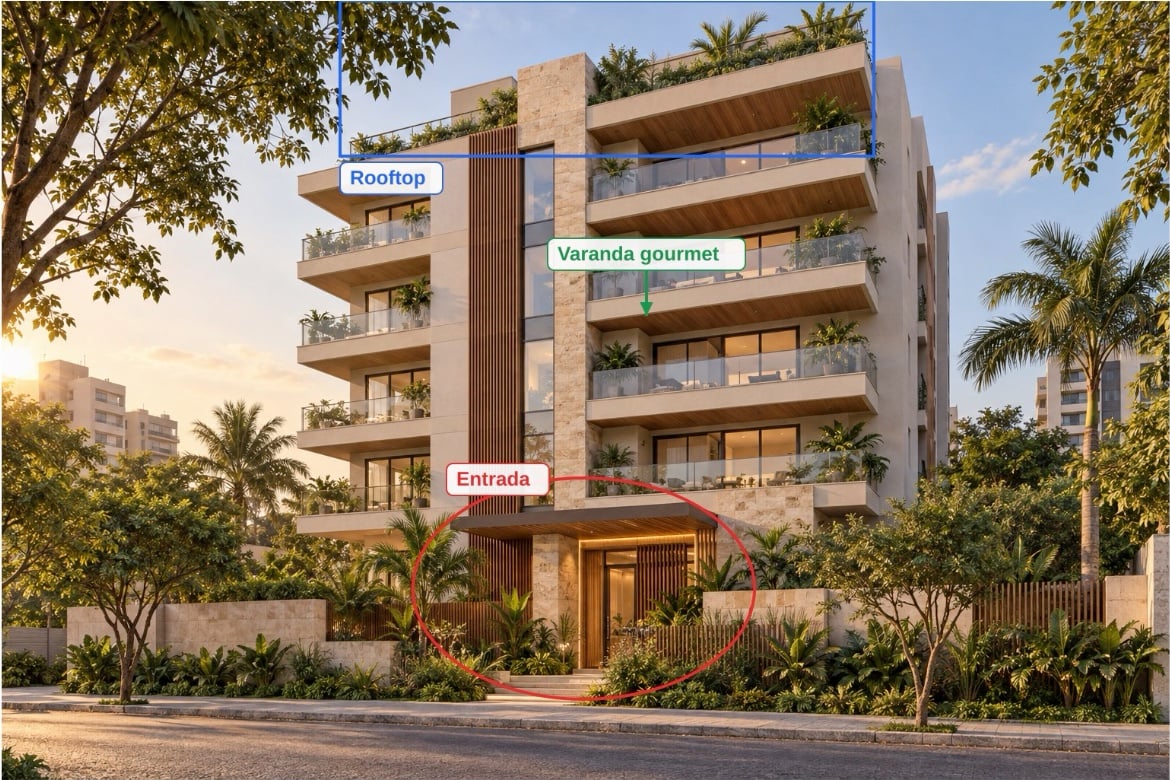
Step by step
1
Copy the ready-made request
Copy the whole request and replace the brackets with what you want to mark.
2
Attach the image and paste the request
Open the Morada OS chat, attach the photo, floor plan or screenshot and paste the request. Describe what you see: “the vertical crack in the wall, to the left of the window” helps the assistant find the right spot.You can upload PNG, JPEG, WebP or GIF images.
3
Wait a few seconds and open the card
While it works, the card shows Anotando sua imagem. (Annotating your image.) When the marked copy appears, use the buttons to enlarge it and check each point or download the file.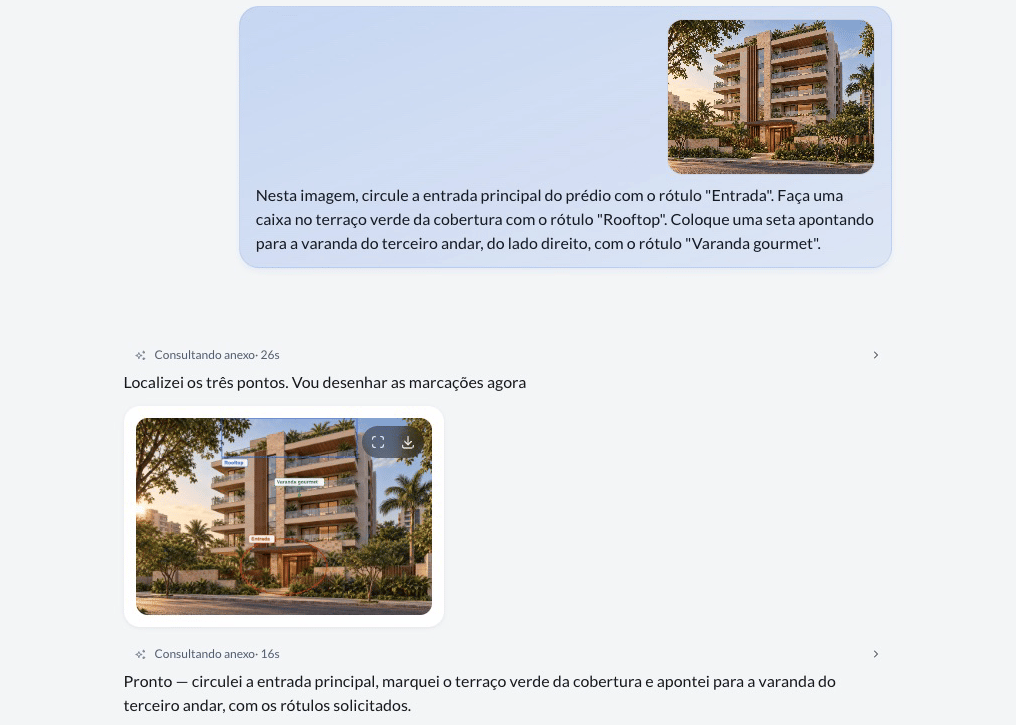
4
Adjust by talking, one change at a time
In the same conversation, write what you want to change:
“Move the arrow a little to the right.”
“Change the label to ‘Check for water damage’.”
“Remove the circle around the window.”Ask for one change at a time. Each adjustment creates a new version from the original, without stacking marks on top of previous ones. Even if you ask to mark an already-marked image, the assistant goes back to the original and redraws the marks.
The marks you can ask for
You can ask for a label of up to 80 characters beside any mark except blur. Keep it short, like “Water damage”, “Unit 204” or “1” and “2”.
The available colors are red, yellow, green, blue and white. If you do not choose, each mark gets a distinct color automatically. You can ask for up to 20 marks in one image.
Four everyday uses
Inspections and construction
You photographed problems in a unit and need to show each one to the builder or engineering team. The photo is not redrawn: the marks go on top of a copy, which still shows what was there.“Circle the crack in the wall to the left of the window and add the label ‘Crack’. Put a box around the dark stain on the ceiling, near the light fixture, with the label ‘Water damage’.”
Floor plans and site plans
You are showing a unit to a client and want them to find the apartment, amenities and access without searching the whole plan. Include the unit number and area you want in the label.“Put a box around unit 204, with the label ‘204, 68 m²’. Highlight the amenities area in green and add an arrow pointing to the main entrance at the bottom of the plan.”
System screenshots
You need to explain to a colleague where to click in the system your real estate agency uses. Mark the buttons and use numbered labels to show the team the order.“In this screenshot, add an arrow to the ‘Filters’ button at the top right, with the label ‘1’. Put a box around the ‘Apply’ button below the filters, with the label ‘2’.”
Marketing materials
You want to post a photo from a property visit or send property materials, but people or personal details are visible. Ask to blur the faces, license plates, phone numbers or documents and check the copy before using it.“Blur the face of the person beside the gate and the license plate of the car parked on the right.”
“Blur the phone number and the document on the table in the bottom left corner of this photo.”
Tips and common problems
- Describe what is visible and where it is. “The dark stain on the ceiling, near the light fixture” helps more than “the problem”.
- The assistant said it could not find it? Describe it differently. Add its position, appearance or something nearby instead of repeating the same request.
- Adjust in the same conversation, one change at a time. Ask to move an arrow, change a label or remove a mark. Each adjustment creates a new version from the original.
- Want to change the image’s content? Use image editing. Removing an object, changing a wall’s color or creating artwork is a separate feature. See how to use an image of your own as the starting point.
- A very large image was refused? Reduce its size and send it again, for example with a floor plan scanned at very high resolution.
Similar cases
- Create the artwork for an Instagram post. For creating a piece or changing the content of an image of your own.
- How to ask well. Learn what to include in your request and how to adjust the result by talking.