

What you’ll get
Finished artwork for an announcement, created inside the conversation: a vertical story to publish today and the same idea recomposed as a feed post, without opening an editor. The image shows up right there in the chat, you enlarge it to look closely, download it when you like it, and anything still missing you ask for in writing.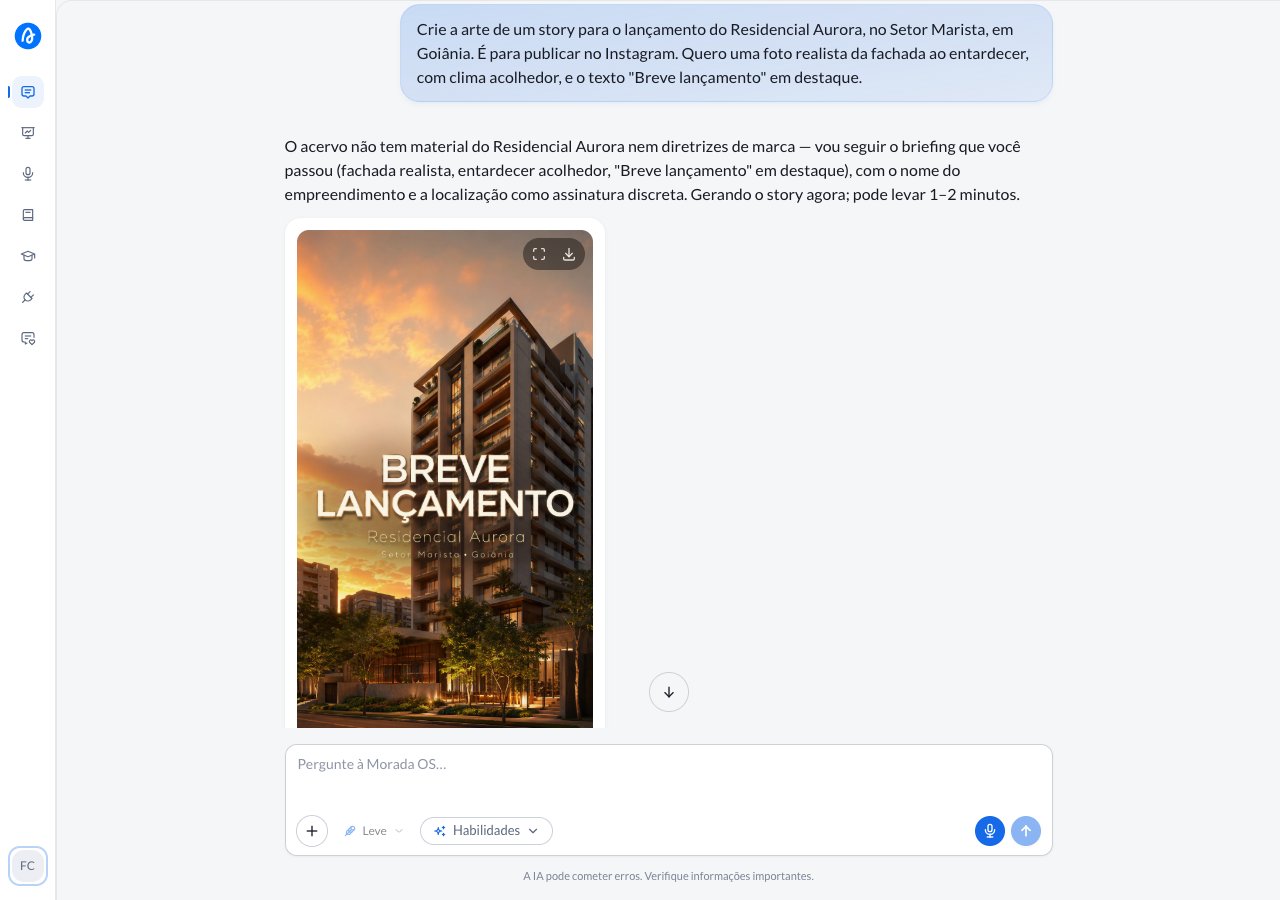
Step by step
1
Copy the ready-made request
This is the request you’ll use. Copy the whole thing.
2
Paste it into the chat and say where the piece will be published
The launch is tomorrow and the marketing team still hasn’t sent the artwork. You open Morada OS and paste the request, swapping the brackets for your own details.The most important part is saying where the piece will be published. You wrote “story”, so the assistant delivers it in the full-screen vertical format instead of a square you’d have to crop later. If you don’t say anything, it picks the format from what it understood of your request.
3
Wait for the image
While the artwork is being created, the card in the chat shows it’s working. It usually takes from half a minute up to two minutes. You don’t have to sit there watching: you can keep writing in the conversation, and the image appears as soon as it’s ready.When it does, click to enlarge it and read the text up close, or download the file straight from the button in the corner of the image.
4
Ask for the same artwork in another format
The story looks good and now you want the feed version. In the same conversation, write:
“Now a feed post with this same artwork.”It doesn’t start over: it takes the image you already approved and recomposes it in the vertical feed format, keeping the mood, the colors and the headline. That’s why it pays to get the story right first and ask for the other versions afterwards.
5
Adjust by talking, one request at a time
No going back to an editor. You write what you want different, in your own words:
“Make the sky warmer, like late afternoon.”
“Change the text to ‘Moradas do Cerrado’.”Ask for one change at a time. Two or three at once tend to come back half done; one at a time gets you where you want faster.
The six formats, chosen by destination
You don’t have to memorize any ratios. Say where the piece will be published and the assistant picks:On a story, the assistant already keeps the top and the bottom of the image free of text, because that’s where Instagram fits your name, the caption and the buttons. Without that care, the headline is born hidden behind the send button.
Use an image of your own as the starting point
You’re not limited to what the assistant imagines. Drag an image into the chat (the facade photo, the development render, the floor plan, the developer’s logo) and ask for whatever you want on top of it:“Use this photo of the facade and create the launch story, with the text ‘Coming soon’ in the center.”
“Put the logo from the second image in the top right corner of the first one.”
“Remove the background from this photo and leave only the building.”You can send several references in the same request, up to sixteen, which covers a whole brand kit or several angles of the same property. Send only the ones the artwork will actually use: a pile of loose references confuses more than it helps. And you don’t need to re-upload anything to edit an image that’s already in the conversation. Just refer to it (“in the story artwork you made”, “in the first image”) and ask for the adjustment.
Keep the conversation going
“Make three variations of this artwork for me to choose from.”
“Leave just the image, no text at all, I’ll write the caption on Instagram.”
“Now the version for the printed poster at the sales office.”
Tips and common problems
- Name the destination before describing the artwork. “It’s for an Instagram story” changes the whole format of the piece, and it’s the difference between artwork that works and artwork the team has to crop.
- Text in the image: short and in quotes. Write the exact headline in quotes in your request and keep it to five or six words. A long sentence inside an image goes wrong more easily; long copy belongs in the post’s caption, not in the artwork.
- A word came out wrong? Ask for the fix. The assistant writes text inside images very well, but not infallibly. When a letter comes out wrong, reply “rewrite the text as ‘X’, exactly like that” instead of starting the request over.
- Say what to preserve when you ask for a change. “Change only the sky, keeping the building and the text as they are” protects what already turned out well.
- Got artwork too different from what you approved? Point at the image it should have used: “use the story artwork as the base and just reframe it for the feed”.
- Budget the time. Each version takes from half a minute up to two minutes. For a piece going to a client, count on three or four rounds of adjustments to get it right.
- For institutional visuals, point to the brand references. Ask the assistant to follow the materials and guidelines available in Brain or a skill. Learn to prepare them in Visuals with your brand.
Similar cases
- Write the announcement copy for a launch. The natural pair for this recipe: one makes the artwork, the other makes the caption.
- How to ask well. It matters even more for images, where the result depends on how much detail you gave.